
Plan your week in the calendar.
See what’s coming up, inspect a busy day, and keep your next posts in view.
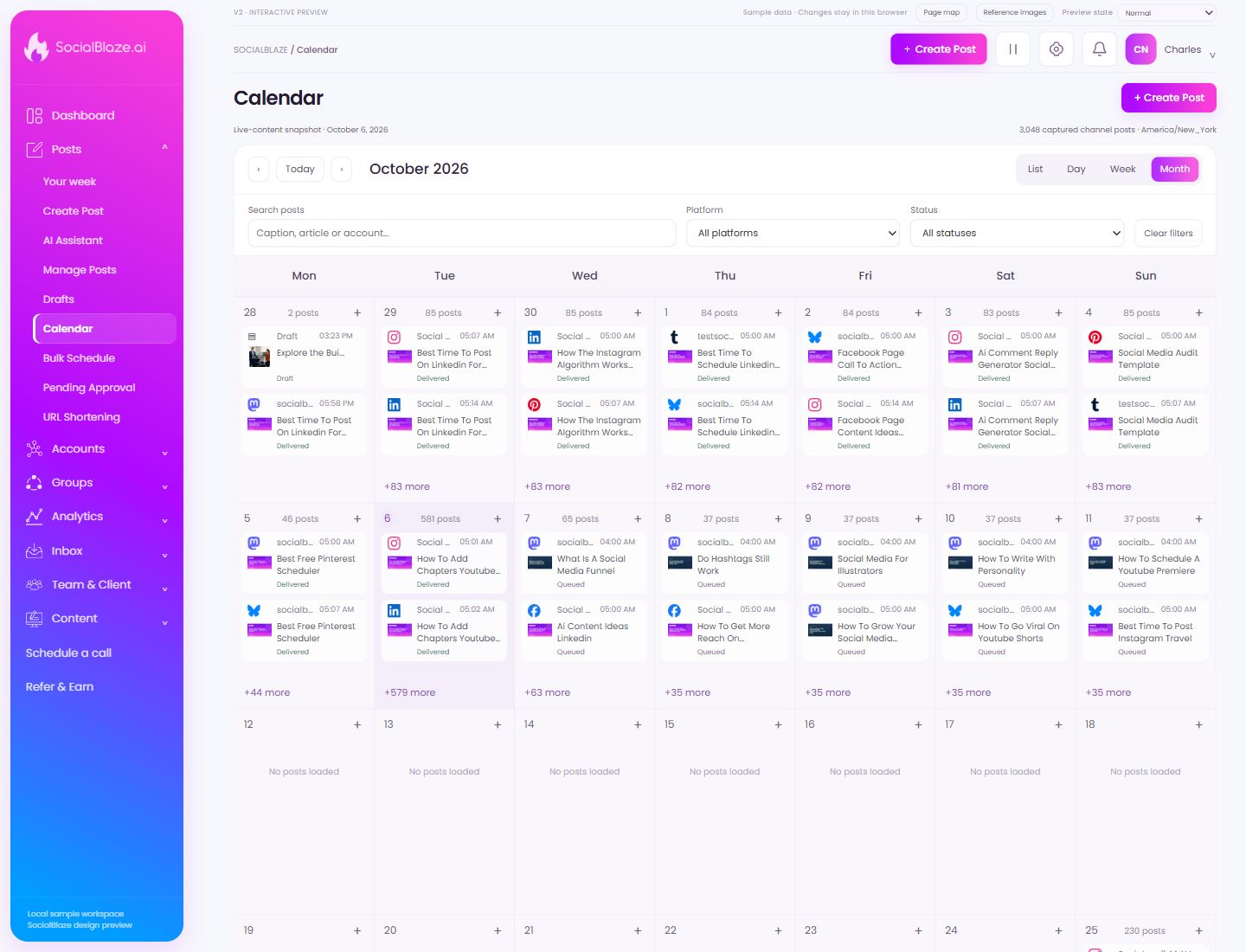
Orient yourself on the page
Design-preview images. These captures use sample data from the redesigned workspace. Illustrations use sample data. Available controls and results depend on your connected platform and account permissions.
Use this overview to locate the main controls before following the focused illustrations below.
Browse the preceding calendar period
Move backward by the current view’s period. Day, Week, and Month use different levels of detail, so read the heading after changing periods.
Return the calendar to today
Use Today after browsing other dates. Confirm the displayed month or week and the timezone context before adding or editing a scheduled post.
Browse the next calendar period
Move forward by the current view’s period. Confirm the date heading before selecting a day or editing a post.
Read scheduled posts as a list
Use List for a chronological view that is easier to scan without calendar cells. Open an individual post to inspect its caption, media, channel, and status.
Choose the queue day
Select a specific weekday or Every day. Pair it with the intended time and inspect all other slots to avoid an unintended schedule.
Plan across the selected week
Use Week to compare the distribution of posts across several days. Check the date heading and use the navigation arrows to change weeks.
See the month at a glance
Use Month to spot busy days and gaps. Calendar cells show a limited number of posts; use the more action to inspect the rest rather than assuming the cell shows every post.
Search the calendar
Search for a recognizable caption, article title, or account. Date, platform, and status selections can also narrow the visible posts. Clear them when searching more broadly.
Filter by publishing status
Choose Delivered, Queued, or Draft to inspect that stage of content. Return to All statuses to remove this restriction. The current calendar dates and search query still apply.
Create content for a calendar day
Use the plus action in the intended day. Review the composer’s selected date, account, and timezone before saving; the calendar position is only the starting context.
Inspect a calendar post
Open the post card to review its channel, content, publishing state, and planned time. Check that it is the intended item before editing or rescheduling it.
Open every post on a busy day
Use the more action to open the expanded day dialog. Its cards show the posts that do not fit in the calendar cell. Select a card to inspect that post.