
Invite your team. Give everyone the right access.
Add a teammate, choose their role, and decide which connected accounts they can use. A few clear choices keep your workspace organized.
Orient yourself on the page
Design-preview images. These captures use sample data from the redesigned workspace. Illustrations use sample data. Available controls and results depend on your connected platform and account permissions.
Use this overview to locate the main controls before following the focused illustrations below.
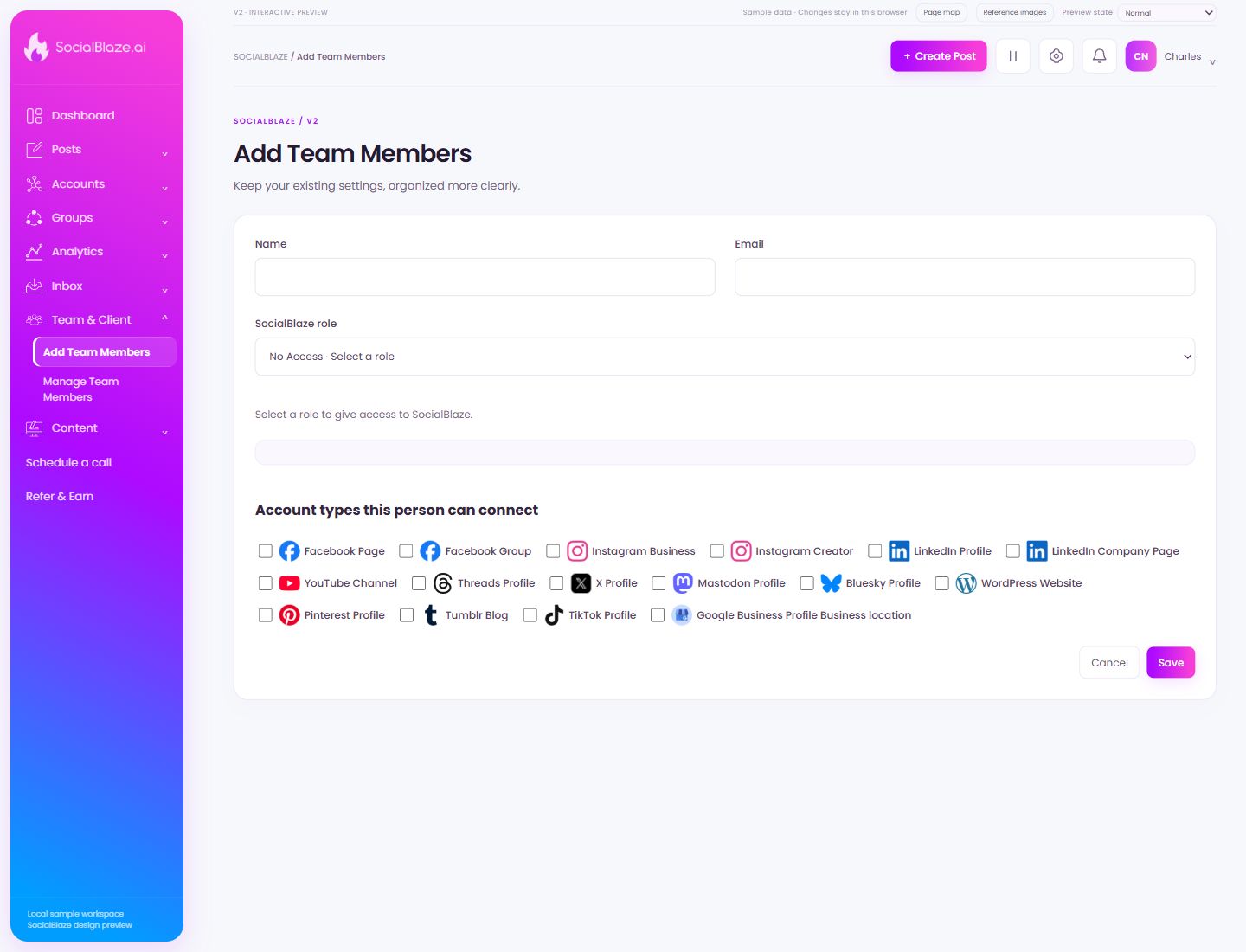
Enter the person’s name
Use the name you want shown in this profile or invitation. Check the email separately: the name identifies the person in the interface, while the email identifies their login or invitation destination.
Check the email address
Use the exact address intended for this account or invitation. Review spelling before saving. An invitation address and a notification-recipient address serve different purposes, so read the surrounding section.
Choose the person’s workflow role
Read the selected role’s description before saving. Admin, Manager, Content Scheduler, and Client have different responsibilities. Review account assignments and optional Publishing, Analytics, and Inbox grants separately; a role name is not proof of access to every account.
Select Facebook Page
Check this option only when it belongs in the intended account selection or permission configuration. Review the selected set before saving. Selecting a profile for a group or feed is separate from granting a person access to it.
Select Facebook Group
Check this option only when it belongs in the intended account selection or permission configuration. Review the selected set before saving. Selecting a profile for a group or feed is separate from granting a person access to it.
Select Instagram Business
Check this option only when it belongs in the intended account selection or permission configuration. Review the selected set before saving. Selecting a profile for a group or feed is separate from granting a person access to it.
Select Instagram Creator
Check this option only when it belongs in the intended account selection or permission configuration. Review the selected set before saving. Selecting a profile for a group or feed is separate from granting a person access to it.
Select LinkedIn Profile
Check this option only when it belongs in the intended account selection or permission configuration. Review the selected set before saving. Selecting a profile for a group or feed is separate from granting a person access to it.
Select LinkedIn Company Page
Check this option only when it belongs in the intended account selection or permission configuration. Review the selected set before saving. Selecting a profile for a group or feed is separate from granting a person access to it.
Select YouTube Channel
Check this option only when it belongs in the intended account selection or permission configuration. Review the selected set before saving. Selecting a profile for a group or feed is separate from granting a person access to it.
Select Threads Profile
Check this option only when it belongs in the intended account selection or permission configuration. Review the selected set before saving. Selecting a profile for a group or feed is separate from granting a person access to it.
Select X Profile
Check this option only when it belongs in the intended account selection or permission configuration. Review the selected set before saving. Selecting a profile for a group or feed is separate from granting a person access to it.
Select Mastodon Profile
Check this option only when it belongs in the intended account selection or permission configuration. Review the selected set before saving. Selecting a profile for a group or feed is separate from granting a person access to it.
Select Bluesky Profile
Check this option only when it belongs in the intended account selection or permission configuration. Review the selected set before saving. Selecting a profile for a group or feed is separate from granting a person access to it.
Select WordPress Website
Check this option only when it belongs in the intended account selection or permission configuration. Review the selected set before saving. Selecting a profile for a group or feed is separate from granting a person access to it.
Select Pinterest Profile
Check this option only when it belongs in the intended account selection or permission configuration. Review the selected set before saving. Selecting a profile for a group or feed is separate from granting a person access to it.
Select Tumblr Blog
Check this option only when it belongs in the intended account selection or permission configuration. Review the selected set before saving. Selecting a profile for a group or feed is separate from granting a person access to it.
Select TikTok Profile
Check this option only when it belongs in the intended account selection or permission configuration. Review the selected set before saving. Selecting a profile for a group or feed is separate from granting a person access to it.
Leave without applying the dialog changes
Use Cancel when you do not want to apply the proposed change. If the screen has unsaved content, read any discard confirmation before continuing.
Save the reviewed settings
Check the values and account selections before saving. After the dialog closes, reopen or inspect the resulting row to confirm the intended change.