
AI Assistant · visual field guide
An illustrated tour of AI Assistant with focused images of its controls and settings.
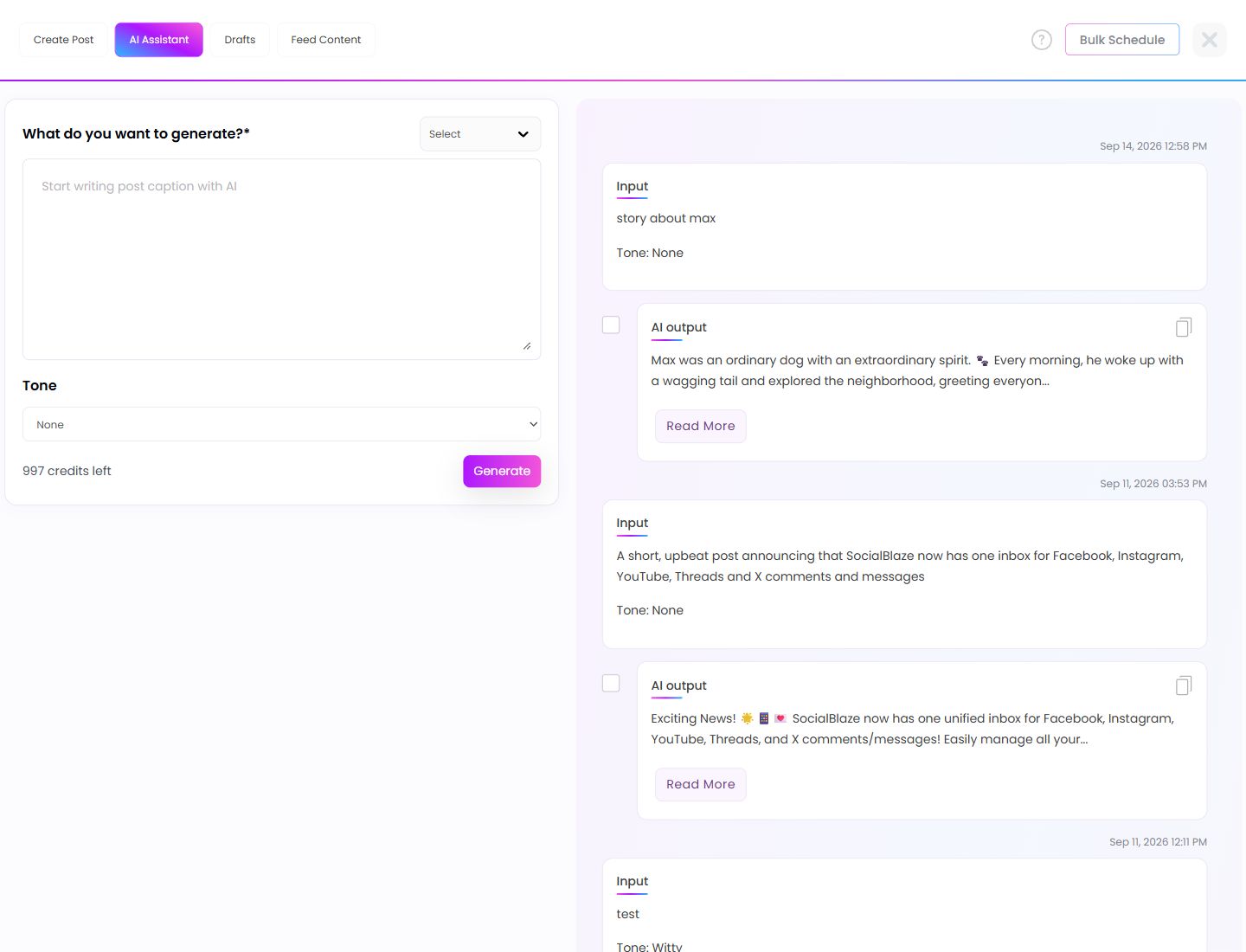
Orient yourself on the page
Design-preview images. These captures use sample data from the redesigned workspace. Illustrations use sample data. Available controls and results depend on your connected platform and account permissions.
Use this overview to locate the main controls before following the focused illustrations below.
Leave the composer safely
Close the composer only after deciding what should happen to the current content. Read the discard dialog if it appears; keep editing when you do not want to lose unsaved work.
Describe the caption you need
Give the assistant a topic, audience, purpose, and any facts that must be included. Avoid asking it to invent prices, dates, or claims. Review the generated draft before using it in the composer.
Choose the assistant’s tone
Select the tone that suits the business and audience. Tone changes wording style; it does not validate facts or guarantee that every phrase matches your brand.
Create an AI draft
Check the prompt, generation type, tone, and displayed credit information before generating. Read the full output for factual accuracy and usefulness before selecting it for a post.
Read the complete AI output
Open Read More to inspect the full generated caption. Check facts, tone, links, and audience before choosing the result. The history card is an editable starting point for a post, rather than evidence that its claims are accurate.