
Pending Approval · visual field guide
An illustrated tour of Pending Approval with focused images of its controls and settings.
Orient yourself on the page
Design-preview images. These captures use sample data from the redesigned workspace. Illustrations use sample data. Available controls and results depend on your connected platform and account permissions.
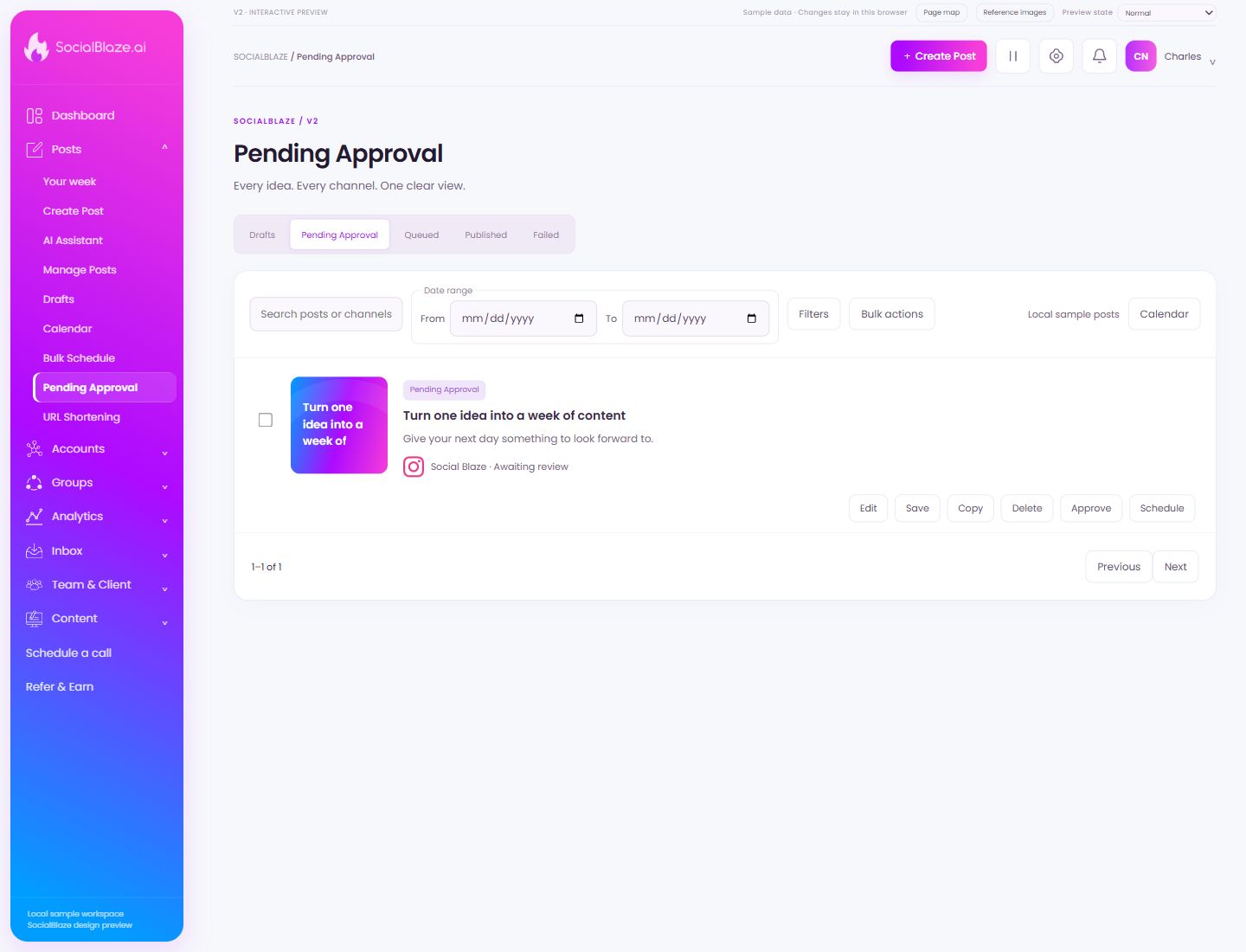
Use this overview to locate the main controls before following the focused illustrations below.
Work on saved drafts
Drafts holds unfinished posts. Open a draft to continue editing its caption, media, or account selection. Saving a draft does not itself schedule publication.
Find posts waiting for review
This tab separates posts submitted for review from scheduled content. Review the selected account, caption, media, and comments before using an approval action. Available actions depend on your role.
Review upcoming queued posts
Queued shows content waiting to publish. Check each row’s account and scheduled time. Use Reschedule to change the planned time, then verify the updated row or calendar entry.
Review completed publishing
Use Published to locate posts that have finished publishing. Read the delivery state and platform account; a local preview state does not prove a live network accepted a post.
Investigate publishing failures
Use Failed to find posts needing attention. Inspect the error and account connection before retrying. Fix the cause and check the resulting state rather than repeatedly submitting the same failed content.
Search the post list
Enter a recognizable caption phrase or channel name. Search works alongside the selected status tab and date filters. Clear it if you want to return to the entire selected post state.
Set the start of the date range
Choose the earliest date to include in the post list. Pair it with End date and check that the start is not later than the end. A narrow range can hide otherwise valid posts.
Set the end of the date range
Choose the latest date to include. Check the selected post state and the start date too. Clear both dates when you need to search beyond the current range.
Narrow the current list
Open Filters to see the options for this page. Apply only the conditions you need. If a known item disappears, review the active filters before assuming it was removed.
Apply an action to selected posts
Select the intended rows first, then open Bulk actions. Check both the selected count and the action’s confirmation. A batch action can affect several posts at once.
See these posts on the calendar
Switch to the calendar when dates are easier to inspect visually. Use the same account and date context to locate the intended post, then open it for details.
Select a specific item
Select this checkbox to include only this item in a batch action. Review the selected count and each selected row before using bulk controls. Clear the checkbox to exclude it again.
Open this item’s settings
Choose Edit on the intended row. Review the dialog before saving. A row action applies to that item, so check the name and platform rather than relying on its position in the list.
Save the reviewed settings
Check the values and account selections before saving. After the dialog closes, reopen or inspect the resulting row to confirm the intended change.
Create a copy to work from
Use Copy when you want a new starting point from an existing post. Review the copied caption, media, channels, and schedule before saving it as a separate post.
Review removal before confirming
Identify the exact item first, then read the confirmation carefully. Cancel if you only intended to edit, reconnect, or lock it. Removing a connection is different from deleting a social profile on its own platform.
Approve a post after reviewing its content
Check caption, media, platform preview, and channel choice first. Approval and scheduling are separate decisions where the interface provides separate actions.
Choose when the post should go live
Open scheduling, confirm the date, time, and timezone, and review selected channels. After saving, find the post in the queue or calendar to verify its planned time.
Go to the previous page
Use Previous to browse earlier list results. Check the result count and retained filters so you know which set of items you are navigating.
Go to the next page
Use Next when more results are available. Search and filters still apply on the next page. A disabled button indicates that there is no further page in the current result set.
Post filters
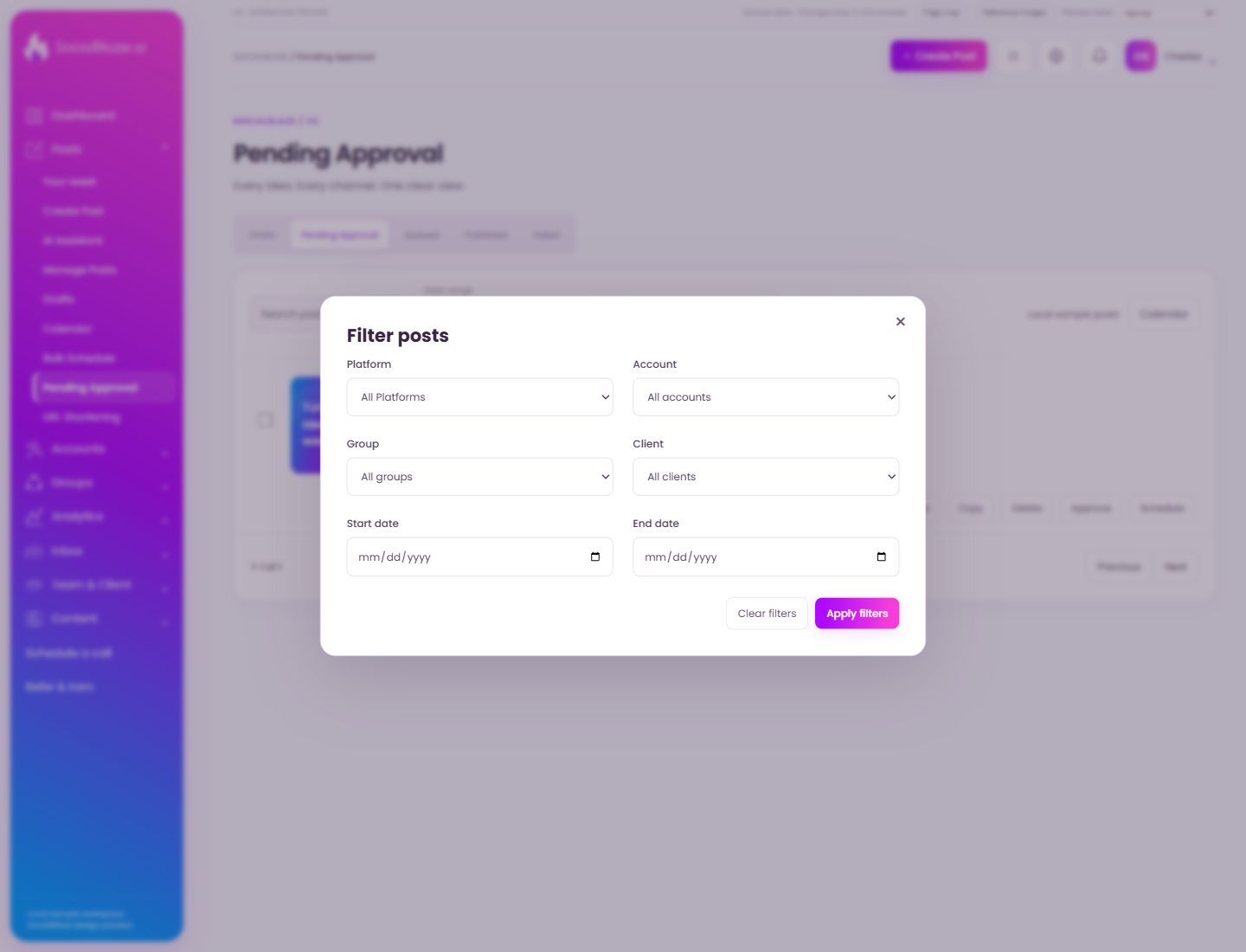
Open the action on the intended item, then review the fields in this dialog. The focused illustrations below explain each setting separately.
Close the settings dialog
Close the dialog when you have finished reviewing it. Use its Save action to apply intended edits; read any unsaved-change confirmation before leaving.
Filter by social network
Choose the platform relevant to your search. Account, group, date, and client filters may also restrict the results. Clear unnecessary conditions if the expected item is missing.
Choose the relevant account
Select the intended platform account. In a custom-field dialog this associates a value with a particular account; in a filter dialog it narrows the results. Read the dialog heading before applying the selection.
Filter by an account group
Choose the group whose posts or accounts you need. Review the group’s member accounts separately; its name alone does not establish which profiles are included.
Review the client association
Select the intended client where available. Check the linked account and the client’s optional permissions separately. A client association and publishing permission are different settings.
Set the start of the date range
Choose the earliest date to include in the post list. Pair it with End date and check that the start is not later than the end. A narrow range can hide otherwise valid posts.
Set the end of the date range
Choose the latest date to include. Check the selected post state and the start date too. Clear both dates when you need to search beyond the current range.
Restore the unfiltered calendar
Use Clear filters to remove the current search and filter restrictions. Check the current calendar period afterward; clearing filters does not mean moving to a different date.
Show the filtered results
Review each selected condition, then apply the filters. Check the resulting count and selected date range. Clear filters if you need to return to the broader list.