
Subscriptions · visual field guide
An illustrated tour of Subscriptions with focused images of its controls and settings.
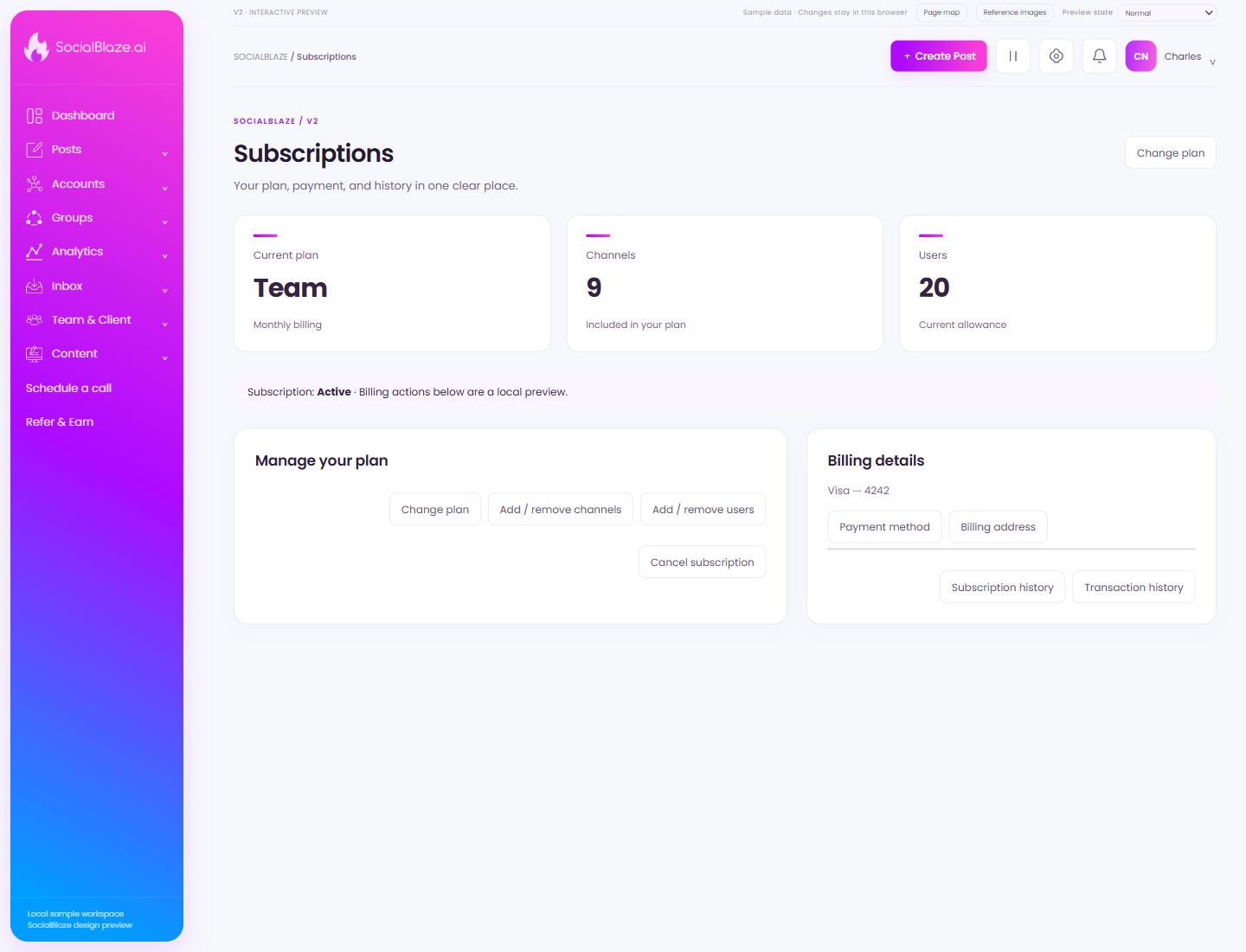
Orient yourself on the page
Design-preview images. These captures use sample data from the redesigned workspace. Illustrations use sample data. Available controls and results depend on your connected platform and account permissions.
Use this overview to locate the main controls before following the focused illustrations below.
Review subscription choices
Open the plan options and compare the account allowance, features, amount, and billing interval. Read the final billing summary before confirming a subscription change.
Review the channel allowance
Open the channel controls and compare the new allowance with the workspace’s connected and active accounts. Check the displayed recurring amount before applying a change.
Review the user allowance
Open the user controls and check the intended seat count. Review the billing effect before confirming and distinguish subscription capacity from a particular person’s permissions.
Review cancellation details
Open the cancellation flow and read the timing and access information displayed. Confirm only after reviewing the intended subscription and any renewal consequences.
Review the subscription payment method
Open payment settings to inspect or update the billing method. Confirm the account and read the provider’s form before saving a change.
Review billing contact details
Open the billing-address form and check the name, address, and any tax details required by the payment provider. Review the final values before saving.
Inspect subscription changes
Open the history to review plan changes and their dates. Compare the entries with the current subscription rather than assuming the latest invoice describes every change.
Find billing transactions and invoices
Review transaction dates, amounts, currency, and status. Use the available invoice action for the intended transaction and inspect the downloaded document.