
Bulk Schedule · visual field guide
An illustrated tour of Bulk Schedule with focused images of its controls and settings.
Orient yourself on the page
Design-preview images. These captures use sample data from the redesigned workspace. Illustrations use sample data. Available controls and results depend on your connected platform and account permissions.
Use this overview to locate the main controls before following the focused illustrations below.
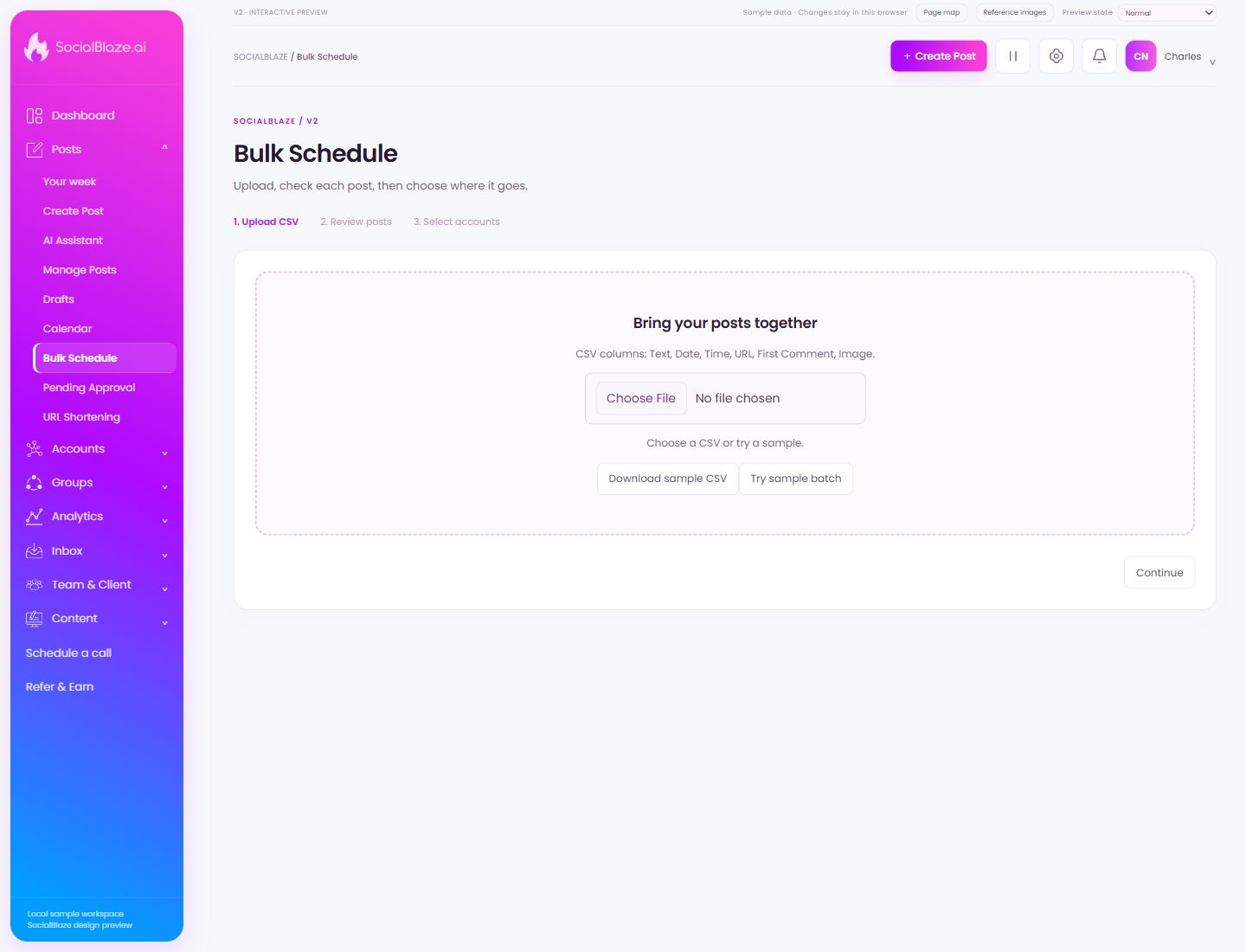
Import a batch of post rows
Choose a CSV in the required format. Use the sample file to check column headings and required values. After upload, review parsed posts, dates, media URLs, and account assignments before scheduling.
Start with the expected CSV structure
Download the sample and use its column headings as the formatting reference. Keep each post on its own row. Review the upload screen’s required fields before importing your batch.
Explore the review step with sample content
Load the design preview’s sample batch to inspect review and account-selection screens. This is demonstration content, not a live publishing batch.
Move to the next review step
Complete the required fields first. Continue advances the flow; review each post and its account assignment before the final scheduling action.