Create Post composer · visual field guide
An illustrated tour of Create Post composer with focused images of its controls and settings.
Orient yourself on the page
Design-preview images. These captures use sample data from the redesigned workspace. Illustrations use sample data. Available controls and results depend on your connected platform and account permissions.
Use this overview to locate the main controls before following the focused illustrations below.
Start a new post in the composer
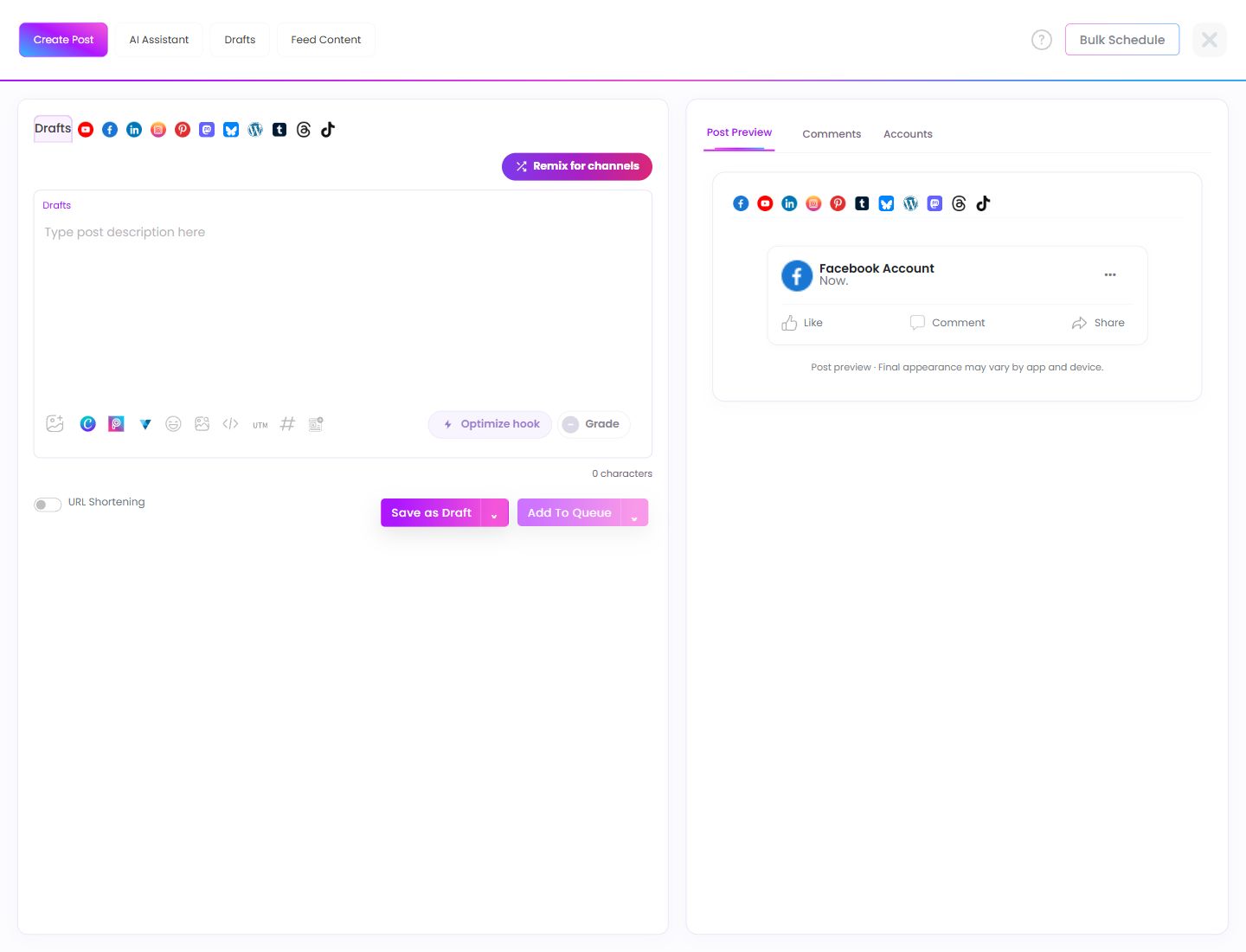
Open the composer to prepare content. Choose the intended accounts, write the caption, add media, and inspect each platform preview before saving, submitting for approval, or scheduling.
Open the writing assistant
Use the assistant to develop a starting point for content. Give it a clear audience, topic, and purpose, then review the generated wording before using it in a post. Generated text still needs factual and editorial review.
Work on saved drafts
Drafts holds unfinished posts. Open a draft to continue editing its caption, media, or account selection. Saving a draft does not itself schedule publication.
Browse content from configured sources
Open the feed-content area to choose a source article. Inspect the title, source, media, and link before turning it into a post or saving it to the library.
Open guidance for the composer
Use this help link when you need an explanation of the composer controls. Return to the post afterward and review unsaved work before closing it.
Import several posts together
Open Bulk Schedule for a CSV batch. Review the file format, parsed posts, media, dates, and assigned accounts before the final scheduling step.
Leave the composer safely
Close the composer only after deciding what should happen to the current content. Read the discard dialog if it appears; keep editing when you do not want to lose unsaved work.
Customize the Threads caption
Open this platform tab to review the caption intended for Threads. Check the selected Threads account and its preview before scheduling.
Customize the TikTok content
Open the TikTok tab and review the platform-specific content and media requirements displayed by the composer. Check the intended account and preview before scheduling.
Adapt the caption for different channels
Prepare a caption first, then use the remix action to create channel-specific starting points. Review each version for meaning, length, tone, and factual accuracy before using it.
Write the post caption
Add the message you want to share. Review spelling, links, mentions, and hashtags. Select each channel’s caption and preview when customizing content for multiple networks.
Attach the post’s images or video
Open the media picker and select supported files. Check the selected media, order, crop, and each platform preview before continuing to a publishing action.
Open the Canva design workflow
Use the Canva control to work on artwork through the supported integration. Review the returned image in the composer before scheduling; the design tool and the publishing preview are separate steps.
Open the image-editing integration
Use this control for the supported Picsart workflow. Review the final image after it returns to the composer and confirm it is the media intended for the selected post.
Open the VistaCreate workflow
Use the design integration to create or edit artwork, then inspect the returned media in the composer. Check its size and readability in each selected platform preview.
Add an emoji at the cursor
Open the emoji picker and choose an emoji appropriate to the conversation. Review the full reply afterward so its meaning and tone remain clear.
Browse ready-made visual assets
Open the stock-image or GIF picker, choose an appropriate asset, and review the attached result. Confirm relevance and readability before using it in a post.
Insert reusable field values
Choose the field you need and inspect the resulting caption text. Check the current value before reusing a field across posts, especially when it contains dates, offers, or client-specific wording.
Add campaign tracking to links
Choose the appropriate tracking preset and inspect the final URL. Source, medium, and campaign should describe this post’s purpose. Confirm the destination still opens correctly.
Inspect hashtag content or performance
On analytics pages, use this tab for hashtag-related reporting. In the content library, the same label filters saved hashtag sets. Read the page heading to distinguish those workflows.
Review the post’s timing
Open timing controls and check the date, time, and timezone for the intended account. Verify the saved result in Manage Posts or Calendar.
Refine the opening of the caption
Write a caption before using Optimize hook. Review the suggested opening so it accurately introduces the rest of the post and suits the audience.
Review the caption feedback
Open the grading feedback to find potential improvements. Treat it as guidance, then use your own review for factual accuracy, brand voice, and platform suitability.
Save unfinished content
Save a draft when the post is not ready for publication. Reopen it from Drafts to confirm the caption, media, and account selections were retained.
Choose the post’s next workflow action
Open this action to review the available scheduling or publishing choices. Check the selected accounts, caption, media, date, time, and approval requirements before confirming.
Inspect how each channel will display the post
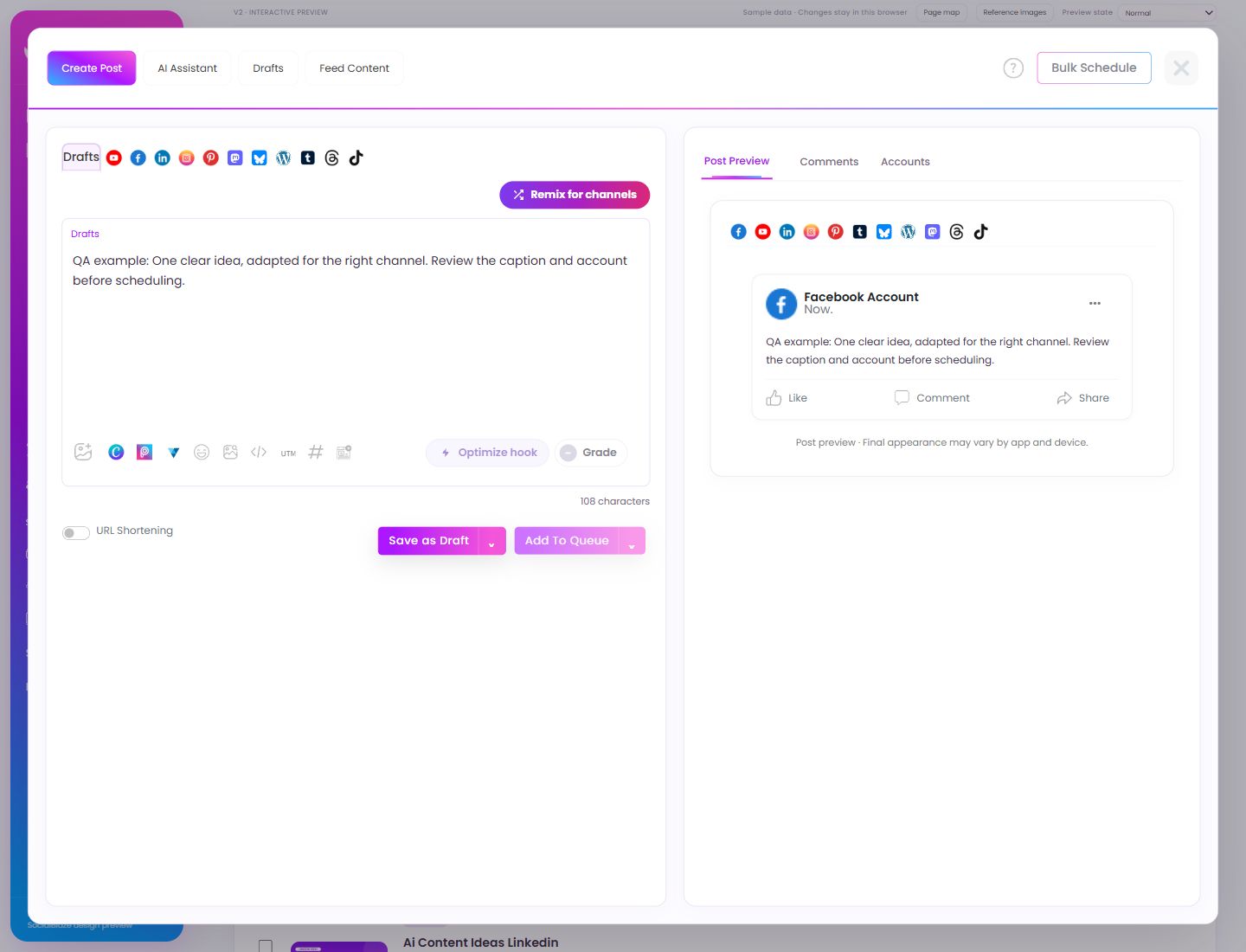
Choose the preview tab, then inspect each selected platform. Check the caption, media, and link appearance. A preview is illustrative; final network rendering can vary by device and app.
Review the post’s collaboration area
Open Comments to inspect discussion associated with the post. Distinguish internal review comments from replies made to a published social conversation.
Choose the publishing destinations
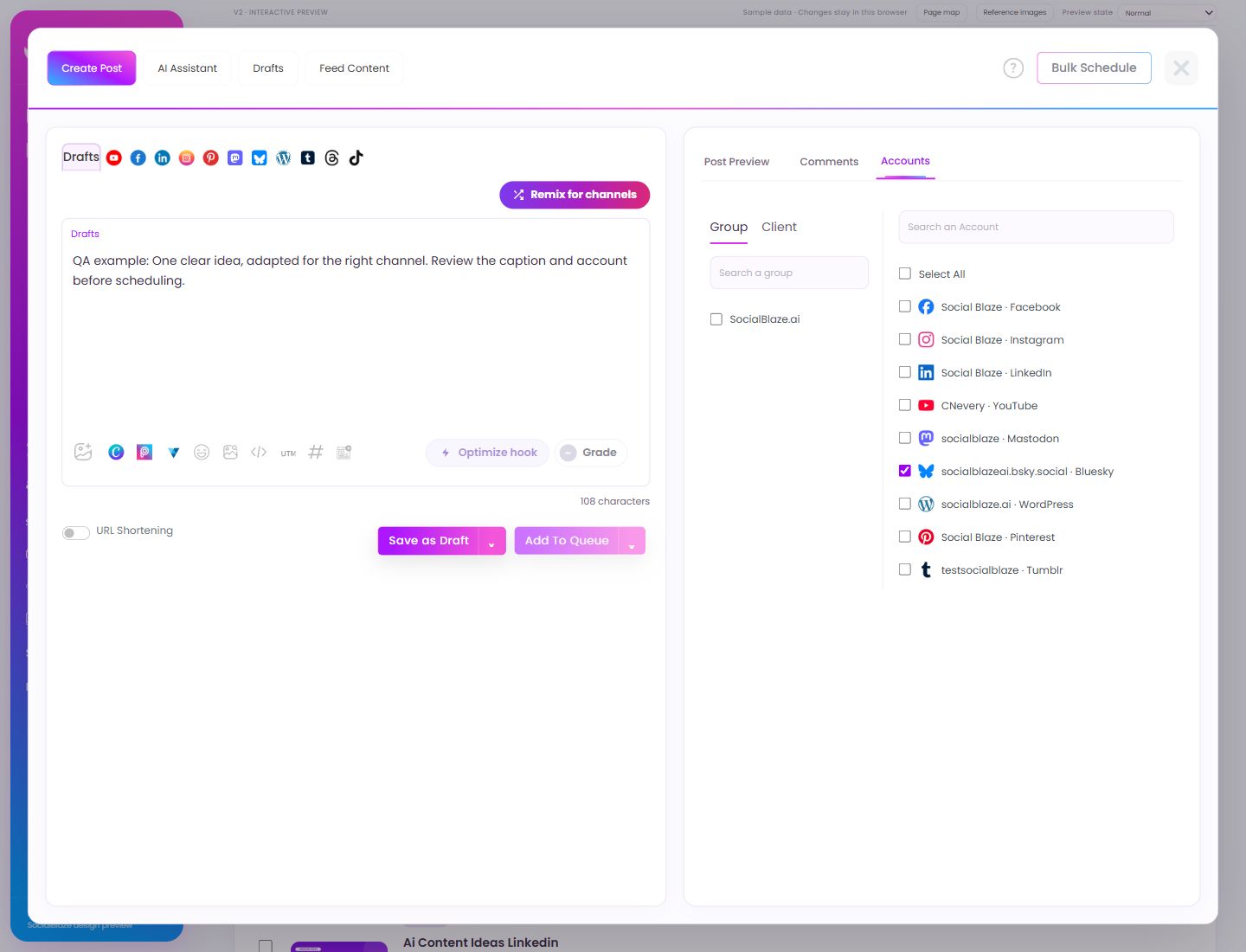
Open Accounts, search for the intended profiles, and select them individually or through the appropriate group. Review every checked account before scheduling or publishing.
Inspect the Threads preview
Open this preview to review the caption and media intended for Threads. Confirm the selected account; the final app appearance can differ from an illustrative preview.
Inspect the TikTok preview
Open this preview to check the content intended for TikTok. Confirm the selected account and media before using a publishing action.
Choose a specific destination account
Open Accounts, search the account list, and check the intended profile. The example selects only Bluesky. Group and Client help locate accounts; Select All can select a broader set, so inspect each checked row. Writing in a platform tab does not replace destination selection.
Review every selected platform preview
Open Post Preview and select the matching platform symbol. Inspect the caption, link, media order, and crop. Preview tabs and destination checkboxes are separate controls: seeing a Facebook preview does not mean Facebook is the selected publishing account. Repeat the review for every destination.
Schedule at a specific date and time
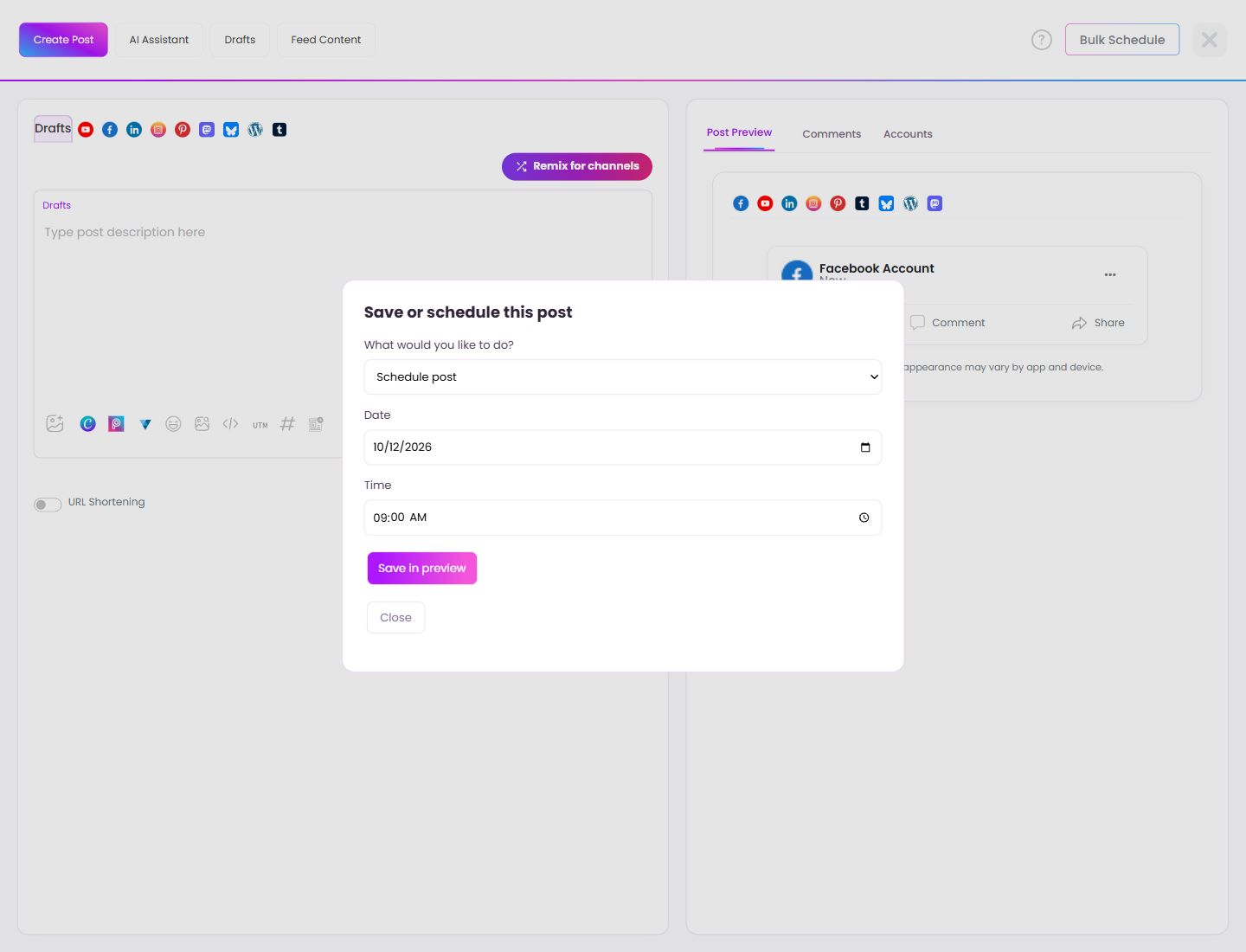
Open the save/schedule action and choose Schedule post. Enter the intended date and time. Confirm the connected account timezone separately, then review the destination and content again. After saving in the real workspace, verify the post in the queue and calendar; this screenshot shows the local preview form.
Request approval instead of scheduling
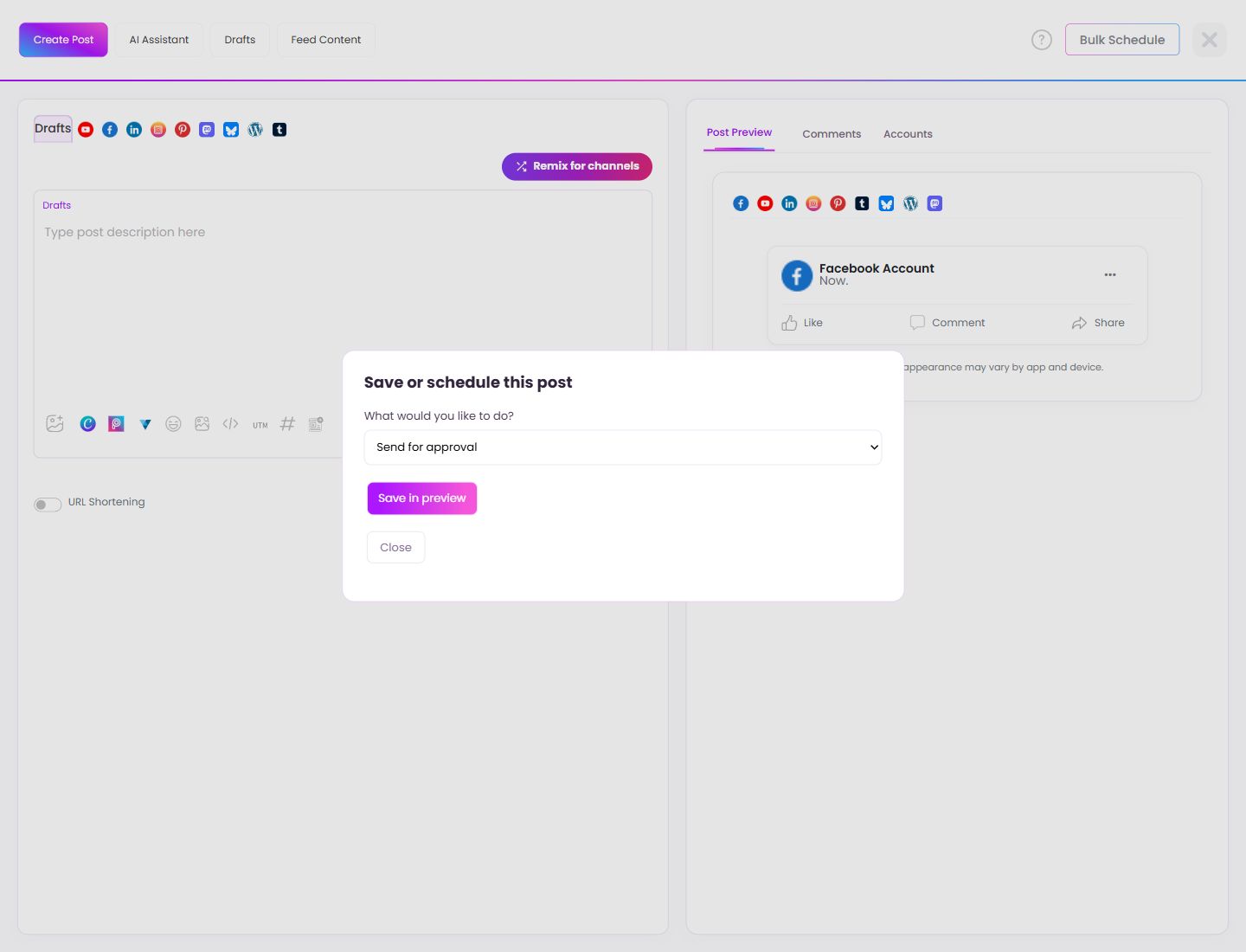
Choose Send for approval when the post needs a reviewer. The scheduling fields disappear in this preview because requesting review is a separate action. Check that the intended accounts remain selected. In the live workspace, the available action depends on your role and grants; verify the resulting post under Pending Approval before treating the request as successful.