
X Inbox · visual field guide
An illustrated tour of X Inbox with focused images of its controls and settings.
Orient yourself on the page
Design-preview images. These captures use sample data from the redesigned workspace. Illustrations use sample data. Available controls and results depend on your connected platform and account permissions.
Use this overview to locate the main controls before following the focused illustrations below.
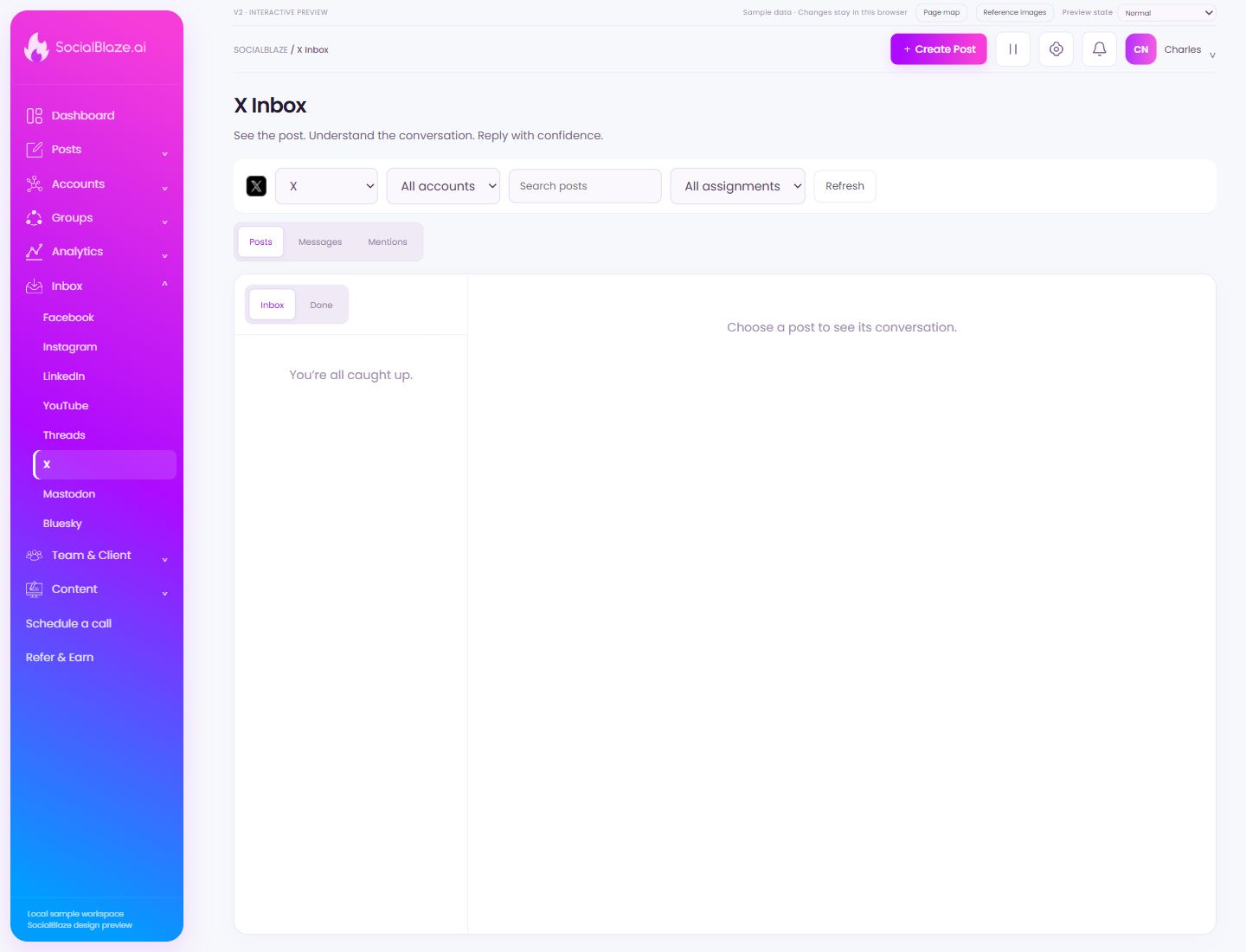
Switch social inboxes
Choose the network whose conversations you want to work on. Then choose the intended account. Message and attachment support vary by platform.
Choose the account whose conversations you need
Select the connected profile for this inbox. All accounts combines the available accounts. If the expected account is missing, review both its connection and your assigned account access.
Find the post conversation you need
Search using a recognizable part of the caption. The selected account and assignment filters still matter. Clear the query if you want to browse the full available list.
Find work assigned to a person
Select Unassigned to find conversations without an owner, or select a teammate to see their work. Return to All assignments to remove this filter.
Request the latest visible items
Refresh the current view after changing accounts or when checking for new activity. Keep the same filters in mind when deciding whether an item is missing.
Work with comments on published posts
Use Posts to browse post conversations. Select a post in the left column; the main panel shows its original content and comments so your reply has context.
Switch to direct conversations
Use Messages for message threads supported by the selected platform. Read the selected thread and its account before replying. Availability varies by network and granted permissions.
Review mentions of the account
Open Mentions where the platform supports it. Read the selected account and the original context before replying or marking the conversation complete.
See conversations that still need attention
Use Inbox to work through open conversations. Select an item to inspect it before deciding who should reply or whether the conversation is finished.
Review completed conversations
Use Done to inspect conversations marked complete. This separates finished work from conversations still waiting in the inbox.