
Feed Content · visual field guide
An illustrated tour of Feed Content with focused images of its controls and settings.
Orient yourself on the page
Design-preview images. These captures use sample data from the redesigned workspace. Illustrations use sample data. Available controls and results depend on your connected platform and account permissions.
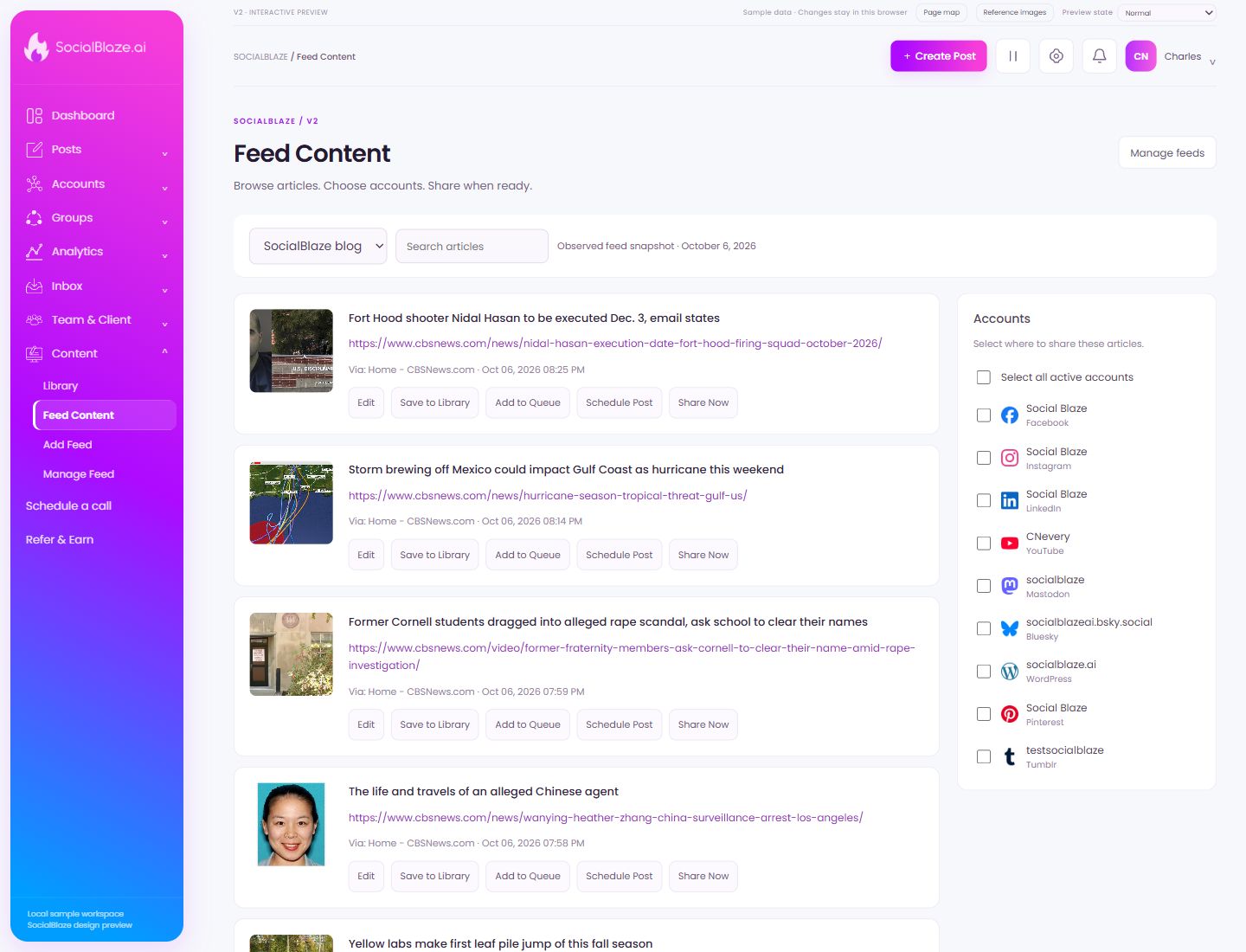
Use this overview to locate the main controls before following the focused illustrations below.
Review the sources behind feed content
Open Manage feeds to inspect which RSS sources are configured. Check the intended source and its state before editing or disabling it.
Choose an RSS source
Select the feed whose articles you want to browse. The feed selector changes the article source; account selection controls where you may send a chosen item.
Find a feed article
Search for an article title or recognizable phrase. Check which feed is selected before deciding whether an article is missing.
Open this item’s settings
Choose Edit on the intended row. Review the dialog before saving. A row action applies to that item, so check the name and platform rather than relying on its position in the list.
Keep a feed idea for later
Save the selected article to the library when you want to reuse it later. Review the saved content’s title, caption, media, and links before creating a post from it.
Place reviewed content in the queue
Check the intended social accounts and the article’s caption first. Add to Queue uses the account’s queue workflow; inspect the resulting queue entry to verify its planned publication.
Schedule the selected feed content
Choose a date and time for the selected article. Confirm the accounts and timezone, then inspect the scheduled item in Manage Posts or Calendar.
Publish a feed item after reviewing it
Check the feed article, accompanying caption, and selected social accounts before sharing. Opening the feed item and scheduling it are separate from immediate publication.
Select a specific item
Select this checkbox to include only this item in a batch action. Review the selected count and each selected row before using bulk controls. Clear the checkbox to exclude it again.
Select Social BlazeFacebook
Check this option only when it belongs in the intended account selection or permission configuration. Review the selected set before saving. Selecting a profile for a group or feed is separate from granting a person access to it.
Select Social BlazeInstagram
Check this option only when it belongs in the intended account selection or permission configuration. Review the selected set before saving. Selecting a profile for a group or feed is separate from granting a person access to it.
Select Social BlazeLinkedIn
Check this option only when it belongs in the intended account selection or permission configuration. Review the selected set before saving. Selecting a profile for a group or feed is separate from granting a person access to it.
Select CNeveryYouTube
Check this option only when it belongs in the intended account selection or permission configuration. Review the selected set before saving. Selecting a profile for a group or feed is separate from granting a person access to it.
Select socialblazeMastodon
Check this option only when it belongs in the intended account selection or permission configuration. Review the selected set before saving. Selecting a profile for a group or feed is separate from granting a person access to it.
Select socialblazeai.bsky.socialBluesky
Check this option only when it belongs in the intended account selection or permission configuration. Review the selected set before saving. Selecting a profile for a group or feed is separate from granting a person access to it.
Select socialblaze.aiWordPress
Check this option only when it belongs in the intended account selection or permission configuration. Review the selected set before saving. Selecting a profile for a group or feed is separate from granting a person access to it.
Select Social BlazePinterest
Check this option only when it belongs in the intended account selection or permission configuration. Review the selected set before saving. Selecting a profile for a group or feed is separate from granting a person access to it.
Select testsocialblazeTumblr
Check this option only when it belongs in the intended account selection or permission configuration. Review the selected set before saving. Selecting a profile for a group or feed is separate from granting a person access to it.