
Manage Feed · visual field guide
An illustrated tour of Manage Feed with focused images of its controls and settings.
Orient yourself on the page
Design-preview images. These captures use sample data from the redesigned workspace. Illustrations use sample data. Available controls and results depend on your connected platform and account permissions.
Use this overview to locate the main controls before following the focused illustrations below.
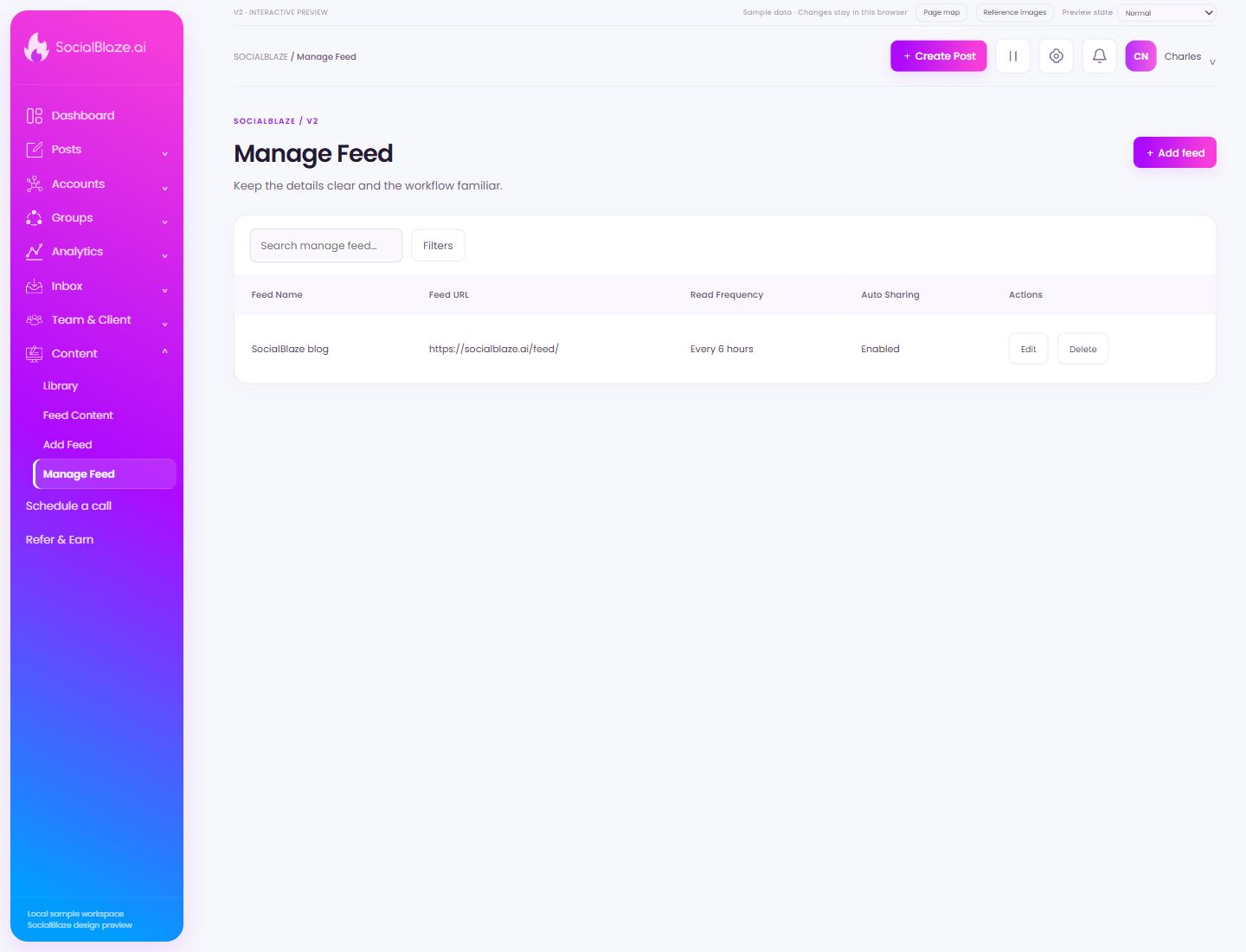
Configure another feed source
Open Add Feed and provide the source details. Review its name, RSS URL, content options, and assigned accounts before enabling it.
Search this collection
Enter a recognizable part of the item’s name. The current filters still apply to this search. Clear the query to return to the full selected collection.
Narrow the current list
Open Filters to see the options for this page. Apply only the conditions you need. If a known item disappears, review the active filters before assuming it was removed.
Open this item’s settings
Choose Edit on the intended row. Review the dialog before saving. A row action applies to that item, so check the name and platform rather than relying on its position in the list.
Review removal before confirming
Identify the exact item first, then read the confirmation carefully. Cancel if you only intended to edit, reconnect, or lock it. Removing a connection is different from deleting a social profile on its own platform.
Edit feed configuration
Open the action on the intended item, then review the fields in this dialog. The focused illustrations below explain each setting separately.
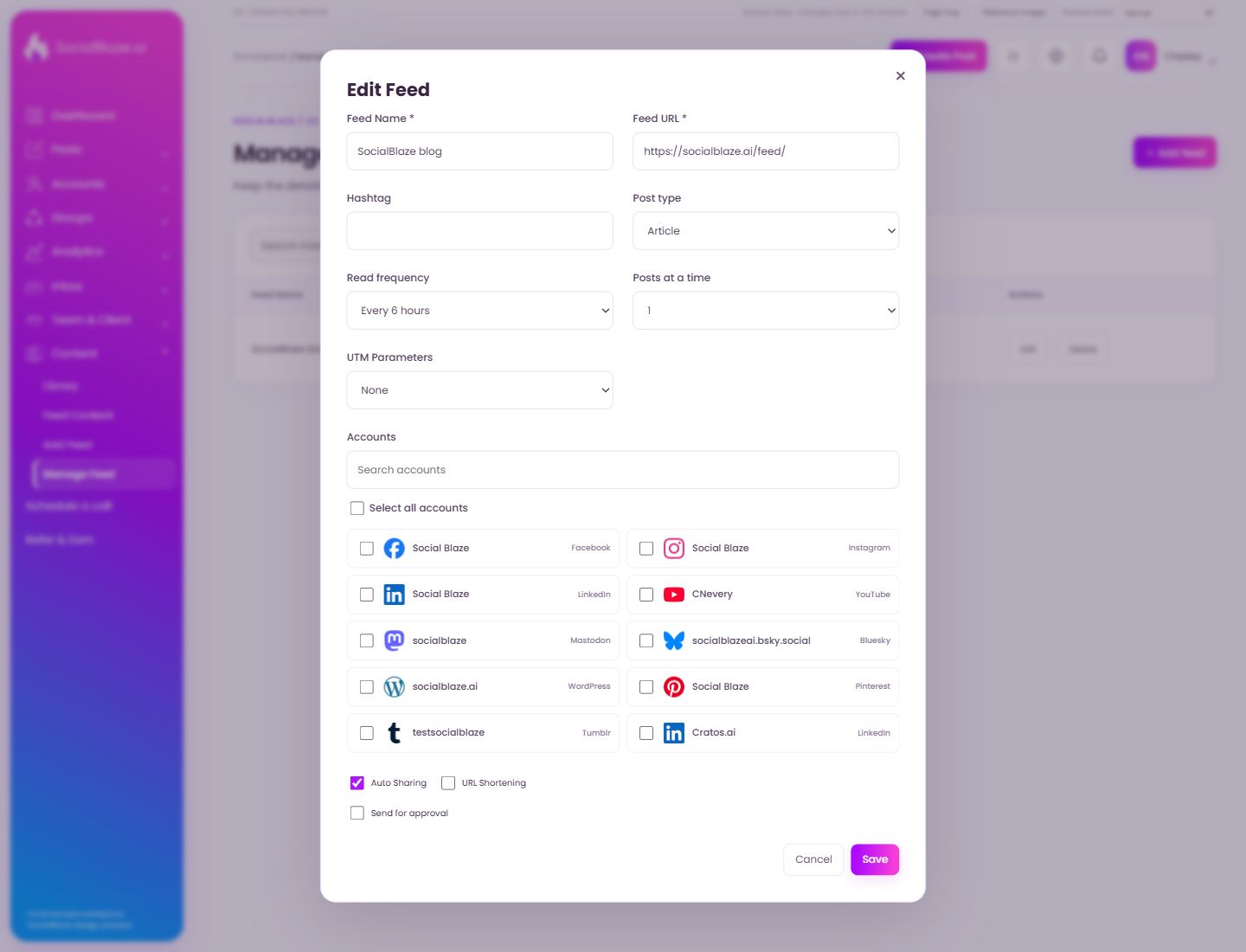
Close the settings dialog
Close the dialog when you have finished reviewing it. Use its Save action to apply intended edits; read any unsaved-change confirmation before leaving.
Give the RSS source a recognizable name
Use a name that describes the publication or topic. This name helps you distinguish sources in Manage Feed and Feed Content. It is separate from the feed URL.
Enter the RSS feed URL
Use the publication’s RSS feed URL rather than an ordinary article URL. Check that it is the intended source, then review the resulting articles before enabling automatic sharing.
Add feed-post hashtags
Enter hashtags appropriate to posts created from this source. Review the resulting caption so the hashtags are relevant and do not obscure the article’s message.
Choose the feed content format
Select the format offered for this feed. Image and Article represent different ways to turn a source item into a post. Inspect the resulting media and link preview before sharing.
Choose how often the feed is checked
Review the available reading interval. Frequency controls feed checks; it is separate from how many articles are processed and from the account’s posting schedule.
Limit the number of items processed together
Choose the offered item count for each feed batch. Review how that count works with read frequency and automatic sharing so the source does not create more posts than intended.
Choose tracking for feed links
Select the intended tracking preset, or None when no preset should apply. Inspect a resulting URL to confirm source, medium, and campaign values before using it in shared content.
Find one connected profile
Enter part of the account name. Read the platform label as well as the display name: the same name can belong to several social networks. Clear the search to return to the full list.
Select a specific item
Select this checkbox to include only this item in a batch action. Review the selected count and each selected row before using bulk controls. Clear the checkbox to exclude it again.
Select Social BlazeFacebook
Check this option only when it belongs in the intended account selection or permission configuration. Review the selected set before saving. Selecting a profile for a group or feed is separate from granting a person access to it.
Select Social BlazeInstagram
Check this option only when it belongs in the intended account selection or permission configuration. Review the selected set before saving. Selecting a profile for a group or feed is separate from granting a person access to it.
Select Social BlazeLinkedIn
Check this option only when it belongs in the intended account selection or permission configuration. Review the selected set before saving. Selecting a profile for a group or feed is separate from granting a person access to it.
Select CNeveryYouTube
Check this option only when it belongs in the intended account selection or permission configuration. Review the selected set before saving. Selecting a profile for a group or feed is separate from granting a person access to it.
Select socialblazeMastodon
Check this option only when it belongs in the intended account selection or permission configuration. Review the selected set before saving. Selecting a profile for a group or feed is separate from granting a person access to it.
Select socialblazeai.bsky.socialBluesky
Check this option only when it belongs in the intended account selection or permission configuration. Review the selected set before saving. Selecting a profile for a group or feed is separate from granting a person access to it.
Select socialblaze.aiWordPress
Check this option only when it belongs in the intended account selection or permission configuration. Review the selected set before saving. Selecting a profile for a group or feed is separate from granting a person access to it.
Select Social BlazePinterest
Check this option only when it belongs in the intended account selection or permission configuration. Review the selected set before saving. Selecting a profile for a group or feed is separate from granting a person access to it.
Select testsocialblazeTumblr
Check this option only when it belongs in the intended account selection or permission configuration. Review the selected set before saving. Selecting a profile for a group or feed is separate from granting a person access to it.
Select Cratos.aiLinkedIn
Check this option only when it belongs in the intended account selection or permission configuration. Review the selected set before saving. Selecting a profile for a group or feed is separate from granting a person access to it.
Select Cratos.aiFacebook
Check this option only when it belongs in the intended account selection or permission configuration. Review the selected set before saving. Selecting a profile for a group or feed is separate from granting a person access to it.
Select Charles NeveryTikTok
Check this option only when it belongs in the intended account selection or permission configuration. Review the selected set before saving. Selecting a profile for a group or feed is separate from granting a person access to it.
Select Charles Thomas NeveryThreads
Check this option only when it belongs in the intended account selection or permission configuration. Review the selected set before saving. Selecting a profile for a group or feed is separate from granting a person access to it.
Select CharlesLinkedIn
Check this option only when it belongs in the intended account selection or permission configuration. Review the selected set before saving. Selecting a profile for a group or feed is separate from granting a person access to it.
Review automatic feed sharing
Review the destination accounts, item count, content format, and approval option before enabling automatic sharing. Turning off sharing should stop new automatic publication; verify that behavior in the live workflow before this guide is released.
Review link shortening for this workflow
Use the shortening option when you want supported links converted through the configured shortener. Check that the shortened link resolves to the intended destination and retains any tracking parameters.
Route feed content through review
Use the approval option when feed-created content needs review before publication. Verify the resulting item under Pending Approval and check that it cannot publish without the required reviewer action.
Leave without applying the dialog changes
Use Cancel when you do not want to apply the proposed change. If the screen has unsaved content, read any discard confirmation before continuing.
Save the reviewed settings
Check the values and account selections before saving. After the dialog closes, reopen or inspect the resulting row to confirm the intended change.