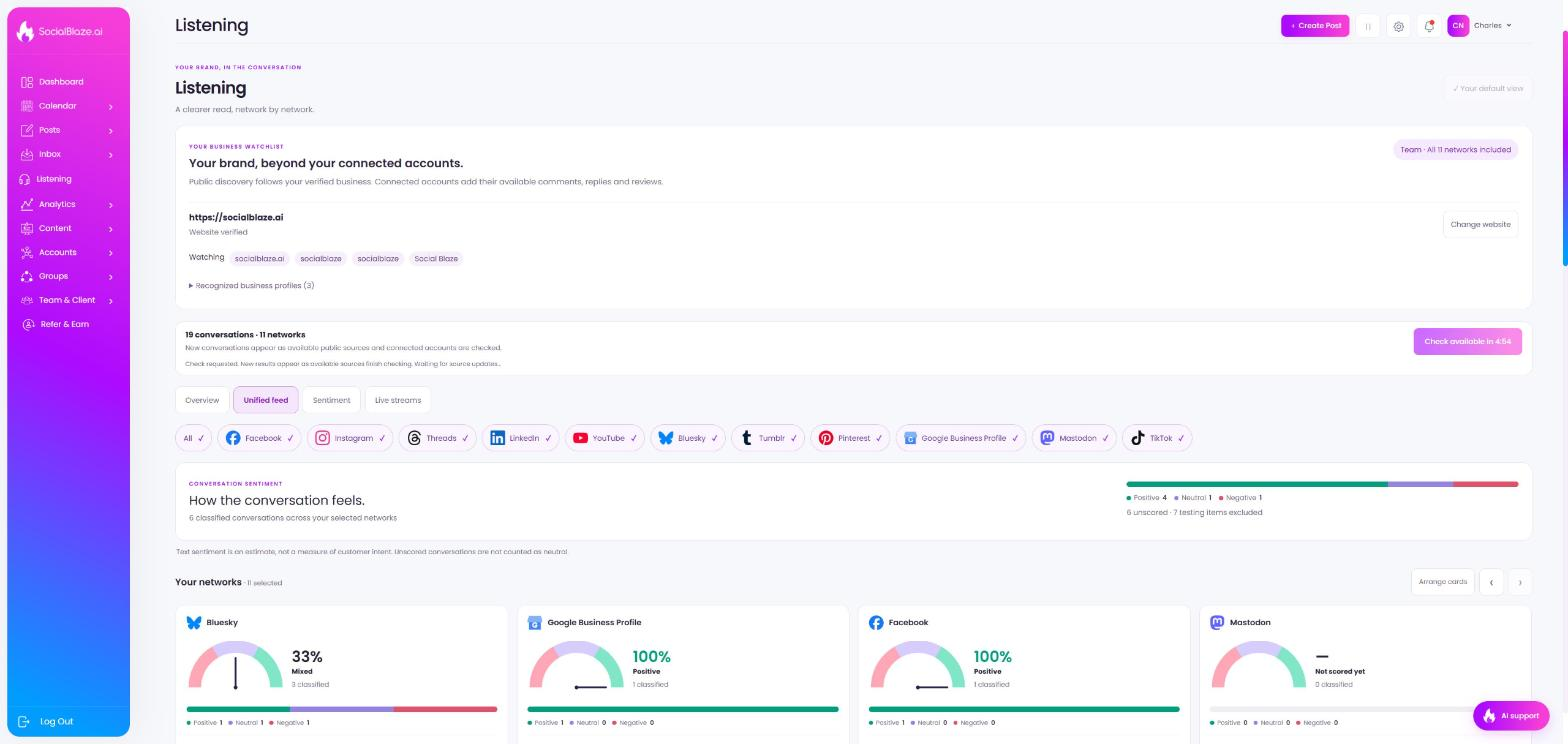
An illustrated tour of the Listening page with focused images of its controls and settings.
5 min readVisual walkthrough
Orient yourself on the page
Design-preview images. These captures use sample data from the redesigned workspace. Illustrations use sample data. Available controls and results depend on your connected platform and account permissions.
Use this overview to locate the main areas before following the focused illustrations below.
PRODUCT PREVIEW · Listening
Your business watchlist
Listening follows your verified business identity. Public discovery works from this watchlist alone — no account connection needed.
PRODUCT PREVIEW · Your business watchlist
1
2
1
Verified website. Your watchlist is discovered from this verified business website and stays fixed to your brand. Use Change website on the right of this card to re-verify a new one.
2
Watching terms. The exact brand names and hashtags Listening searches for.
Automatic checks
Sources are checked on a rolling schedule; there is nothing to refresh manually.
PRODUCT PREVIEW · Automatic checks
1
1
Coverage summary. How many conversations and networks are covered right now. The timer on the right of this bar shows when the next automatic check is available.
Views and the network filter
Pick how you want to read the page, and which networks it should show.
PRODUCT PREVIEW · Views and network filter
1
2
1
Views. Overview, Unified feed, Sentiment and Live streams.
2
Network filter. Limit the page to the networks you want to review. The row continues with every network in your plan.
Conversation sentiment
The page-level summary of how the conversation feels across everything you have selected.
PRODUCT PREVIEW · Conversation sentiment
1
2
1
Sentiment bar. The mix of positive, neutral and negative across classified conversations.
2
Counts. Classified tallies, plus unscored items and excluded testing activity.
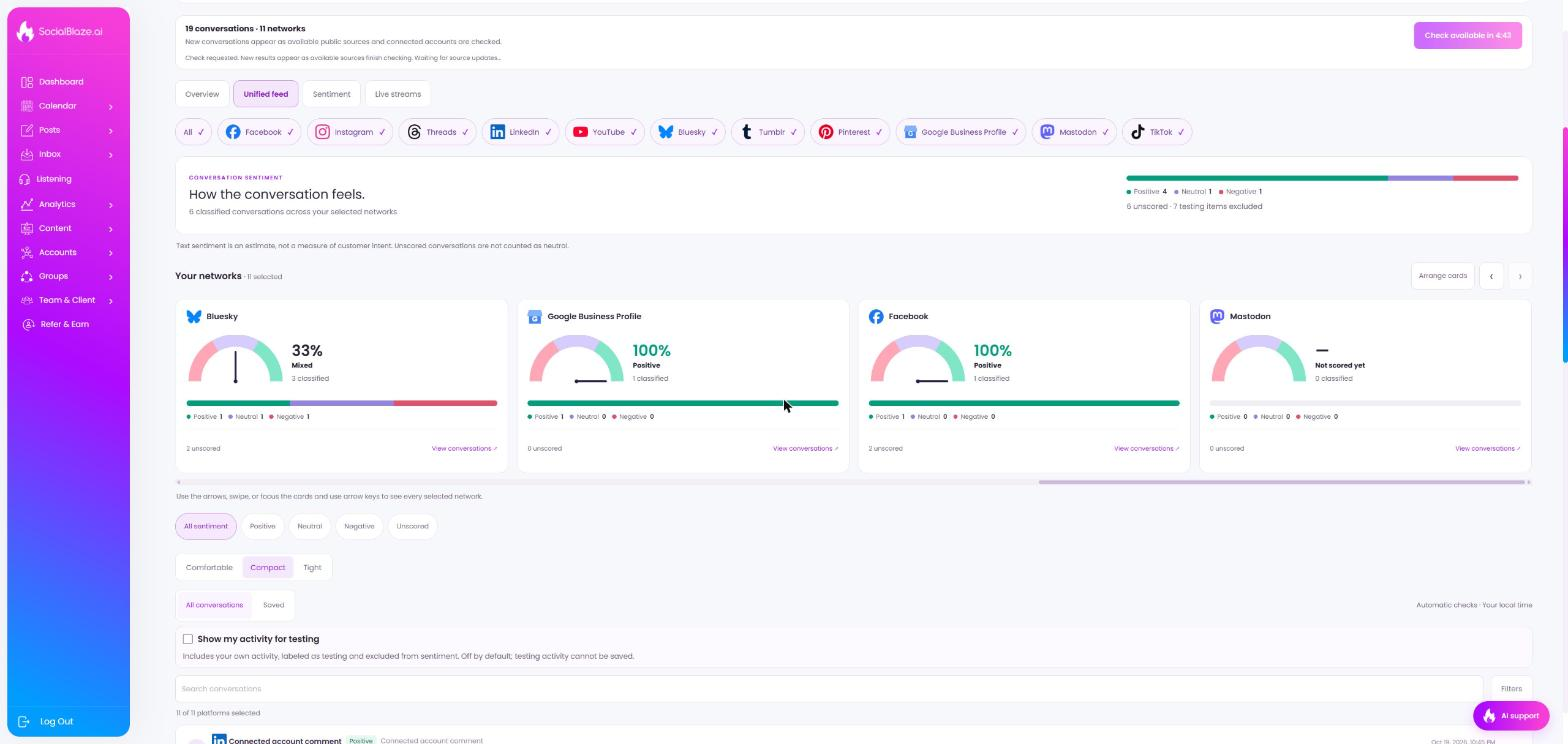
Read a network scorecard
Every selected network gets its own card.
PRODUCT PREVIEW · Network scorecard
1
2
3
1
Sentiment dial. Moves once external conversations on this network are classified.
2
Classified counts. The positive, neutral and negative tallies behind the dial.
3
View conversations. Jumps to the feed filtered to this network.
Filter by sentiment and density
Narrow the feed to one sentiment, and set how much detail each row shows.
PRODUCT PREVIEW · Sentiment and density filters
1
2
1
Sentiment filter. Show every conversation or only one sentiment.
2
Density. Comfortable, Compact or Tight feed spacing.
Testing activity toggle
Your own activity never counts toward scores, but you can reveal it for testing.
PRODUCT PREVIEW · Testing activity toggle
1
1
Show my activity for testing. Reveals your own posts and replies, labeled as testing. They stay excluded from sentiment and cannot be saved.
Search and filters
Find a specific conversation fast.
PRODUCT PREVIEW · Search and filters
1
1
Search conversations. Search conversation text and authors as you type. The Filters button at the right end of this row adds kind, date and sort filters.
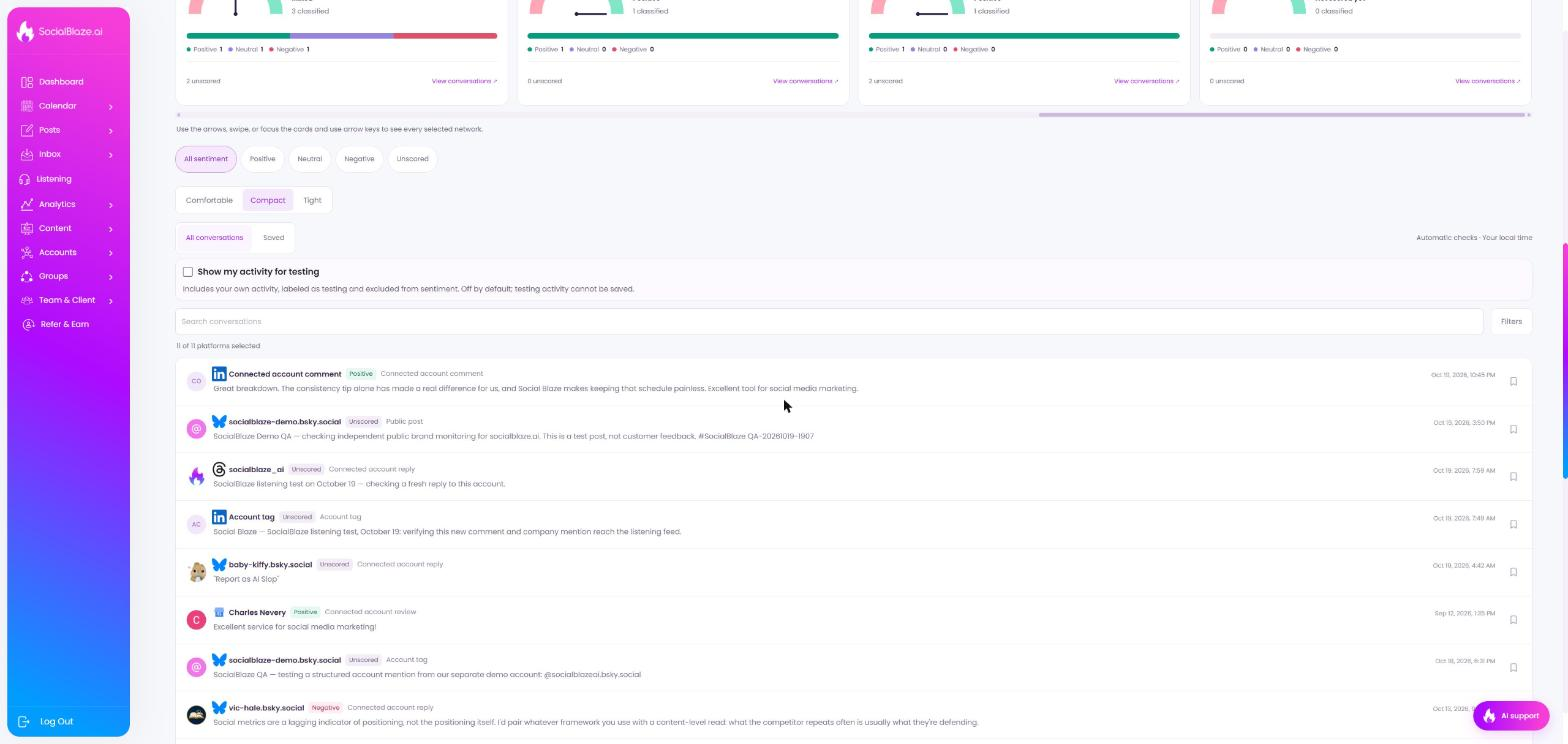
Scored and unscored conversations
Each feed item carries a badge explaining whether it counted toward your dials.
PRODUCT PREVIEW · Scored and unscored conversations
1
2
1
Sentiment badge. External conversations are scored Positive, Neutral or Negative.
2
Unscored. Testing activity and items without enough signal never count toward the dials.
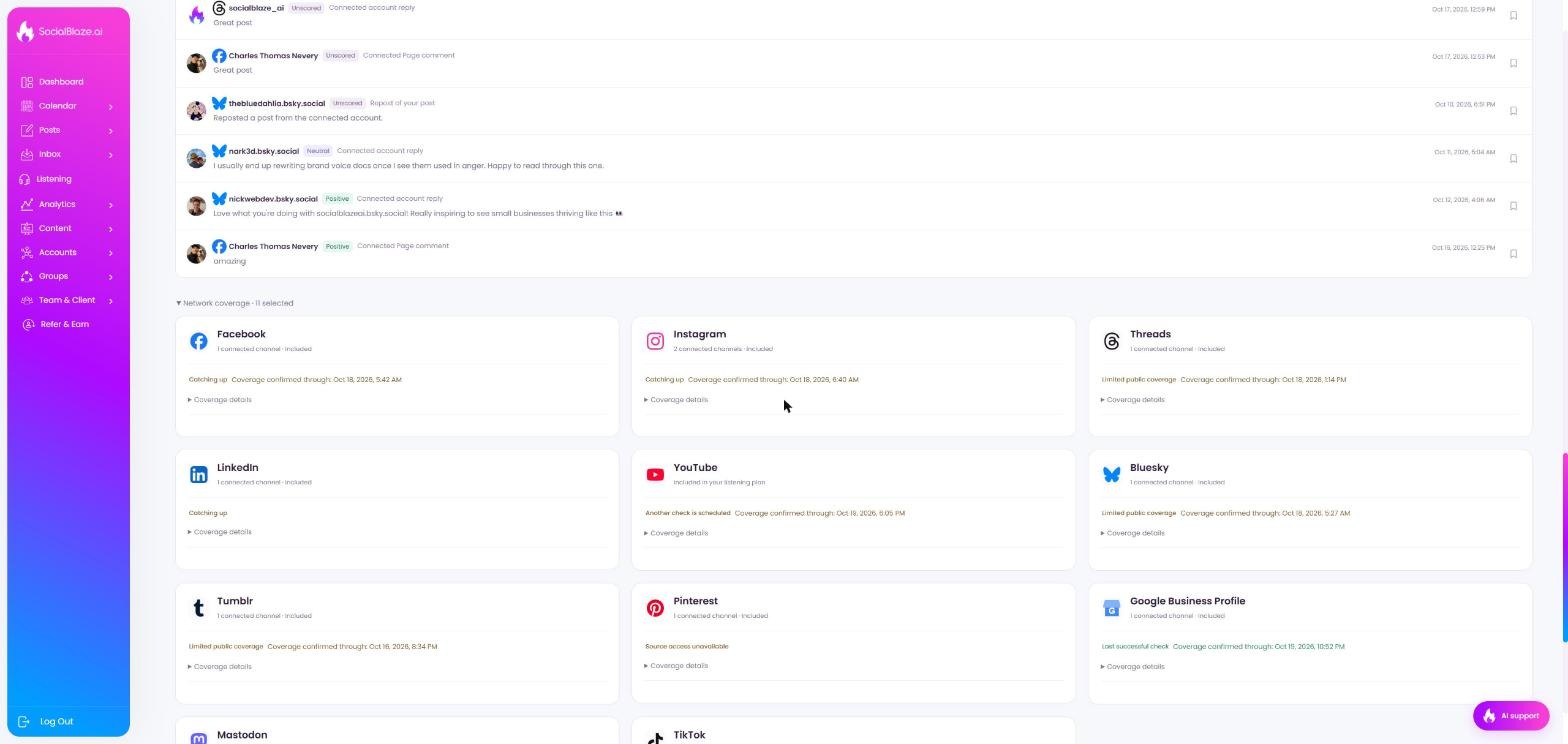
Check network coverage
At the bottom of the page, one card per network shows collection status and when its sources last completed a successful check.
PRODUCT PREVIEW · Network coverage card
1
2
1
Status. The latest check result and the time coverage is confirmed through.
2
Coverage details. Expands per-source checks, history and any provider limits.