
Dashboard · visual field guide
An illustrated tour of Dashboard with focused images of its controls and settings.
Orient yourself on the page
Design-preview images. These captures use sample data from the redesigned workspace. Illustrations use sample data. Available controls and results depend on your connected platform and account permissions.
Use this overview to locate the main controls before following the focused illustrations below.
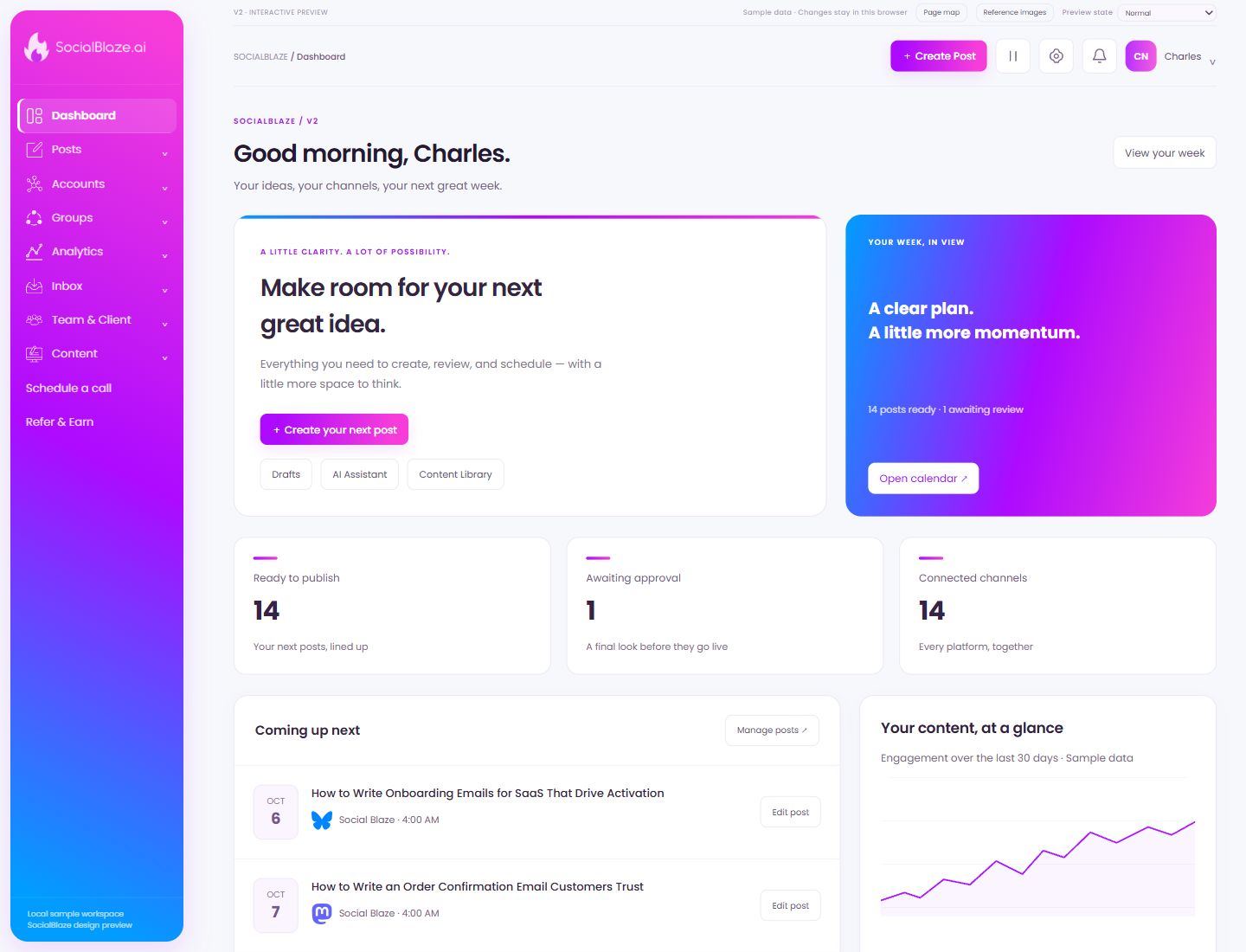
Open the current weekly plan
Use this shortcut to review the week’s upcoming content. Inspect individual posts for their accounts, schedule, and status before making changes.
Start your next idea
Open the composer from the dashboard, select the intended account, and prepare the caption and media. Save, review, or schedule only after checking the previews.
Work on saved drafts
Drafts holds unfinished posts. Open a draft to continue editing its caption, media, or account selection. Saving a draft does not itself schedule publication.
Open the writing assistant
Use the assistant to develop a starting point for content. Give it a clear audience, topic, and purpose, then review the generated wording before using it in a post. Generated text still needs factual and editorial review.
Open your reusable content
Use the dashboard shortcut to reach saved posts and hashtag sets. Choose Reuse on the intended card, then review it in the full composer.
Review the calendar from the dashboard
Open the calendar to see the distribution of upcoming posts. Change its view or date range when you need a closer look at a busy day.
Open the detailed post list
Use Manage Posts to inspect queued content and other post states. Search and filter the list, then choose the row action for the intended post.
Continue working on an upcoming post
Open the intended post from the dashboard’s upcoming list. Check its selected channel and planned date before changing the caption or schedule.