
Your week · visual field guide
An illustrated tour of Your week with focused images of its controls and settings.
Orient yourself on the page
Design-preview images. These captures use sample data from the redesigned workspace. Illustrations use sample data. Available controls and results depend on your connected platform and account permissions.
Use this overview to locate the main controls before following the focused illustrations below.
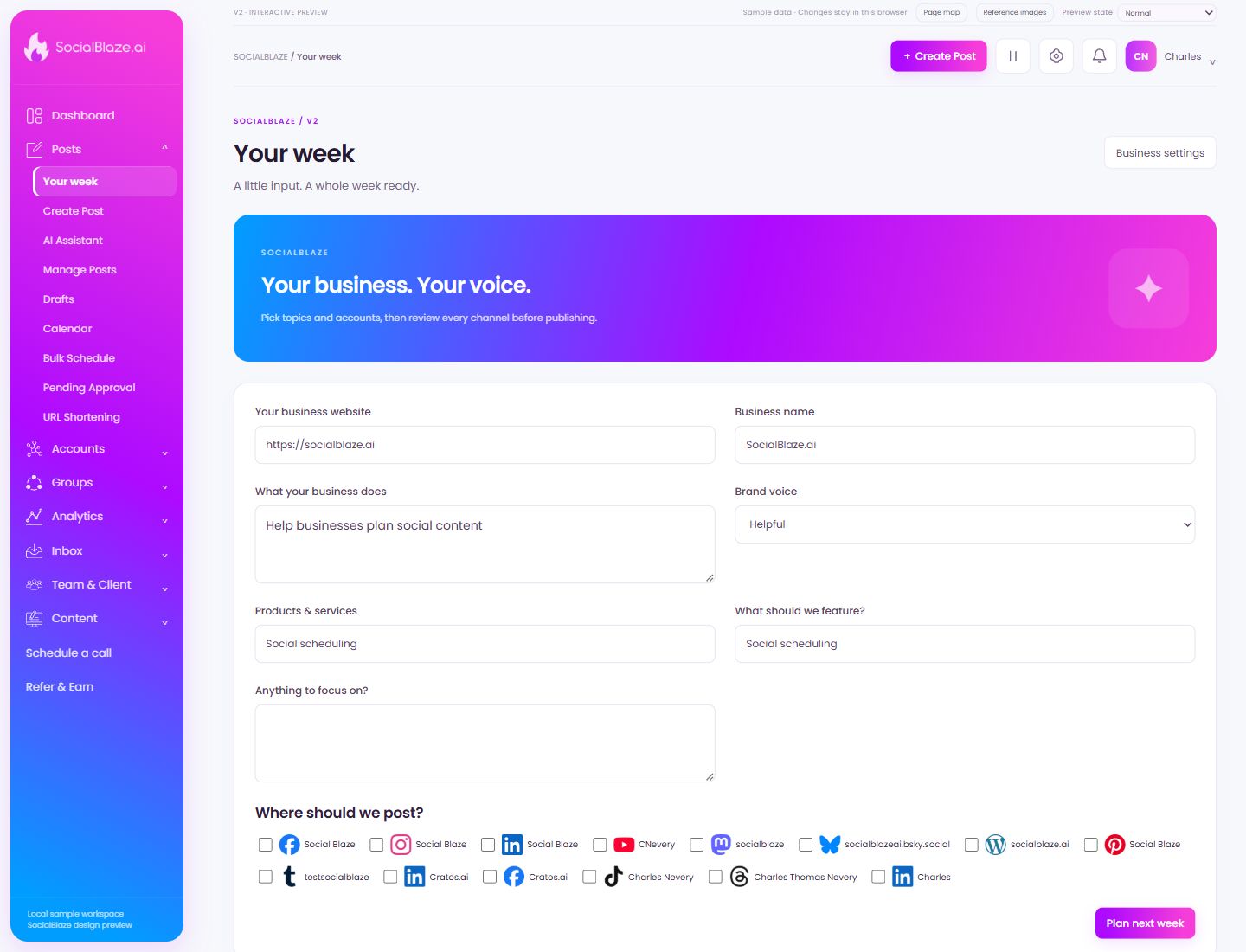
Review the business context for your plan
Open business settings to review the website, business description, products, and voice used by the planning assistant. Keep this context current so the generated ideas reflect your actual business.
Provide the business website
Enter the website that best represents the business you are planning for. Review the business details inferred or entered from it before generating a content plan.
Name the business being featured
Use the business name that should appear in the generated plan. Check it against the selected client or workspace so the assistant does not mix brands.
Explain the business in plain language
Describe what you offer, who it is for, and what makes it useful. Specific context helps produce relevant ideas. Review the generated wording instead of assuming the assistant understood every detail.
Describe the tone you want
Explain how the business should sound, with concrete examples where helpful. Review the resulting captions for tone and accuracy before using them in posts.
Give the assistant accurate offerings
List the products or services relevant to the plan. Keep names and descriptions current, and check any claims or offers before publishing generated content.
Choose the plan’s featured topic
Describe the product, service, event, or theme you want the plan to emphasize. Include the useful details a caption needs without asking the assistant to invent missing facts.
Add priorities for this plan
Specify the audience, campaign focus, dates, or other priorities relevant to this plan. Review the generated ideas against those priorities before approving them.
Select Social Blaze
Check this option only when it belongs in the intended account selection or permission configuration. Review the selected set before saving. Selecting a profile for a group or feed is separate from granting a person access to it.
Select CNevery
Check this option only when it belongs in the intended account selection or permission configuration. Review the selected set before saving. Selecting a profile for a group or feed is separate from granting a person access to it.
Select socialblaze
Check this option only when it belongs in the intended account selection or permission configuration. Review the selected set before saving. Selecting a profile for a group or feed is separate from granting a person access to it.
Select socialblazeai.bsky.social
Check this option only when it belongs in the intended account selection or permission configuration. Review the selected set before saving. Selecting a profile for a group or feed is separate from granting a person access to it.
Select socialblaze.ai
Check this option only when it belongs in the intended account selection or permission configuration. Review the selected set before saving. Selecting a profile for a group or feed is separate from granting a person access to it.
Select testsocialblaze
Check this option only when it belongs in the intended account selection or permission configuration. Review the selected set before saving. Selecting a profile for a group or feed is separate from granting a person access to it.
Select Cratos.ai
Check this option only when it belongs in the intended account selection or permission configuration. Review the selected set before saving. Selecting a profile for a group or feed is separate from granting a person access to it.
Select Charles Nevery
Check this option only when it belongs in the intended account selection or permission configuration. Review the selected set before saving. Selecting a profile for a group or feed is separate from granting a person access to it.
Select Charles Thomas Nevery
Check this option only when it belongs in the intended account selection or permission configuration. Review the selected set before saving. Selecting a profile for a group or feed is separate from granting a person access to it.
Select Charles
Check this option only when it belongs in the intended account selection or permission configuration. Review the selected set before saving. Selecting a profile for a group or feed is separate from granting a person access to it.
Generate and review the next plan
Check the business context and featured topic, then request the next weekly plan. Review each generated idea, caption, image, account, and date before moving content into scheduling.