
Notification center · visual field guide
An illustrated tour of Notification center with focused images of its controls and settings.
Orient yourself on the page
Design-preview images. These captures use sample data from the redesigned workspace. Illustrations use sample data. Available controls and results depend on your connected platform and account permissions.
Use this overview to locate the main controls before following the focused illustrations below.
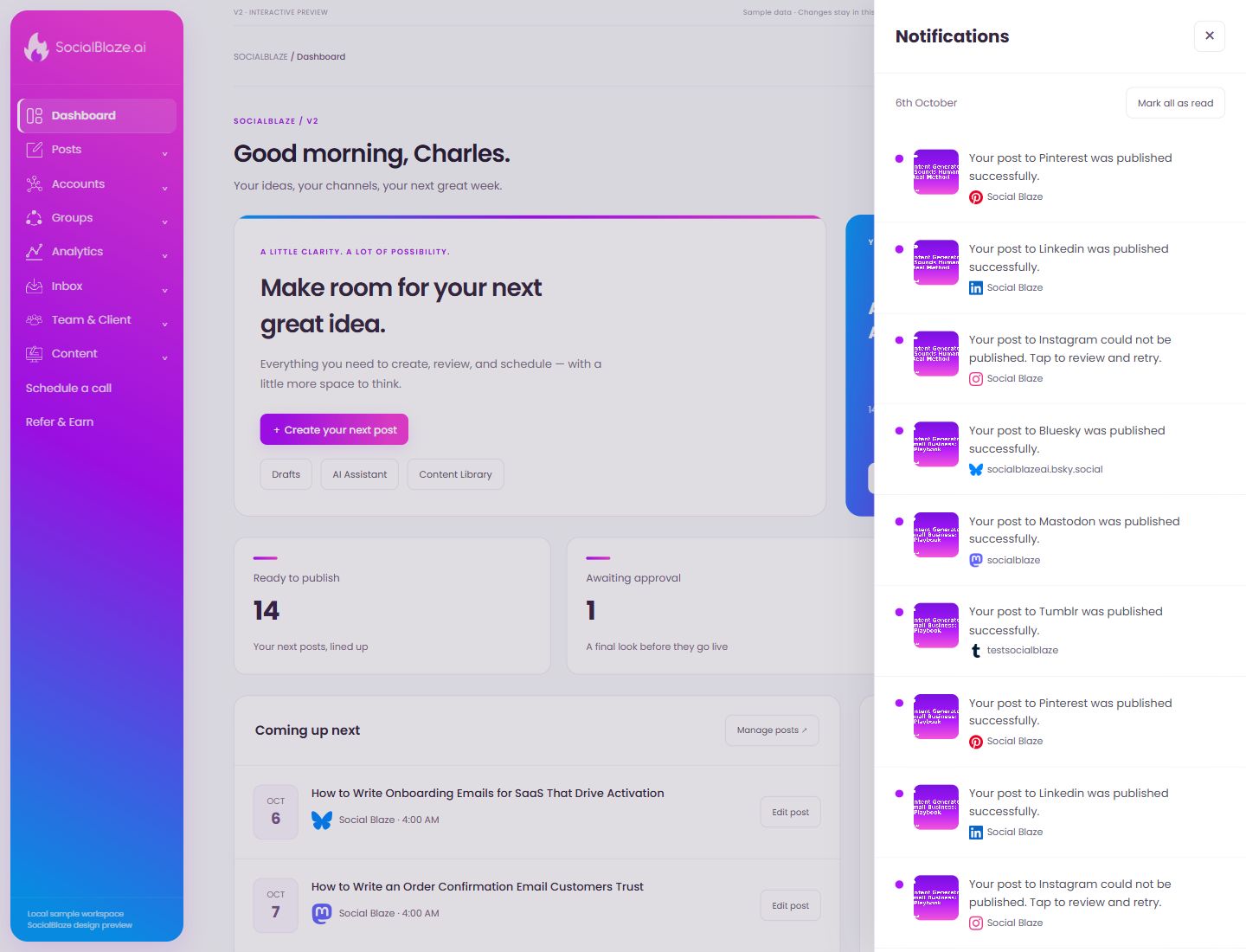
Close the notification drawer
Close the drawer to return to the page behind it. Closing the drawer is separate from marking alerts as read.
Clear the unread notification state
Review the alerts that need attention first, then mark the list as read. Read status does not fix a failed post or reconnect an account; those require their own follow-up actions.
Inspect the event behind an alert
Read the notification’s platform, account name, and message, then open it to inspect the relevant post or event. A delivery success and a publishing failure require different follow-up actions.