
Notifications · visual field guide
An illustrated tour of Notifications with focused images of its controls and settings.
Orient yourself on the page
Design-preview images. These captures use sample data from the redesigned workspace. Illustrations use sample data. Available controls and results depend on your connected platform and account permissions.
Use this overview to locate the main controls before following the focused illustrations below.
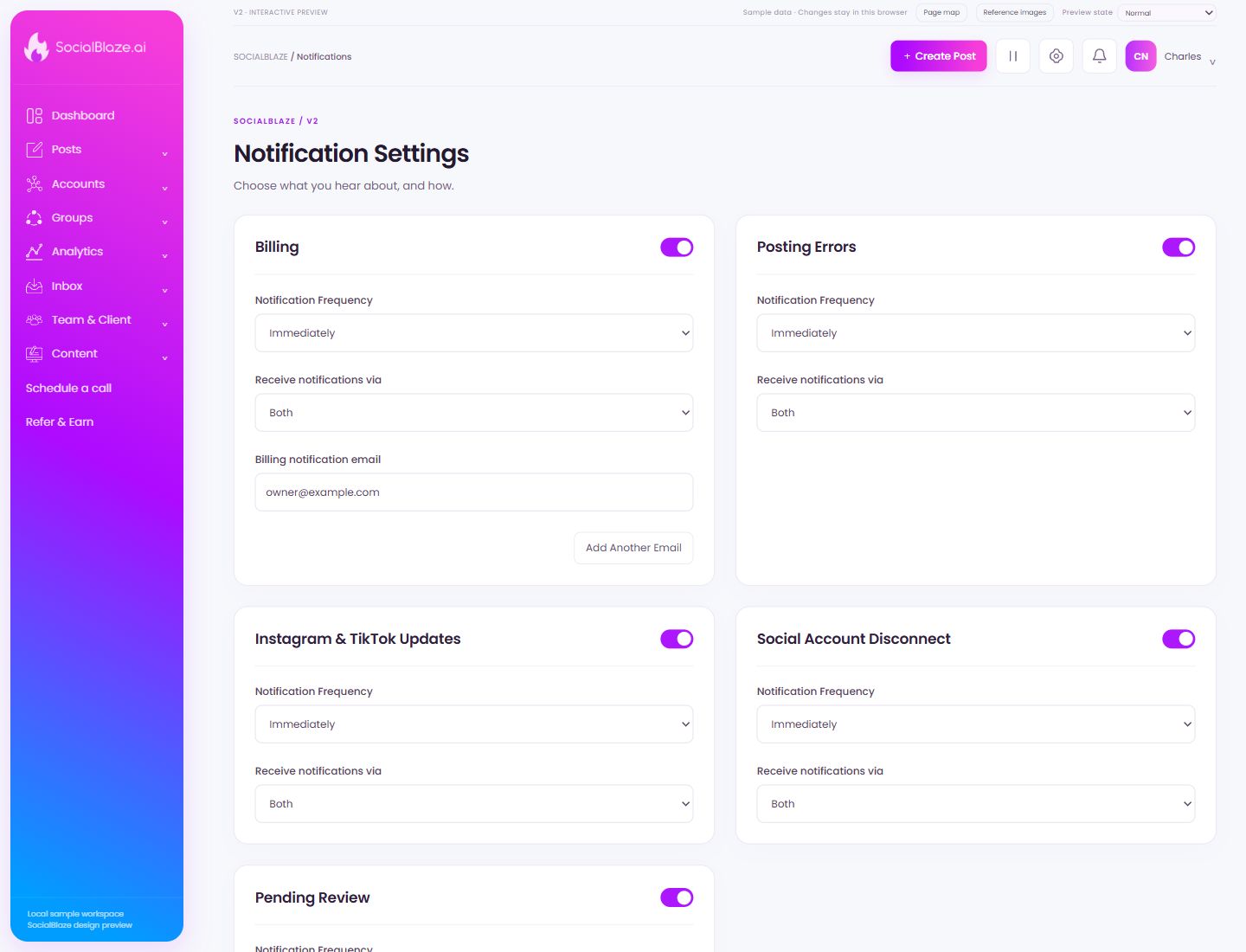
Review billing notifications
Inspect the billing notification options and delivery destination. These updates concern subscription activity, so choose a destination monitored by the person responsible for billing.
Choose immediate updates or a summary
Review the frequency options for this notification category. Immediate delivery and a daily summary support different workflows. Check that the chosen cadence suits the person responsible for acting on the alerts.
Choose the delivery channel
Select email, push, or both where offered. Review each destination and any browser notification requirements. Delivery-channel selection and notification frequency are separate settings.
Choose where billing alerts are sent
Review the billing recipient carefully. Use an address monitored by the person responsible for the subscription, then confirm the category’s notification frequency and delivery options.
Add a notification destination
Enter the intended recipient address and review it for typing errors. Confirm which notifications will go to that address before saving the preference.
Receive alerts about failed publishing
Review the delivery options for publishing-error notifications. These alerts help you find affected posts and investigate connection or content errors promptly.
Review platform-specific alerts
Choose the notification options relevant to these platforms. Read the description of each setting rather than assuming all networks use the same publishing workflow.
Receive connection warnings
Enable the preferred delivery option for account-disconnection alerts. When an alert arrives, identify the exact account and review Reconnect in Manage Account.
Receive approval-workflow updates
Review notifications for posts waiting for review. Confirm the destination and frequency so reviewers can find content needing their attention.