
Your Profile · visual field guide
An illustrated tour of Your Profile with focused images of its controls and settings.
Orient yourself on the page
Design-preview images. These captures use sample data from the redesigned workspace. Illustrations use sample data. Available controls and results depend on your connected platform and account permissions.
Use this overview to locate the main controls before following the focused illustrations below.
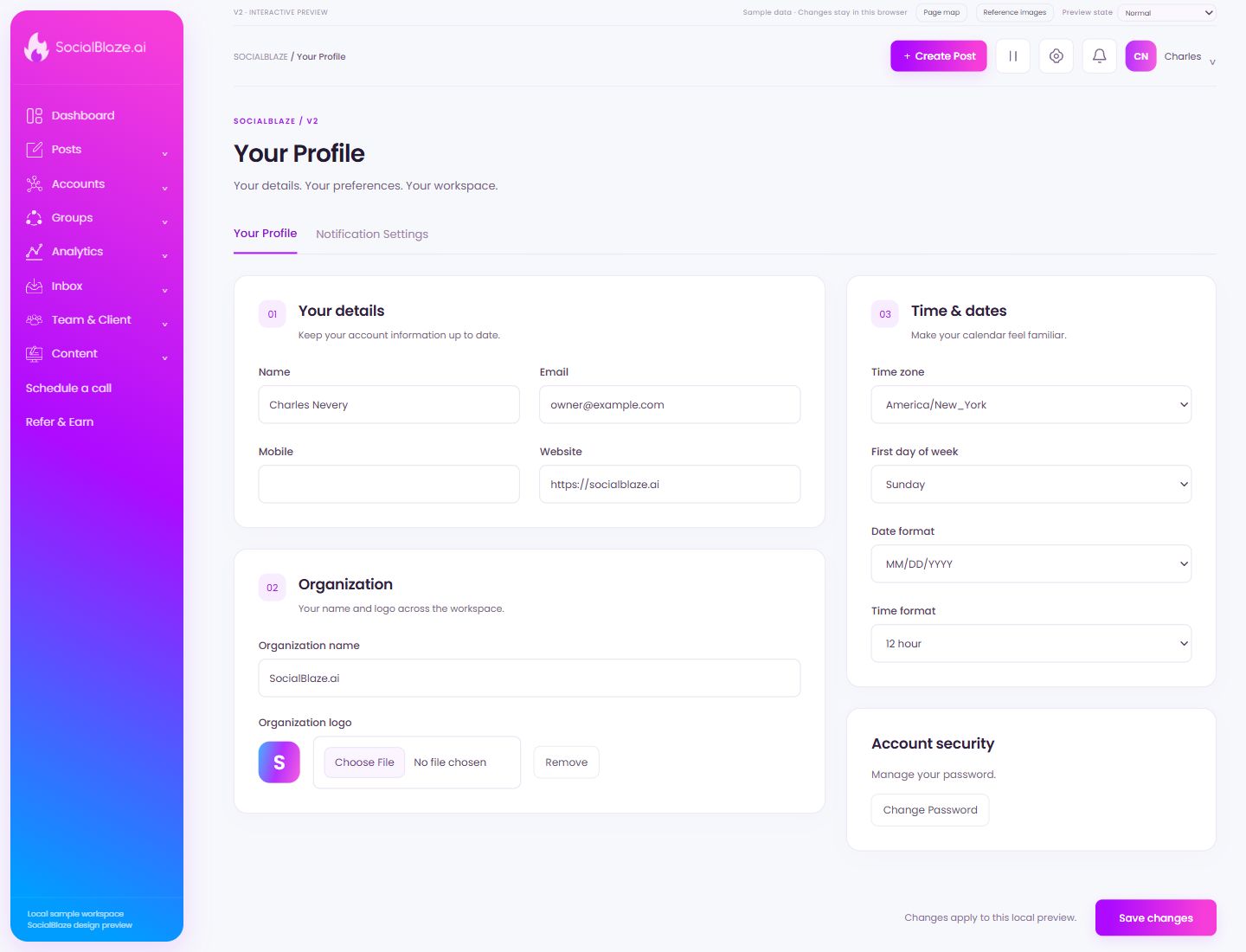
Review your personal workspace settings
Open Your Profile to inspect identity, organization, timezone, and display settings. Check which settings are personal and which affect the workspace before saving.
Choose how you receive updates
Review notification categories and delivery methods independently. Check the destination email and any summary frequency before applying changes.
Enter the person’s name
Use the name you want shown in this profile or invitation. Check the email separately: the name identifies the person in the interface, while the email identifies their login or invitation destination.
Check the email address
Use the exact address intended for this account or invitation. Review spelling before saving. An invitation address and a notification-recipient address serve different purposes, so read the surrounding section.
Review the profile phone field
Check the phone number and country format if you choose to provide one. Read the surrounding settings to determine its purpose; providing a phone number is separate from choosing notification delivery.
Set the profile website
Enter the intended website URL and review its spelling. Use the complete destination rather than a tracking or login URL unless the field explicitly requests one.
Set the organization label
Use the name you want associated with your workspace or organization. Review the logo separately so both identify the same organization.
Choose your organization’s logo
Upload a clear logo suitable for the workspace header. Review its displayed size and readability before saving, especially when the artwork includes small text.
Remove the selected setting or item
Check the surrounding section to identify what this Remove control affects. Removing a queue time, logo, or content item has different consequences; confirm the context before continuing.
Choose the intended timezone
Select the timezone appropriate to the account or profile being edited. Review dates and scheduled times afterward. A displayed time without timezone context can be misleading when your team works in different locations.
Choose the calendar week’s starting day
Select Sunday or Monday according to the display convention you prefer. Review the calendar afterward; this display preference is separate from a post’s scheduled date.
Choose how dates are displayed
Select the offered month/day/year, day/month/year, or year/month/day format. Check a date afterward to make sure you read its month and day in the intended order.
Choose 12-hour or 24-hour display
Select the time format you find clearest. With 12-hour display, check AM or PM; with 24-hour display, check the hour directly. This preference does not replace timezone selection.
Open password settings
Use Change Password to reach the credential form. Check the current account and follow the displayed password requirements. Password changes are separate from profile display settings.
Apply the reviewed settings
Review the edited values and notification destinations before saving. Check the confirmation and reopen the relevant section to verify the settings you intended to change.