
UTM Parameters · visual field guide
An illustrated tour of UTM Parameters with focused images of its controls and settings.
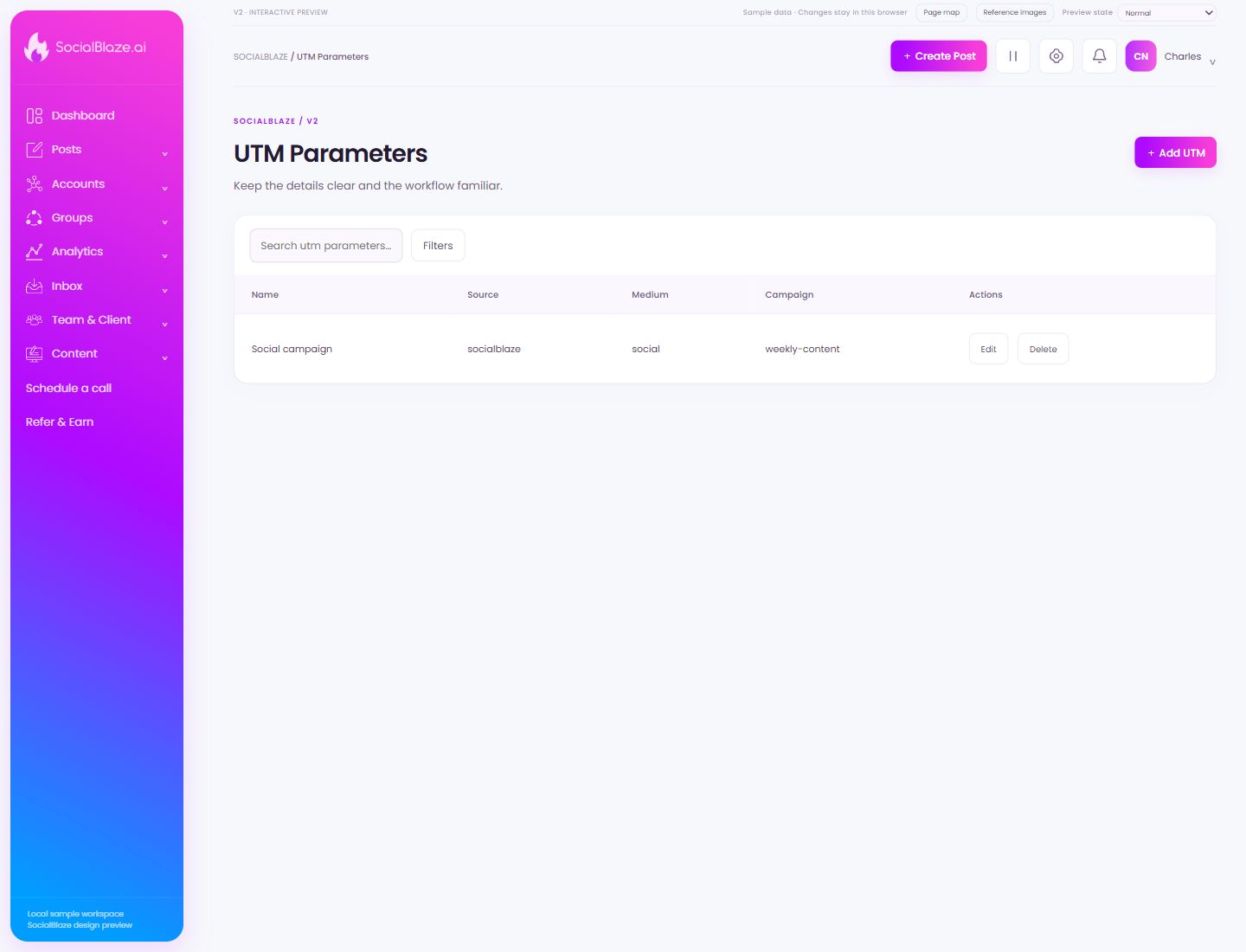
Orient yourself on the page
Design-preview images. These captures use sample data from the redesigned workspace. Illustrations use sample data. Available controls and results depend on your connected platform and account permissions.
Use this overview to locate the main controls before following the focused illustrations below.
Create a reusable tracking preset
Open the UTM form and enter a recognizable name plus the campaign tracking values. Check source, medium, and campaign separately, then review the generated link before using it.
Search this collection
Enter a recognizable part of the item’s name. The current filters still apply to this search. Clear the query to return to the full selected collection.
Narrow the current list
Open Filters to see the options for this page. Apply only the conditions you need. If a known item disappears, review the active filters before assuming it was removed.
Open this item’s settings
Choose Edit on the intended row. Review the dialog before saving. A row action applies to that item, so check the name and platform rather than relying on its position in the list.
Review removal before confirming
Identify the exact item first, then read the confirmation carefully. Cancel if you only intended to edit, reconnect, or lock it. Removing a connection is different from deleting a social profile on its own platform.
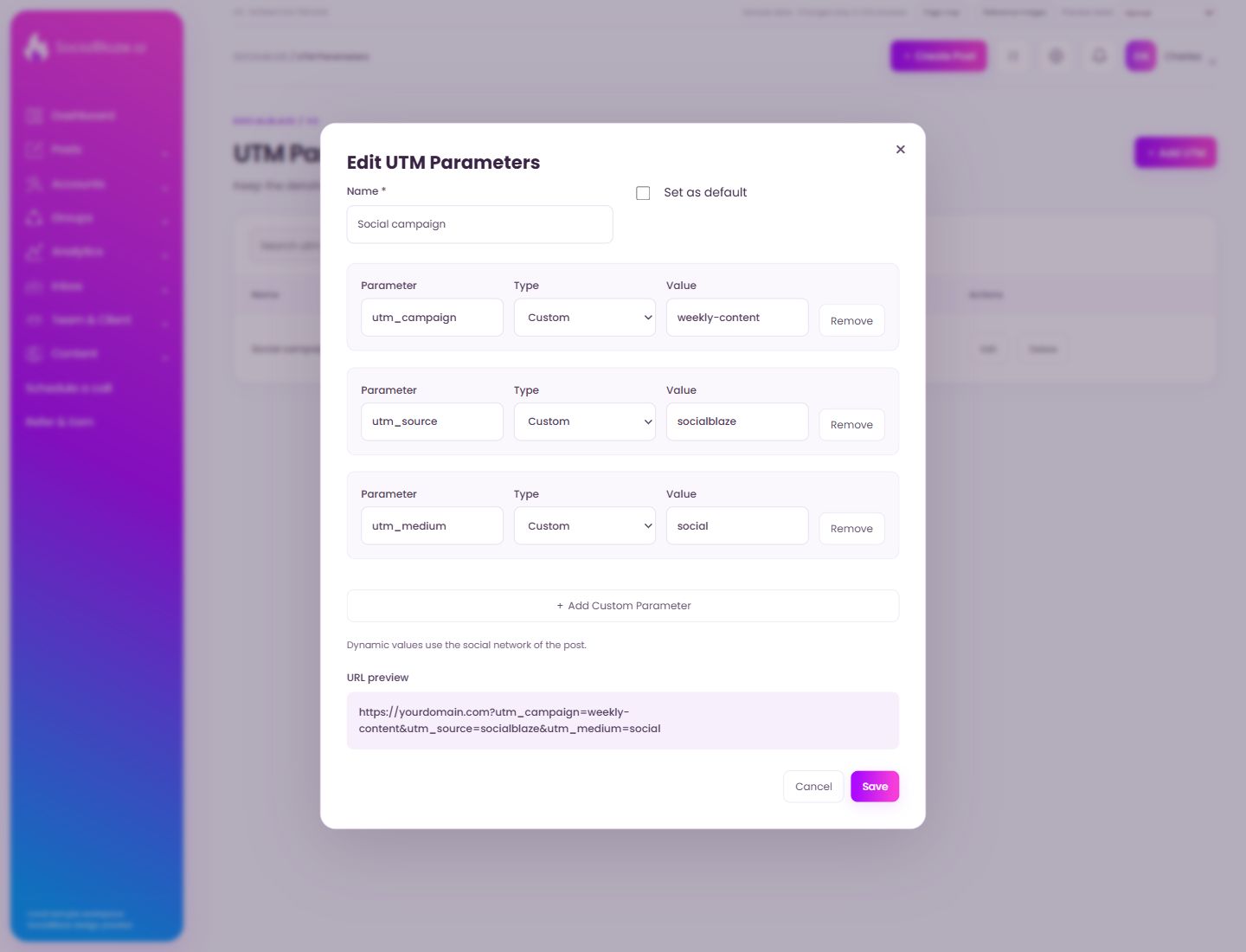
Edit tracking parameters
Open the action on the intended item, then review the fields in this dialog. The focused illustrations below explain each setting separately.
Close the settings dialog
Close the dialog when you have finished reviewing it. Use its Save action to apply intended edits; read any unsaved-change confirmation before leaving.
Select Name *
Review this choice together with the surrounding account, role, or value settings. Check the selected set before saving. This design-preview option still requires verification against the live workflow.
Review the default tracking preset
Choose this only when the preset should be the default for the relevant workflow. Check its source, medium, campaign, and any custom values first.
Choose the tracking parameter
Review the parameter name, such as source, medium, or campaign. Check its type and value separately. Each row contributes a distinct value to the tracked URL.
Choose a custom or dynamic value
Select Custom when you want a fixed value, or the offered Dynamic option when the value should come from the posting context. Inspect a resulting URL to verify how it resolves.
Enter the intended value
Check the field or parameter associated with this value. Review spelling and any account-specific mapping before saving. Inspect the resulting inserted text or generated URL afterward.
Add another tracking row
Add a row for a parameter not already represented. Enter its name, type, and value, then check the resulting URL for duplicate or unintended parameters.
Leave without applying the dialog changes
Use Cancel when you do not want to apply the proposed change. If the screen has unsaved content, read any discard confirmation before continuing.
Save the reviewed settings
Check the values and account selections before saving. After the dialog closes, reopen or inspect the resulting row to confirm the intended change.