
Manage Account · visual field guide
An illustrated tour of Manage Account with focused images of its controls and settings.
Orient yourself on the page
Design-preview images. These captures use sample data from the redesigned workspace. Illustrations use sample data. Available controls and results depend on your connected platform and account permissions.
Use this overview to locate the main controls before following the focused illustrations below.
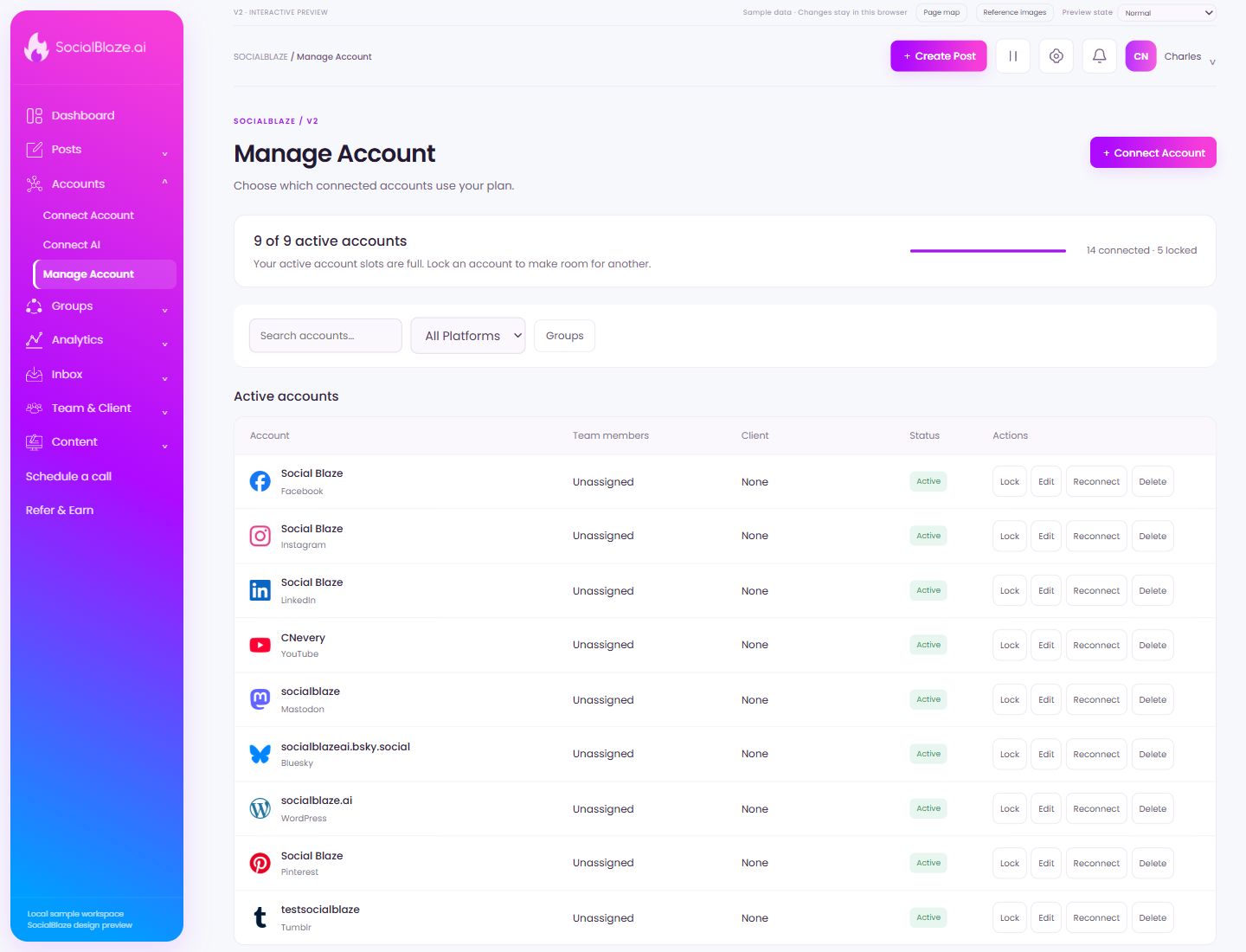
Connect Account
Choose this platform to start its connection flow. Review the correct platform login and the specific page, profile, or channel you want to authorize. Return to Manage Account afterward to verify the intended connection.
Find one connected profile
Enter part of the account name. Read the platform label as well as the display name: the same name can belong to several social networks. Clear the search to return to the full list.
Limit the list to one platform
Choose a social network to narrow the account list. Use All Platforms to remove the platform filter. Search and platform selection help identify the exact connection before taking an action.
Use account groups
Groups organize connected accounts into reusable sets. Open the group controls to find the relevant set; review its members before using it to select accounts for a post.
Free an active account slot
Locking moves this connection out of the active list in the design preview. Check the active-slot count afterward. Locking and deleting are separate operations; use the locked-account section when you want to restore an existing connection.
Open this item’s settings
Choose Edit on the intended row. Review the dialog before saving. A row action applies to that item, so check the name and platform rather than relying on its position in the list.
Renew the platform connection
Start the authorization flow for this specific account. Verify the platform login and the profile or page being authorized. The design preview simulates this flow; the real platform authorization screen can differ.
Review removal before confirming
Identify the exact item first, then read the confirmation carefully. Cancel if you only intended to edit, reconnect, or lock it. Removing a connection is different from deleting a social profile on its own platform.
Account settings
Open the action on the intended item, then review the fields in this dialog. The focused illustrations below explain each setting separately.
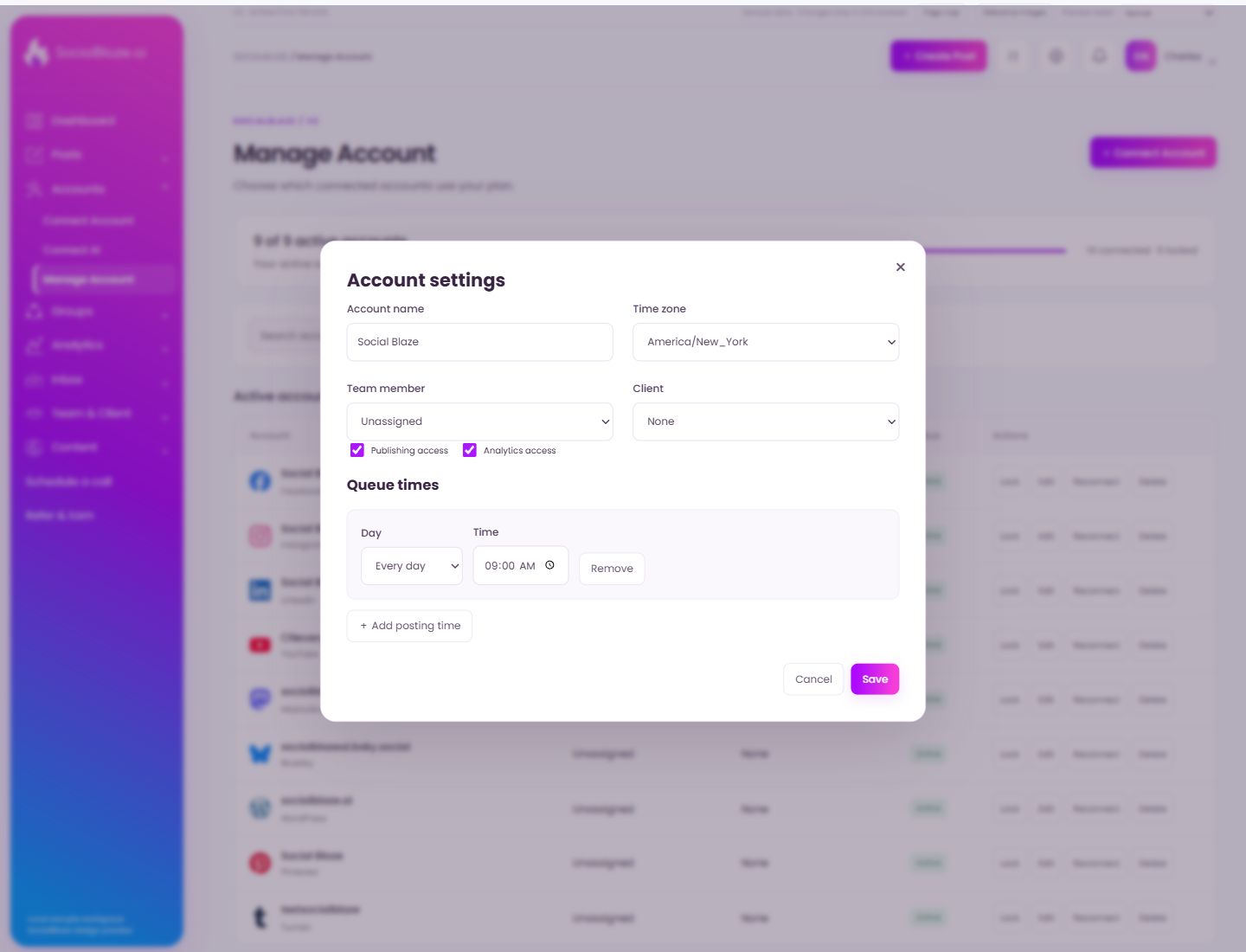
Close the settings dialog
Close the dialog when you have finished reviewing it. Use its Save action to apply intended edits; read any unsaved-change confirmation before leaving.
Check the account display name
Review the account name in this settings dialog. Verify its platform and identity before changing any values. Save only after checking all intended edits.
Choose the intended timezone
Select the timezone appropriate to the account or profile being edited. Review dates and scheduled times afterward. A displayed time without timezone context can be misleading when your team works in different locations.
Assign a teammate to the account
Select the intended person, or Unassigned when no teammate should be associated here. Review the person’s role and account permissions separately before treating the assignment as a complete access grant.
Review the client association
Select the intended client where available. Check the linked account and the client’s optional permissions separately. A client association and publishing permission are different settings.
Review the publishing grant
Check this grant independently from the person’s role and selected accounts. Verify the resulting publishing actions in the user’s actual session before relying on the permission configuration.
Review the analytics grant
Check whether analytics should be available for this person and account. Verify both navigation and direct page access in the live user session before publishing permission guidance.
Choose the queue day
Select a specific weekday or Every day. Pair it with the intended time and inspect all other slots to avoid an unintended schedule.
Set and check the time
Choose the intended hour and minute. Check AM/PM if the field uses a 12-hour display, and confirm the account’s timezone before saving.
Remove the selected setting or item
Check the surrounding section to identify what this Remove control affects. Removing a queue time, logo, or content item has different consequences; confirm the context before continuing.
Add another queue slot
Add a slot, choose its day and time, and review the existing slots. Confirm the account timezone before saving the complete queue schedule.
Leave without applying the dialog changes
Use Cancel when you do not want to apply the proposed change. If the screen has unsaved content, read any discard confirmation before continuing.
Save the reviewed settings
Check the values and account selections before saving. After the dialog closes, reopen or inspect the resulting row to confirm the intended change.
Account name and timezone
Edit opens Account settings. Review the name and timezone separately. A timezone affects how you interpret posting times, so confirm it before editing the account’s queue.
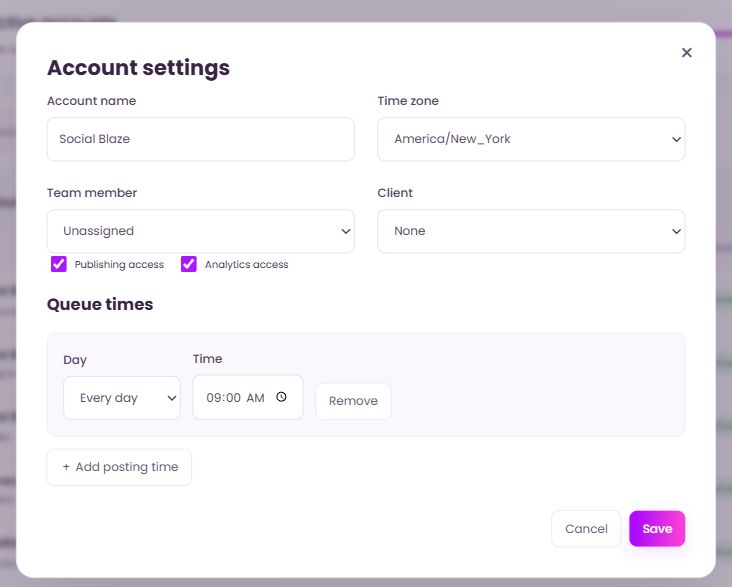
Team member, client, and optional access
The dialog separates Team member, Client, Publishing access, and Analytics access. Review the person assignment and each checkbox independently. Do not infer that an assignment grants every capability.
Configure queue times
Choose the day and time for a posting slot. Use Add posting time for another slot, or Remove for a slot you do not want. Review the account timezone and all slots before Save. Reopen settings after saving to confirm the list.