
Connect Account · visual field guide
An illustrated tour of Connect Account with focused images of its controls and settings.
Orient yourself on the page
Design-preview images. These captures use sample data from the redesigned workspace. Illustrations use sample data. Available controls and results depend on your connected platform and account permissions.
Use this overview to locate the main controls before following the focused illustrations below.
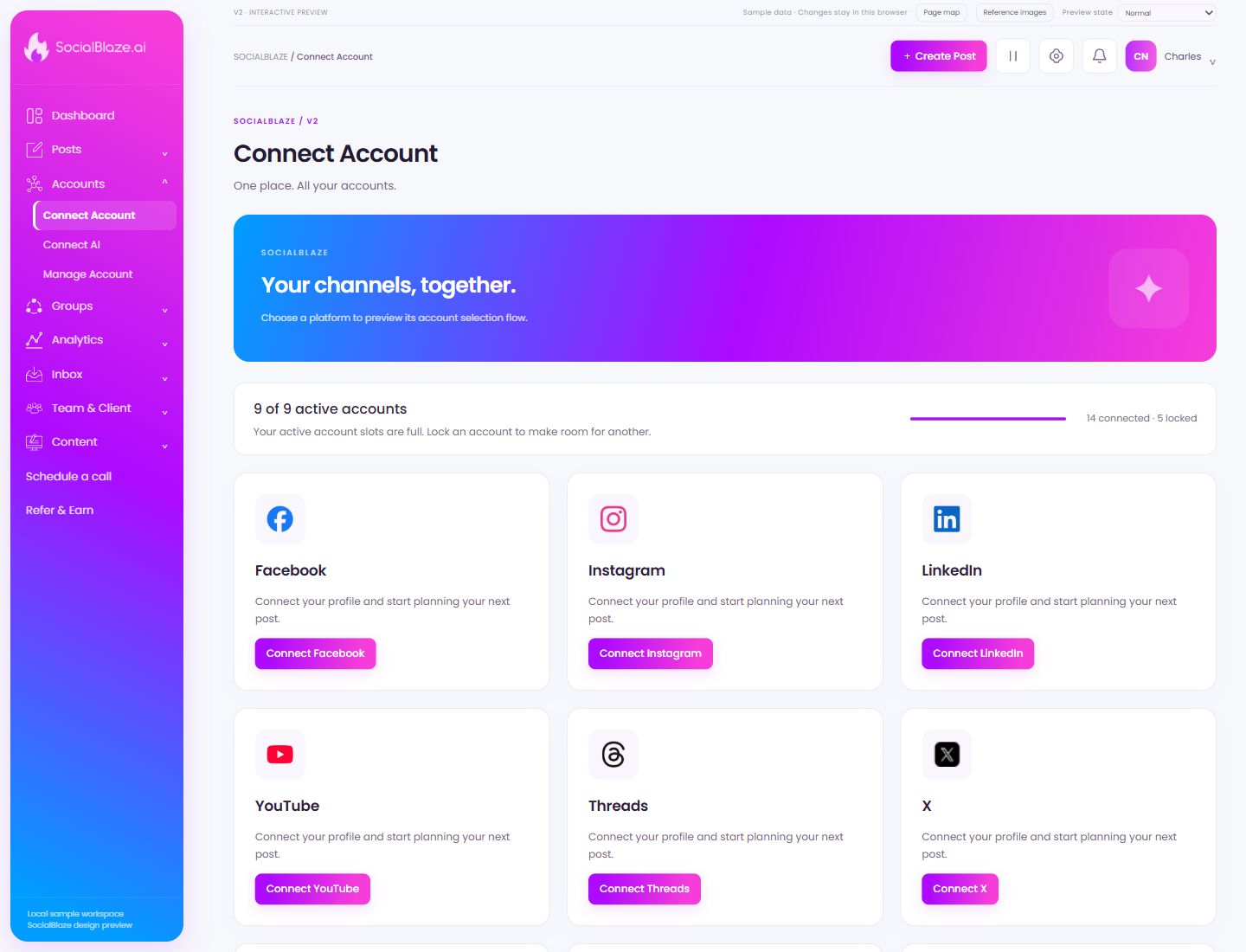
Connect Facebook
Choose this platform to start its connection flow. Review the correct platform login and the specific page, profile, or channel you want to authorize. Return to Manage Account afterward to verify the intended connection.
Connect Instagram
Choose this platform to start its connection flow. Review the correct platform login and the specific page, profile, or channel you want to authorize. Return to Manage Account afterward to verify the intended connection.
Connect LinkedIn
Choose this platform to start its connection flow. Review the correct platform login and the specific page, profile, or channel you want to authorize. Return to Manage Account afterward to verify the intended connection.
Connect YouTube
Choose this platform to start its connection flow. Review the correct platform login and the specific page, profile, or channel you want to authorize. Return to Manage Account afterward to verify the intended connection.
Connect Threads
Choose this platform to start its connection flow. Review the correct platform login and the specific page, profile, or channel you want to authorize. Return to Manage Account afterward to verify the intended connection.
Connect X
Choose this platform to start its connection flow. Review the correct platform login and the specific page, profile, or channel you want to authorize. Return to Manage Account afterward to verify the intended connection.
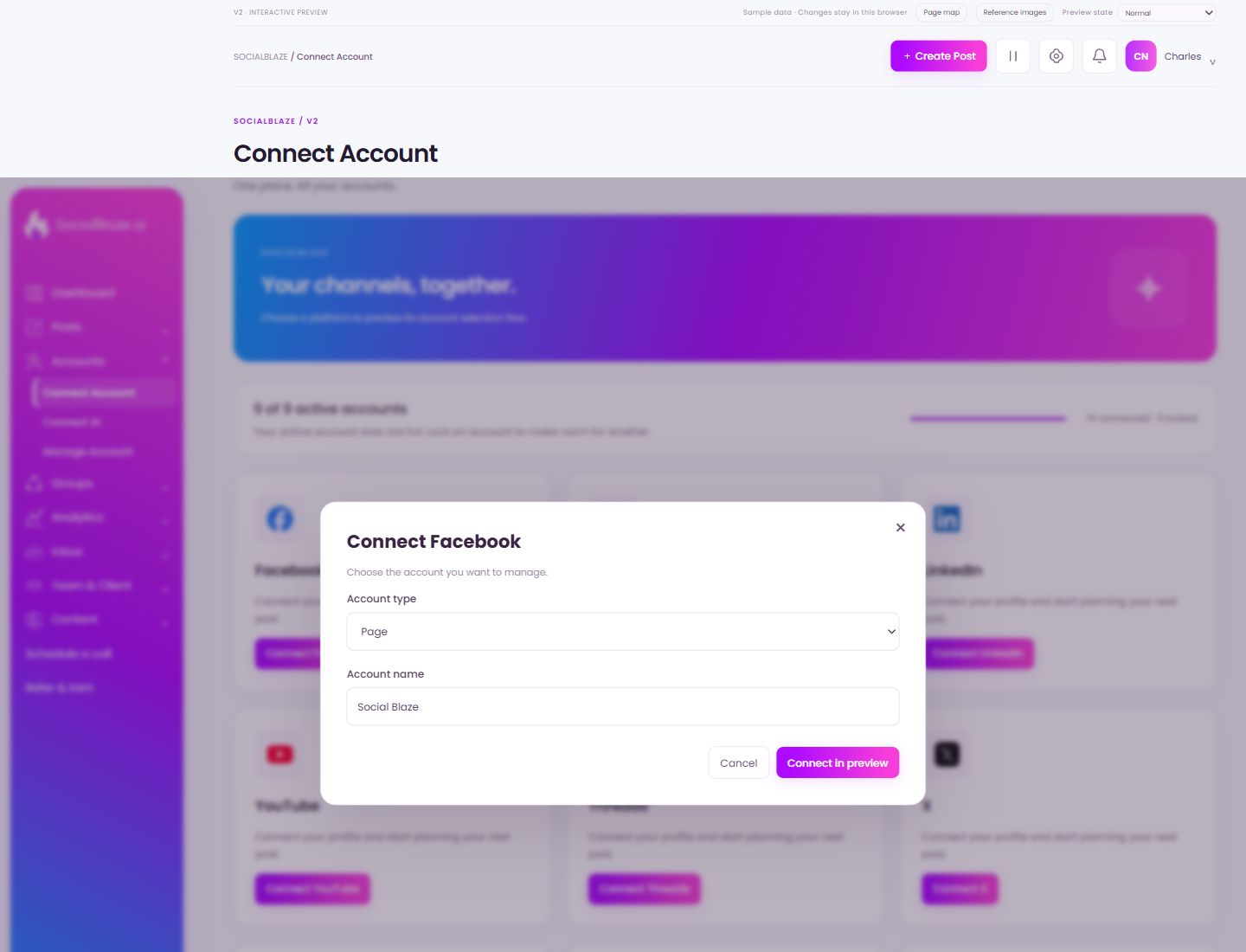
Facebook connection preview
Open the action on the intended item, then review the fields in this dialog. The focused illustrations below explain each setting separately.
Close the settings dialog
Close the dialog when you have finished reviewing it. Use its Save action to apply intended edits; read any unsaved-change confirmation before leaving.
Choose the right connection type
Select the page, profile, channel, blog, or website type offered for this platform. The local preview illustrates the choice; the provider’s actual authorization flow may use different screens.
Check the account display name
Review the account name in this settings dialog. Verify its platform and identity before changing any values. Save only after checking all intended edits.
Leave without applying the dialog changes
Use Cancel when you do not want to apply the proposed change. If the screen has unsaved content, read any discard confirmation before continuing.
Check the simulated connection result
This button changes sample data in the local design preview. Use it to inspect the resulting connection state; it does not authorize a real social account or replace the provider’s live login flow.
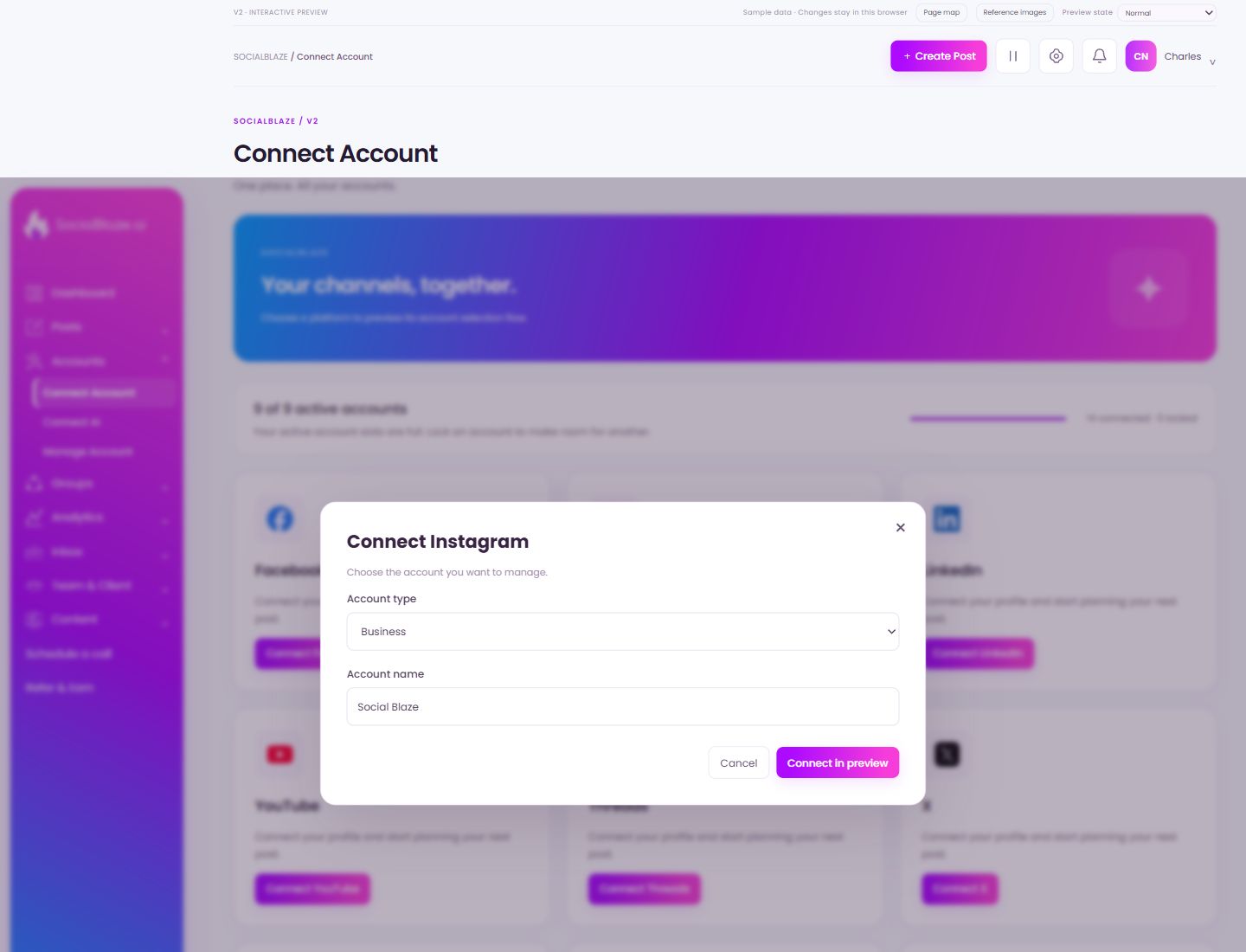
Instagram connection preview
Open the action on the intended item, then review the fields in this dialog. The focused illustrations below explain each setting separately.
Close the settings dialog
Close the dialog when you have finished reviewing it. Use its Save action to apply intended edits; read any unsaved-change confirmation before leaving.
Choose the right connection type
Select the page, profile, channel, blog, or website type offered for this platform. The local preview illustrates the choice; the provider’s actual authorization flow may use different screens.
Check the account display name
Review the account name in this settings dialog. Verify its platform and identity before changing any values. Save only after checking all intended edits.
Leave without applying the dialog changes
Use Cancel when you do not want to apply the proposed change. If the screen has unsaved content, read any discard confirmation before continuing.
Check the simulated connection result
This button changes sample data in the local design preview. Use it to inspect the resulting connection state; it does not authorize a real social account or replace the provider’s live login flow.
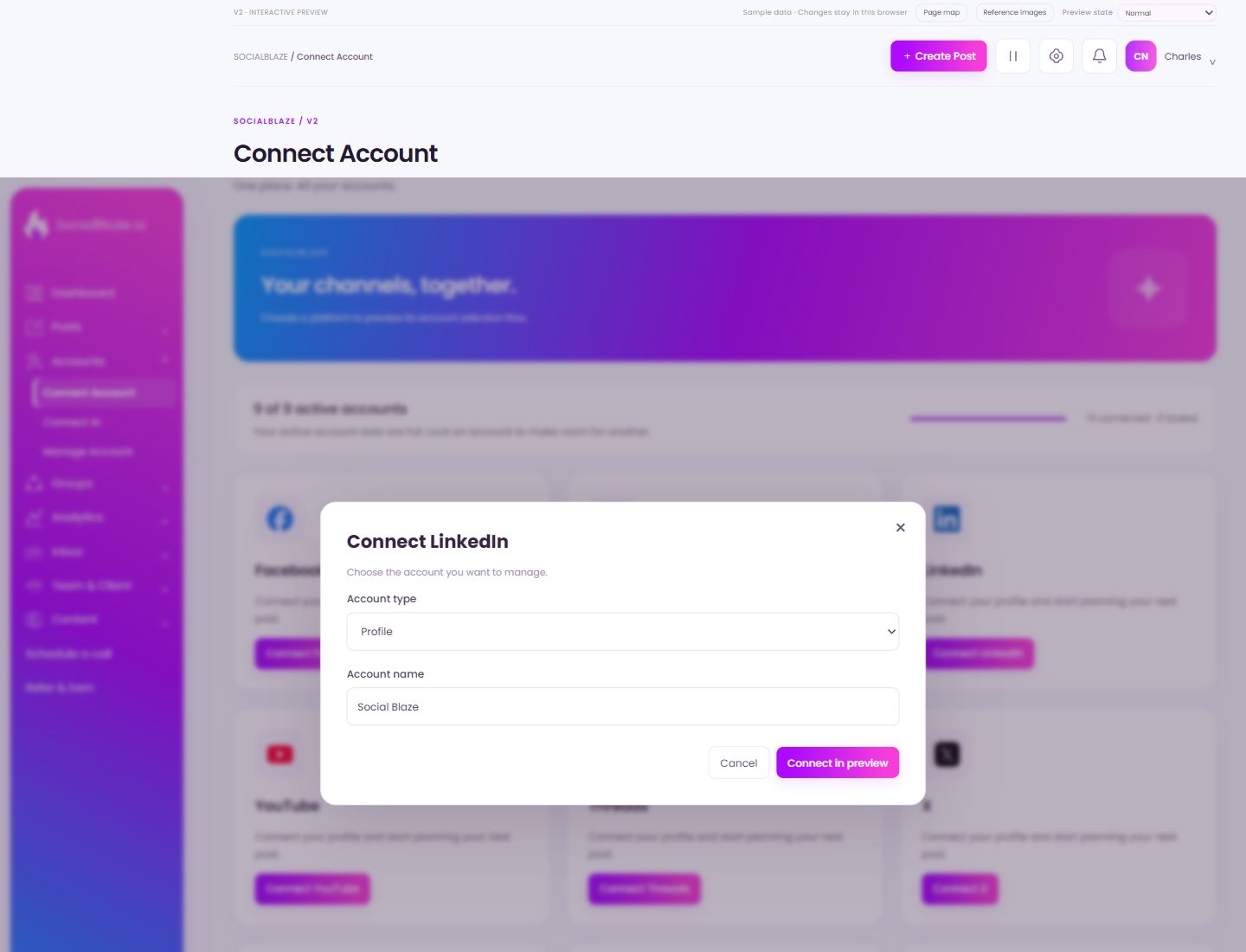
LinkedIn connection preview
Open the action on the intended item, then review the fields in this dialog. The focused illustrations below explain each setting separately.
Close the settings dialog
Close the dialog when you have finished reviewing it. Use its Save action to apply intended edits; read any unsaved-change confirmation before leaving.
Choose the right connection type
Select the page, profile, channel, blog, or website type offered for this platform. The local preview illustrates the choice; the provider’s actual authorization flow may use different screens.
Check the account display name
Review the account name in this settings dialog. Verify its platform and identity before changing any values. Save only after checking all intended edits.
Leave without applying the dialog changes
Use Cancel when you do not want to apply the proposed change. If the screen has unsaved content, read any discard confirmation before continuing.
Check the simulated connection result
This button changes sample data in the local design preview. Use it to inspect the resulting connection state; it does not authorize a real social account or replace the provider’s live login flow.
YouTube connection preview
Open the action on the intended item, then review the fields in this dialog. The focused illustrations below explain each setting separately.
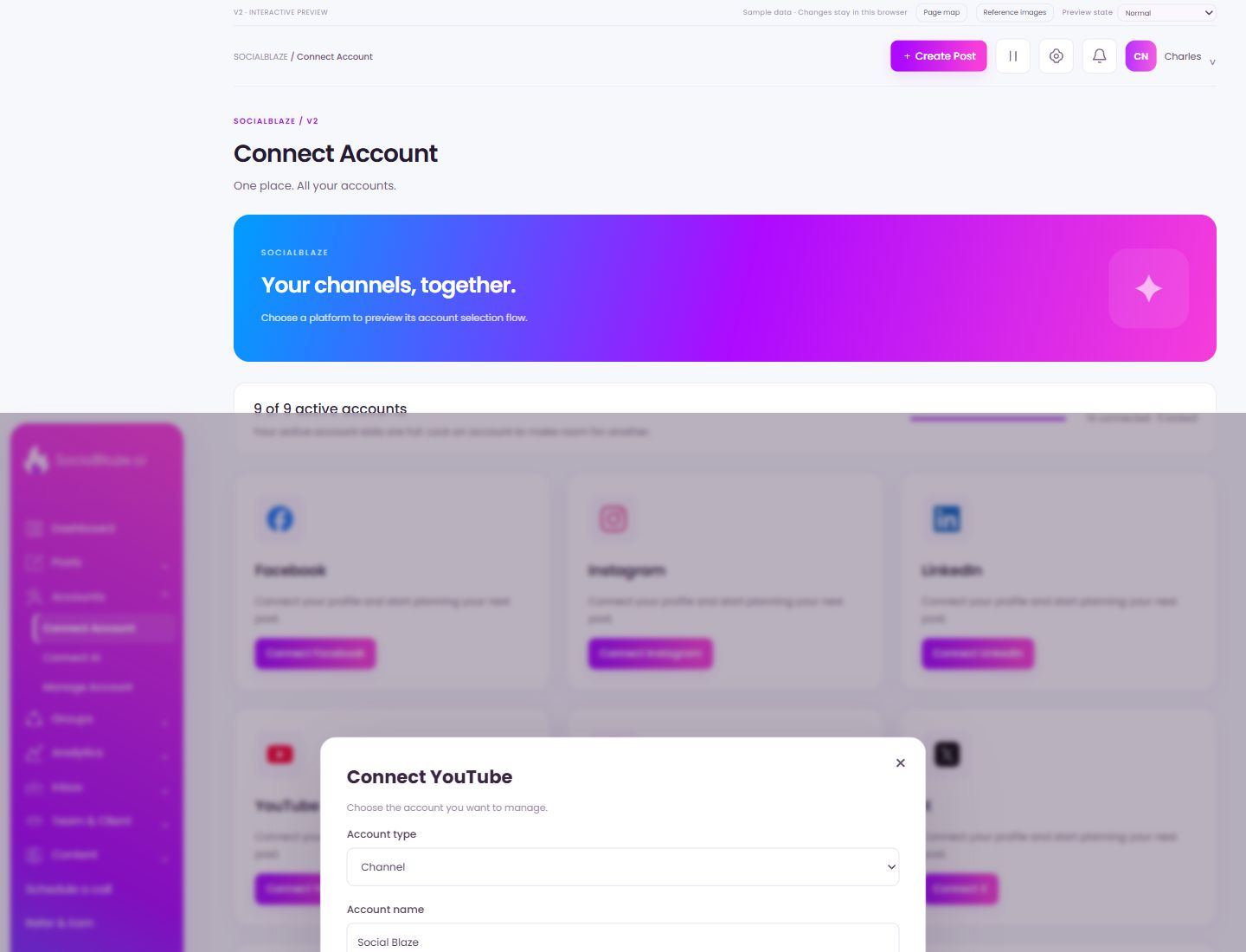
Close the settings dialog
Close the dialog when you have finished reviewing it. Use its Save action to apply intended edits; read any unsaved-change confirmation before leaving.
Choose the right connection type
Select the page, profile, channel, blog, or website type offered for this platform. The local preview illustrates the choice; the provider’s actual authorization flow may use different screens.
Check the account display name
Review the account name in this settings dialog. Verify its platform and identity before changing any values. Save only after checking all intended edits.
Leave without applying the dialog changes
Use Cancel when you do not want to apply the proposed change. If the screen has unsaved content, read any discard confirmation before continuing.
Check the simulated connection result
This button changes sample data in the local design preview. Use it to inspect the resulting connection state; it does not authorize a real social account or replace the provider’s live login flow.
Threads connection preview
Open the action on the intended item, then review the fields in this dialog. The focused illustrations below explain each setting separately.
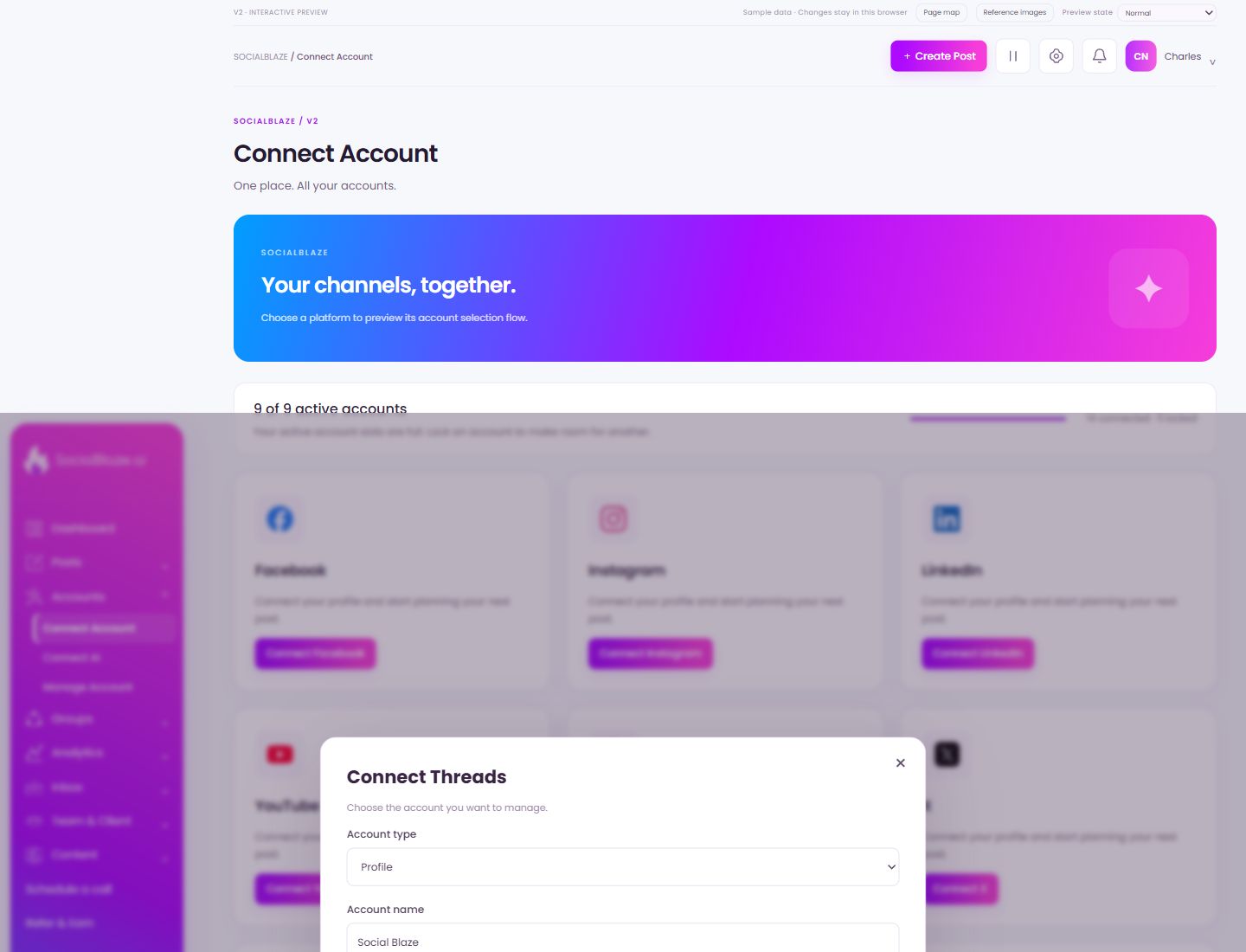
Close the settings dialog
Close the dialog when you have finished reviewing it. Use its Save action to apply intended edits; read any unsaved-change confirmation before leaving.
Choose the right connection type
Select the page, profile, channel, blog, or website type offered for this platform. The local preview illustrates the choice; the provider’s actual authorization flow may use different screens.
Check the account display name
Review the account name in this settings dialog. Verify its platform and identity before changing any values. Save only after checking all intended edits.
Leave without applying the dialog changes
Use Cancel when you do not want to apply the proposed change. If the screen has unsaved content, read any discard confirmation before continuing.
Check the simulated connection result
This button changes sample data in the local design preview. Use it to inspect the resulting connection state; it does not authorize a real social account or replace the provider’s live login flow.
X connection preview
Open the action on the intended item, then review the fields in this dialog. The focused illustrations below explain each setting separately.
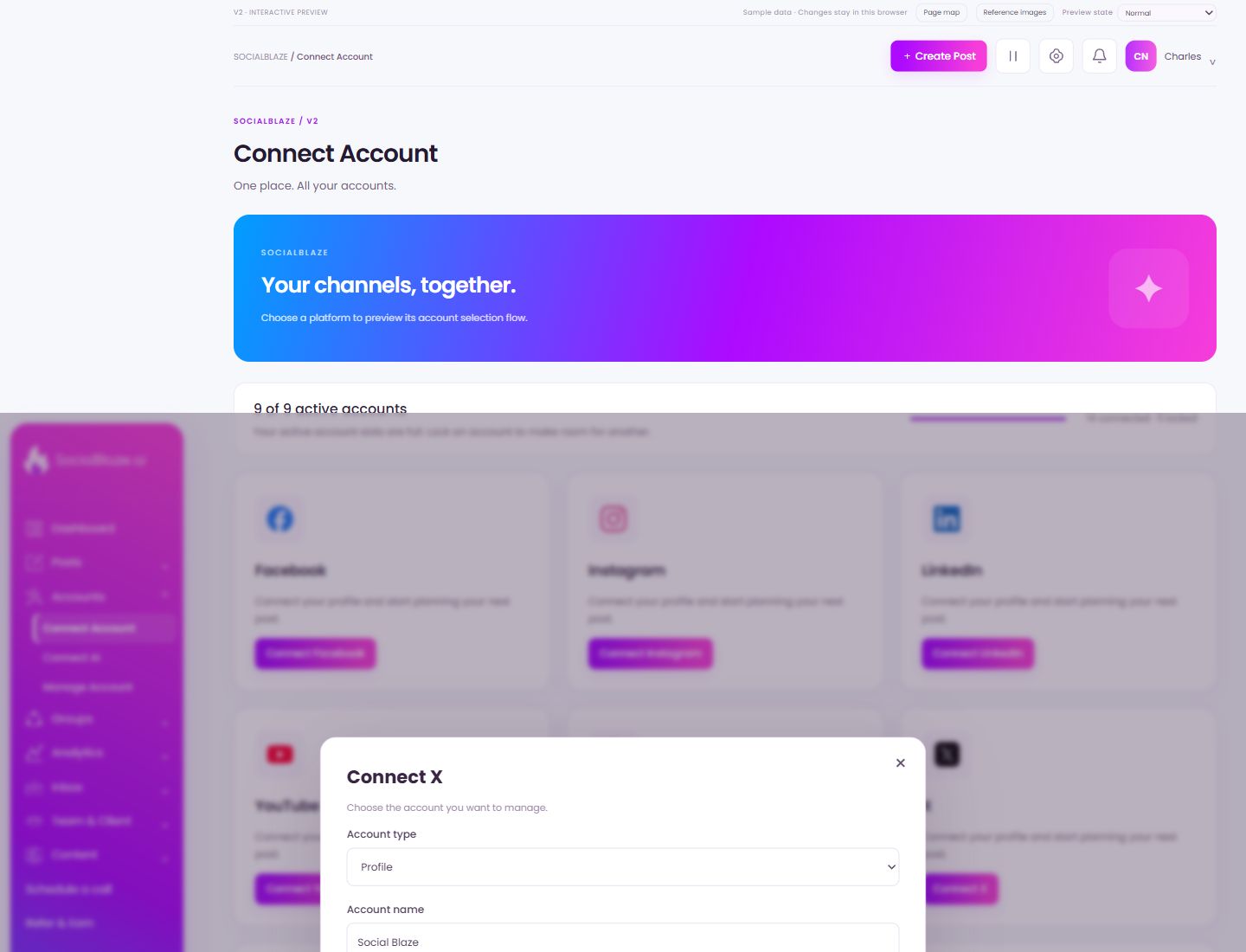
Close the settings dialog
Close the dialog when you have finished reviewing it. Use its Save action to apply intended edits; read any unsaved-change confirmation before leaving.
Choose the right connection type
Select the page, profile, channel, blog, or website type offered for this platform. The local preview illustrates the choice; the provider’s actual authorization flow may use different screens.
Check the account display name
Review the account name in this settings dialog. Verify its platform and identity before changing any values. Save only after checking all intended edits.
Leave without applying the dialog changes
Use Cancel when you do not want to apply the proposed change. If the screen has unsaved content, read any discard confirmation before continuing.
Check the simulated connection result
This button changes sample data in the local design preview. Use it to inspect the resulting connection state; it does not authorize a real social account or replace the provider’s live login flow.
Mastodon connection preview
Open the action on the intended item, then review the fields in this dialog. The focused illustrations below explain each setting separately.
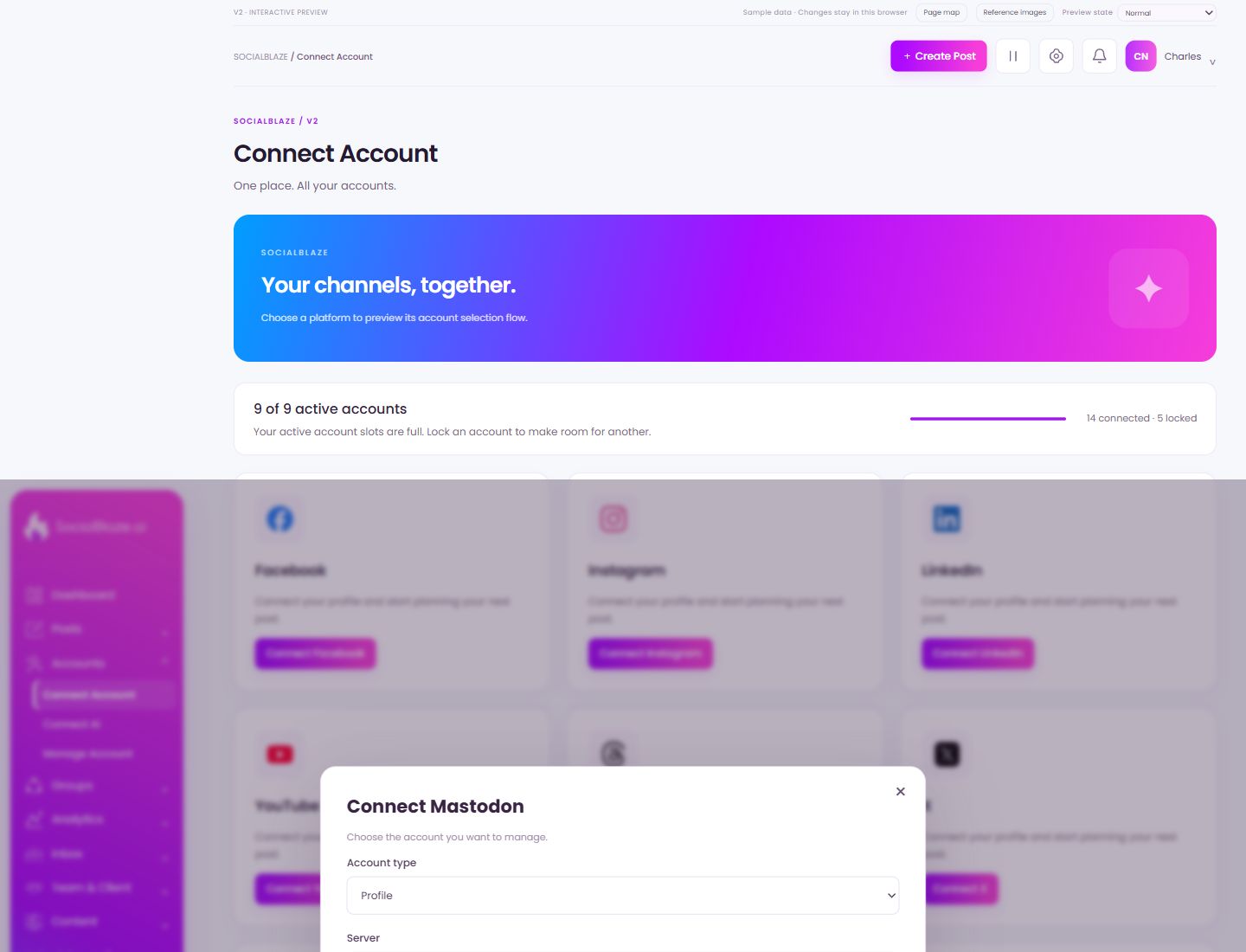
Close the settings dialog
Close the dialog when you have finished reviewing it. Use its Save action to apply intended edits; read any unsaved-change confirmation before leaving.
Choose the right connection type
Select the page, profile, channel, blog, or website type offered for this platform. The local preview illustrates the choice; the provider’s actual authorization flow may use different screens.
Identify the Mastodon server
Use the server associated with the Mastodon account you intend to connect. Review both the server and account identity before proceeding with authorization.
Check the account display name
Review the account name in this settings dialog. Verify its platform and identity before changing any values. Save only after checking all intended edits.
Leave without applying the dialog changes
Use Cancel when you do not want to apply the proposed change. If the screen has unsaved content, read any discard confirmation before continuing.
Check the simulated connection result
This button changes sample data in the local design preview. Use it to inspect the resulting connection state; it does not authorize a real social account or replace the provider’s live login flow.
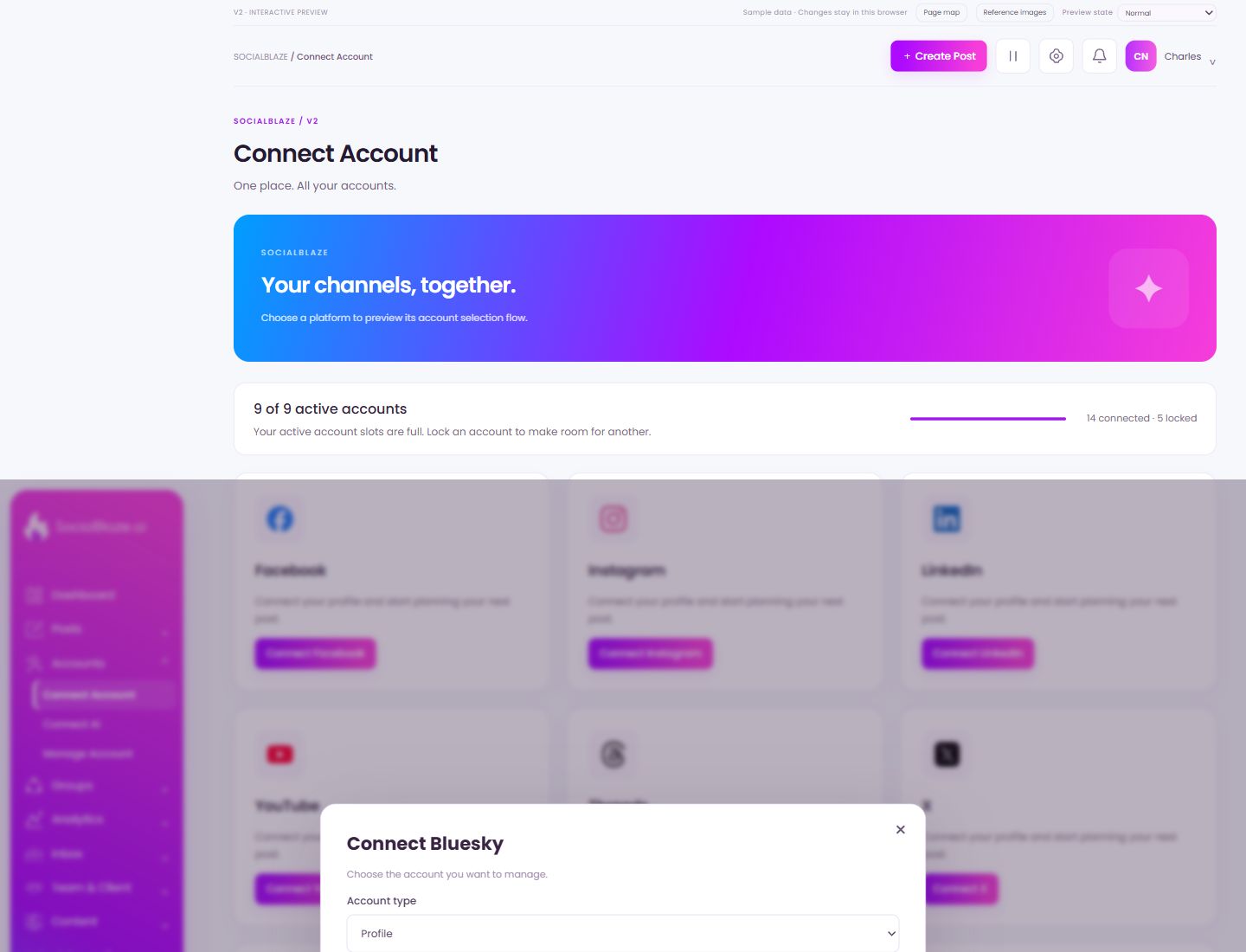
Bluesky connection preview
Open the action on the intended item, then review the fields in this dialog. The focused illustrations below explain each setting separately.
Close the settings dialog
Close the dialog when you have finished reviewing it. Use its Save action to apply intended edits; read any unsaved-change confirmation before leaving.
Choose the right connection type
Select the page, profile, channel, blog, or website type offered for this platform. The local preview illustrates the choice; the provider’s actual authorization flow may use different screens.
Check the account display name
Review the account name in this settings dialog. Verify its platform and identity before changing any values. Save only after checking all intended edits.
Leave without applying the dialog changes
Use Cancel when you do not want to apply the proposed change. If the screen has unsaved content, read any discard confirmation before continuing.
Check the simulated connection result
This button changes sample data in the local design preview. Use it to inspect the resulting connection state; it does not authorize a real social account or replace the provider’s live login flow.
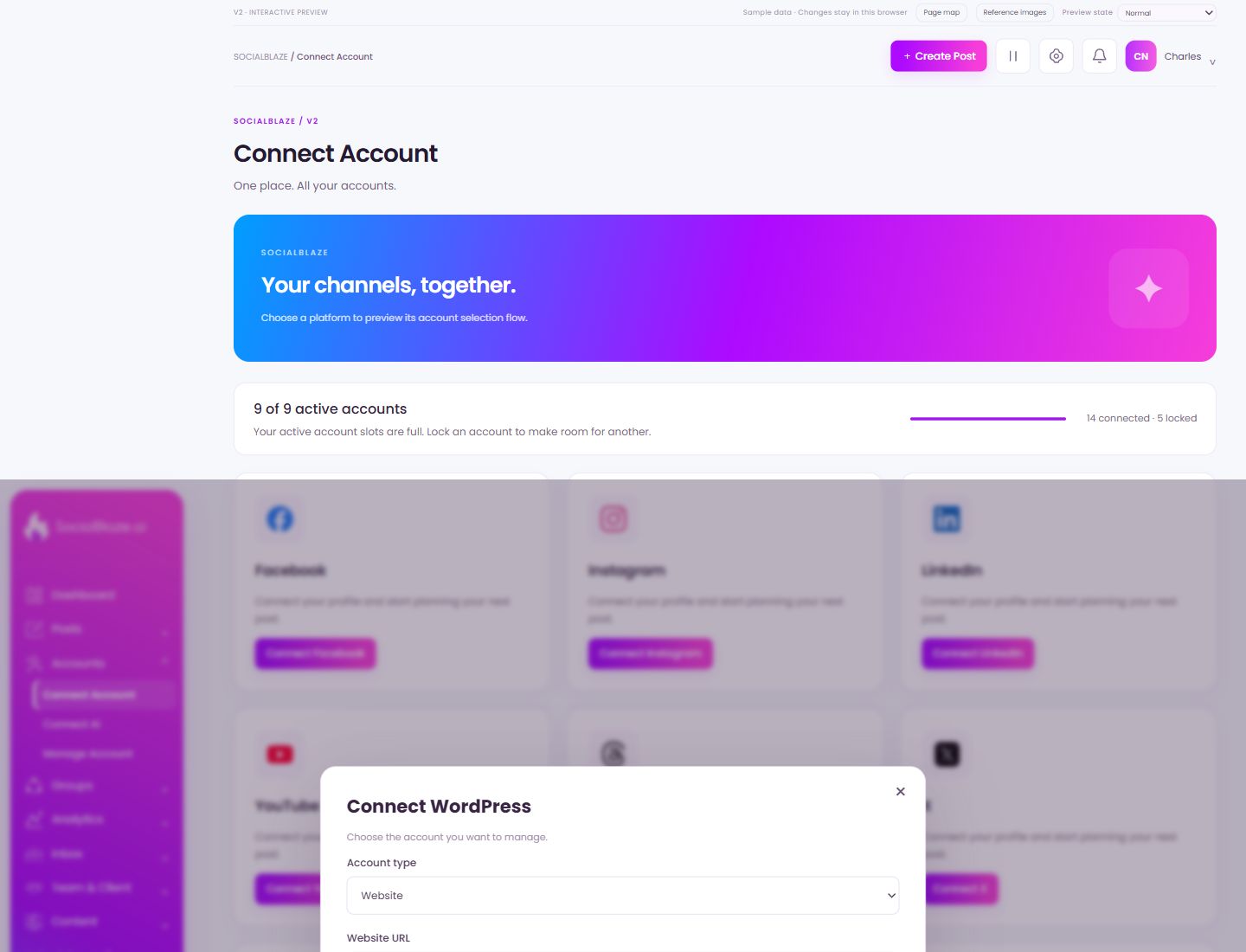
WordPress connection preview
Open the action on the intended item, then review the fields in this dialog. The focused illustrations below explain each setting separately.
Close the settings dialog
Close the dialog when you have finished reviewing it. Use its Save action to apply intended edits; read any unsaved-change confirmation before leaving.
Choose the right connection type
Select the page, profile, channel, blog, or website type offered for this platform. The local preview illustrates the choice; the provider’s actual authorization flow may use different screens.
Identify the WordPress website
Enter the intended website URL and check that it is the site you manage. The actual WordPress authorization requirements must be followed in the live connection flow.
Check the account display name
Review the account name in this settings dialog. Verify its platform and identity before changing any values. Save only after checking all intended edits.
Leave without applying the dialog changes
Use Cancel when you do not want to apply the proposed change. If the screen has unsaved content, read any discard confirmation before continuing.
Check the simulated connection result
This button changes sample data in the local design preview. Use it to inspect the resulting connection state; it does not authorize a real social account or replace the provider’s live login flow.
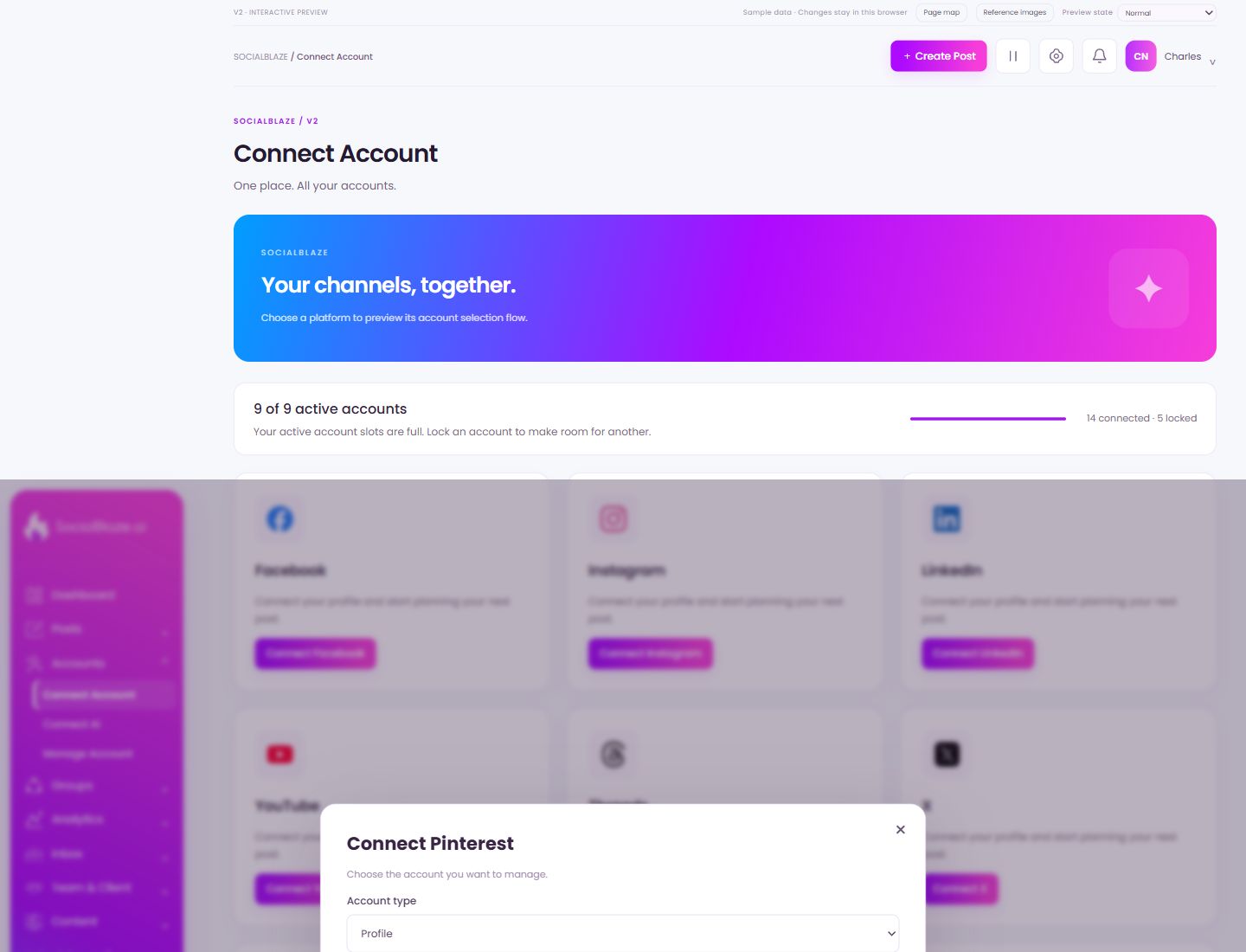
Pinterest connection preview
Open the action on the intended item, then review the fields in this dialog. The focused illustrations below explain each setting separately.
Close the settings dialog
Close the dialog when you have finished reviewing it. Use its Save action to apply intended edits; read any unsaved-change confirmation before leaving.
Choose the right connection type
Select the page, profile, channel, blog, or website type offered for this platform. The local preview illustrates the choice; the provider’s actual authorization flow may use different screens.
Check the account display name
Review the account name in this settings dialog. Verify its platform and identity before changing any values. Save only after checking all intended edits.
Leave without applying the dialog changes
Use Cancel when you do not want to apply the proposed change. If the screen has unsaved content, read any discard confirmation before continuing.
Check the simulated connection result
This button changes sample data in the local design preview. Use it to inspect the resulting connection state; it does not authorize a real social account or replace the provider’s live login flow.
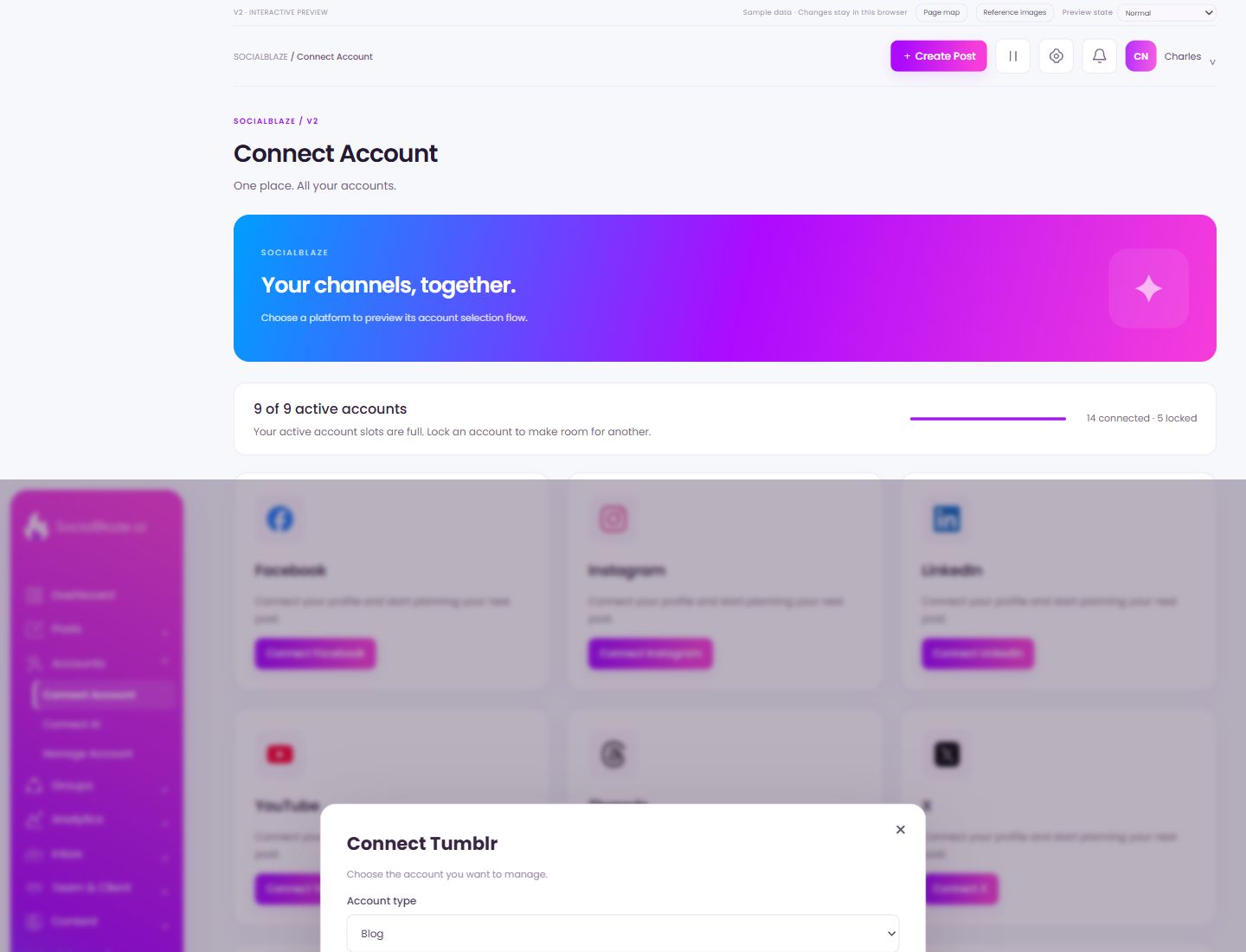
Tumblr connection preview
Open the action on the intended item, then review the fields in this dialog. The focused illustrations below explain each setting separately.
Close the settings dialog
Close the dialog when you have finished reviewing it. Use its Save action to apply intended edits; read any unsaved-change confirmation before leaving.
Choose the right connection type
Select the page, profile, channel, blog, or website type offered for this platform. The local preview illustrates the choice; the provider’s actual authorization flow may use different screens.
Check the account display name
Review the account name in this settings dialog. Verify its platform and identity before changing any values. Save only after checking all intended edits.
Leave without applying the dialog changes
Use Cancel when you do not want to apply the proposed change. If the screen has unsaved content, read any discard confirmation before continuing.
Check the simulated connection result
This button changes sample data in the local design preview. Use it to inspect the resulting connection state; it does not authorize a real social account or replace the provider’s live login flow.
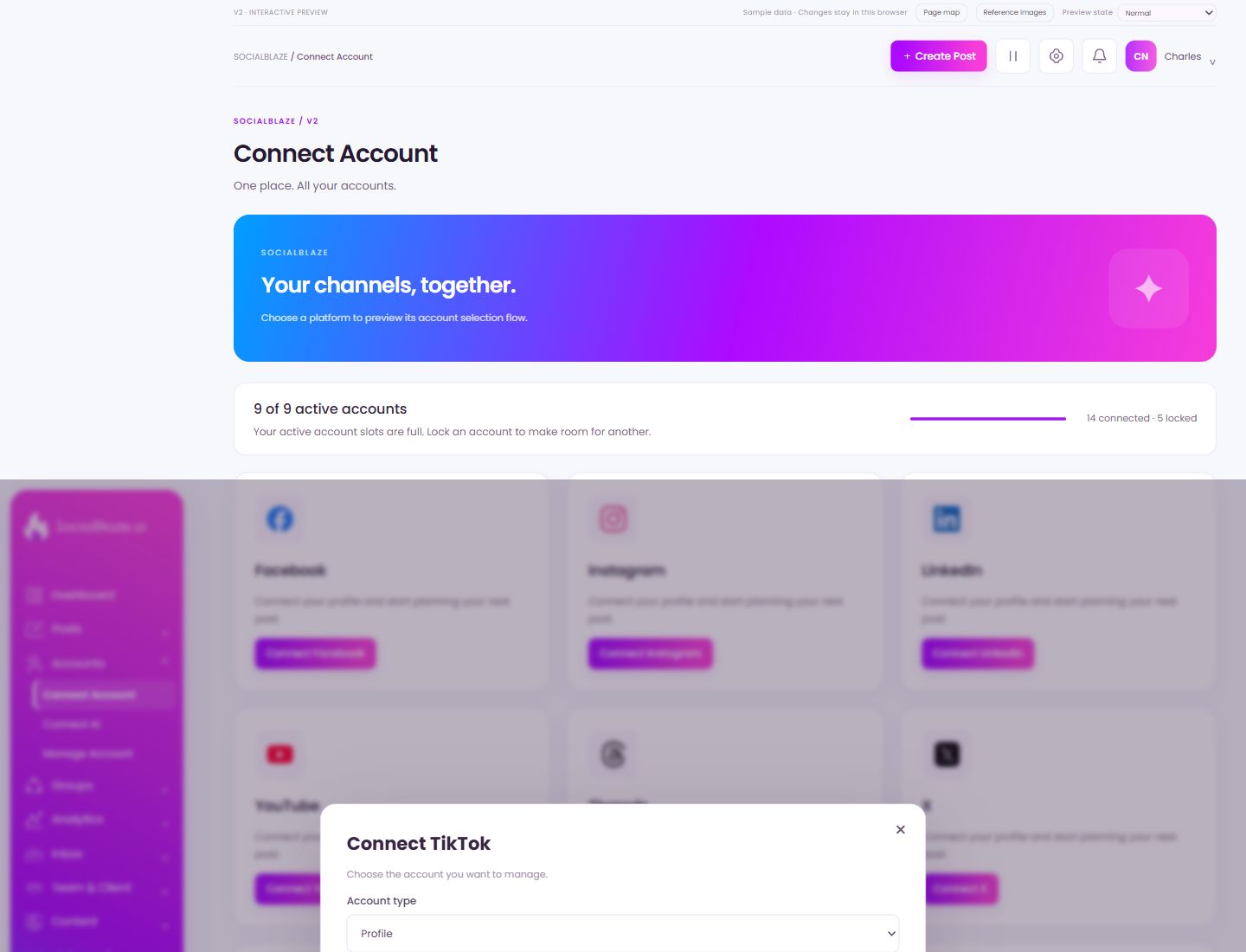
TikTok connection preview
Open the action on the intended item, then review the fields in this dialog. The focused illustrations below explain each setting separately.
Close the settings dialog
Close the dialog when you have finished reviewing it. Use its Save action to apply intended edits; read any unsaved-change confirmation before leaving.
Choose the right connection type
Select the page, profile, channel, blog, or website type offered for this platform. The local preview illustrates the choice; the provider’s actual authorization flow may use different screens.
Check the account display name
Review the account name in this settings dialog. Verify its platform and identity before changing any values. Save only after checking all intended edits.
Leave without applying the dialog changes
Use Cancel when you do not want to apply the proposed change. If the screen has unsaved content, read any discard confirmation before continuing.
Check the simulated connection result
This button changes sample data in the local design preview. Use it to inspect the resulting connection state; it does not authorize a real social account or replace the provider’s live login flow.