
Instagram Analytics · visual field guide
An illustrated tour of Instagram Analytics with focused images of its controls and settings.
Orient yourself on the page
Design-preview images. These captures use sample data from the redesigned workspace. Illustrations use sample data. Available controls and results depend on your connected platform and account permissions.
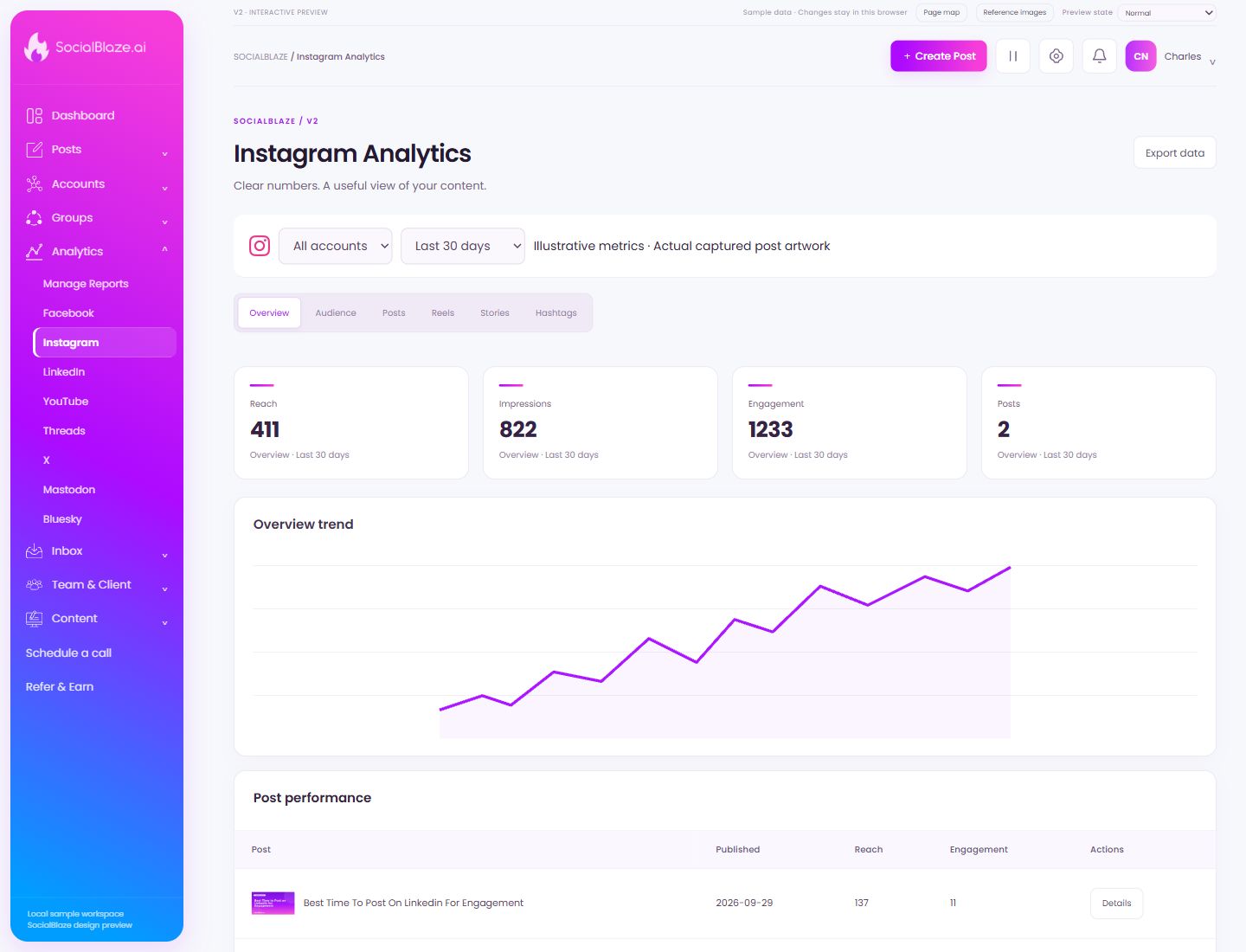
Use this overview to locate the main controls before following the focused illustrations below.
Download the current analytics selection
Choose the account, period, and analytics section first. Export the current selection and check the resulting file’s dates and account labels before sharing it.
Choose which account the numbers describe
Select the intended connected account before reading metrics. Account selection and date range work together; compare the same account and period when judging changes.
Choose the reporting period
Select the period you need, or set a custom range where available. Check the start and end dates before comparing totals or exporting data.
Start with the overall metrics
Overview brings the main totals and trend together. Read the selected account and period first. Use the more specific tabs to investigate the content or audience behind a change.
Inspect audience-related metrics
Open Audience to review the audience information provided for the selected account. Availability and definitions depend on the platform’s analytics support.
Work with comments on published posts
Use Posts to browse post conversations. Select a post in the left column; the main panel shows its original content and comments so your reply has context.
Review reel performance
Use Reels to focus on that content format. Keep the selected account and reporting period consistent when comparing it with other content types.
Review story performance
Open Stories for the metrics made available for that format. Check the selected period and the platform’s available data before treating missing metrics as zero activity.
Inspect hashtag content or performance
On analytics pages, use this tab for hashtag-related reporting. In the content library, the same label filters saved hashtag sets. Read the page heading to distinguish those workflows.
Inspect an individual result
Open Details for the intended post or result. Check its publication date, account, and metrics before comparing it with another item.