
Create Report · visual field guide
An illustrated tour of Create Report with focused images of its controls and settings.
Orient yourself on the page
Design-preview images. These captures use sample data from the redesigned workspace. Illustrations use sample data. Available controls and results depend on your connected platform and account permissions.
Use this overview to locate the main controls before following the focused illustrations below.
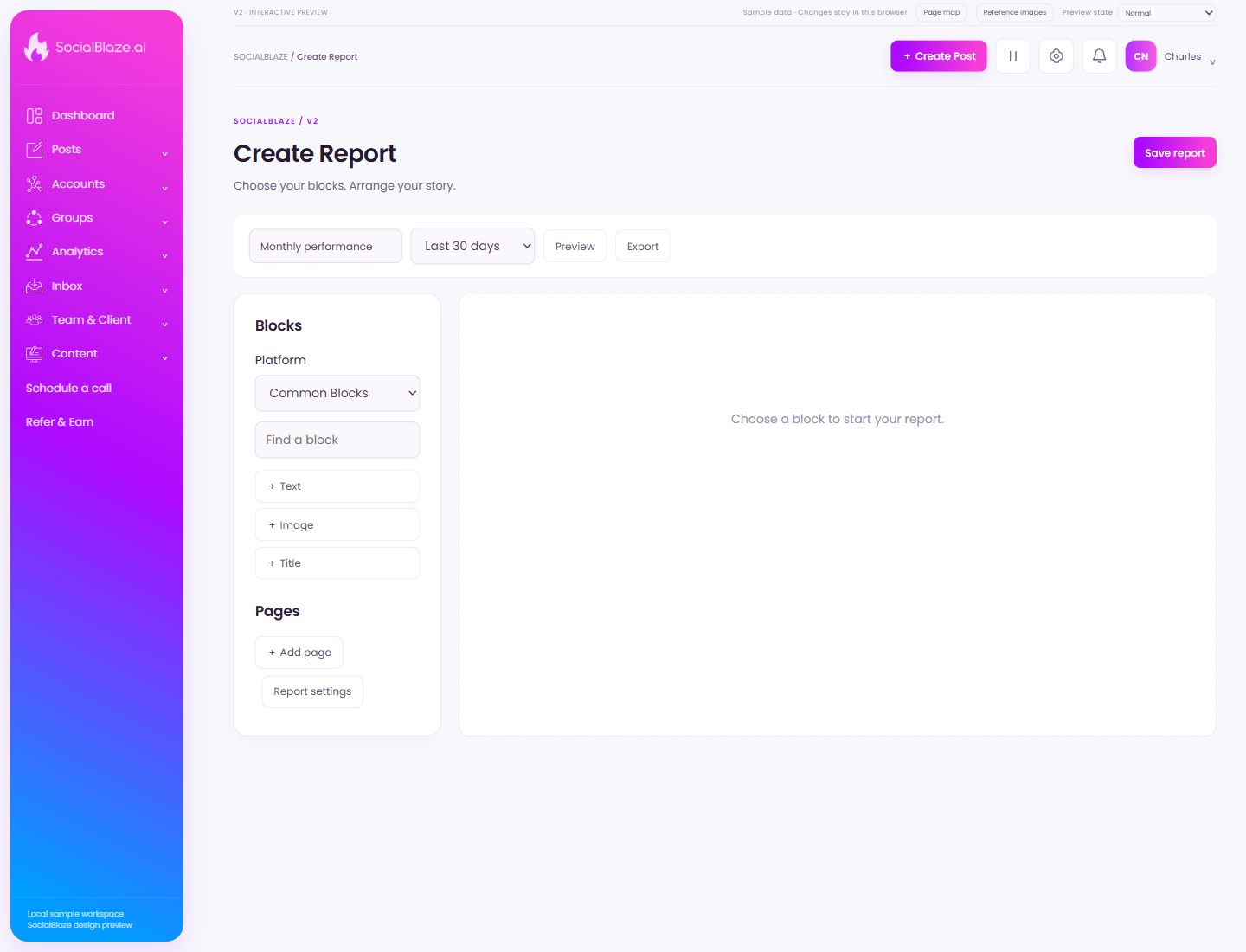
Save the report configuration
Check the report name, reporting period, pages, and chosen blocks. Save the configuration, then locate it in Manage Reports. Exporting a file is a separate action.
Name the report clearly
Use a name that identifies the client or workspace and the report’s purpose. The name makes it easier to find the saved report later and distinguish it from other configurations.
Choose the reporting period
Select the period you need, or set a custom range where available. Check the start and end dates before comparing totals or exporting data.
Review the complete report
Open Preview to inspect the assembled pages and blocks. Check layout, dates, account labels, and any explanatory text before exporting or sharing the report.
Export the reviewed report
Preview the report first. Confirm its account scope and reporting period, then export the file. Inspect the downloaded result before sharing it with a client.
Choose a block collection
Select the network whose report blocks you need, or Common Blocks for general layout content. Review the account and period represented by each added metric block.
Locate a report block
Search the block library for the metric or content block you need. Check the block’s network and account context before adding it to the report page.
Add explanatory text
Add a text block when the numbers need context. Explain what the reader should notice without making claims beyond the underlying metrics. Preview its placement and readability.
Add a report image
Use an image block for relevant artwork or supporting visuals. Choose a clear image and review how it fits on the page rather than relying only on the original file dimensions.
Add a section title
Use a title block to separate report sections. Keep the title descriptive and check its relationship to the blocks below it in Preview.
Extend the report
Add another page when a section needs room. Review the page order and avoid leaving empty pages in the exported report.
Review report-level options
Open Report settings before the final preview. Check the options that apply to the complete report, then inspect the assembled pages after applying them.
Report settings
Open the action on the intended item, then review the fields in this dialog. The focused illustrations below explain each setting separately.
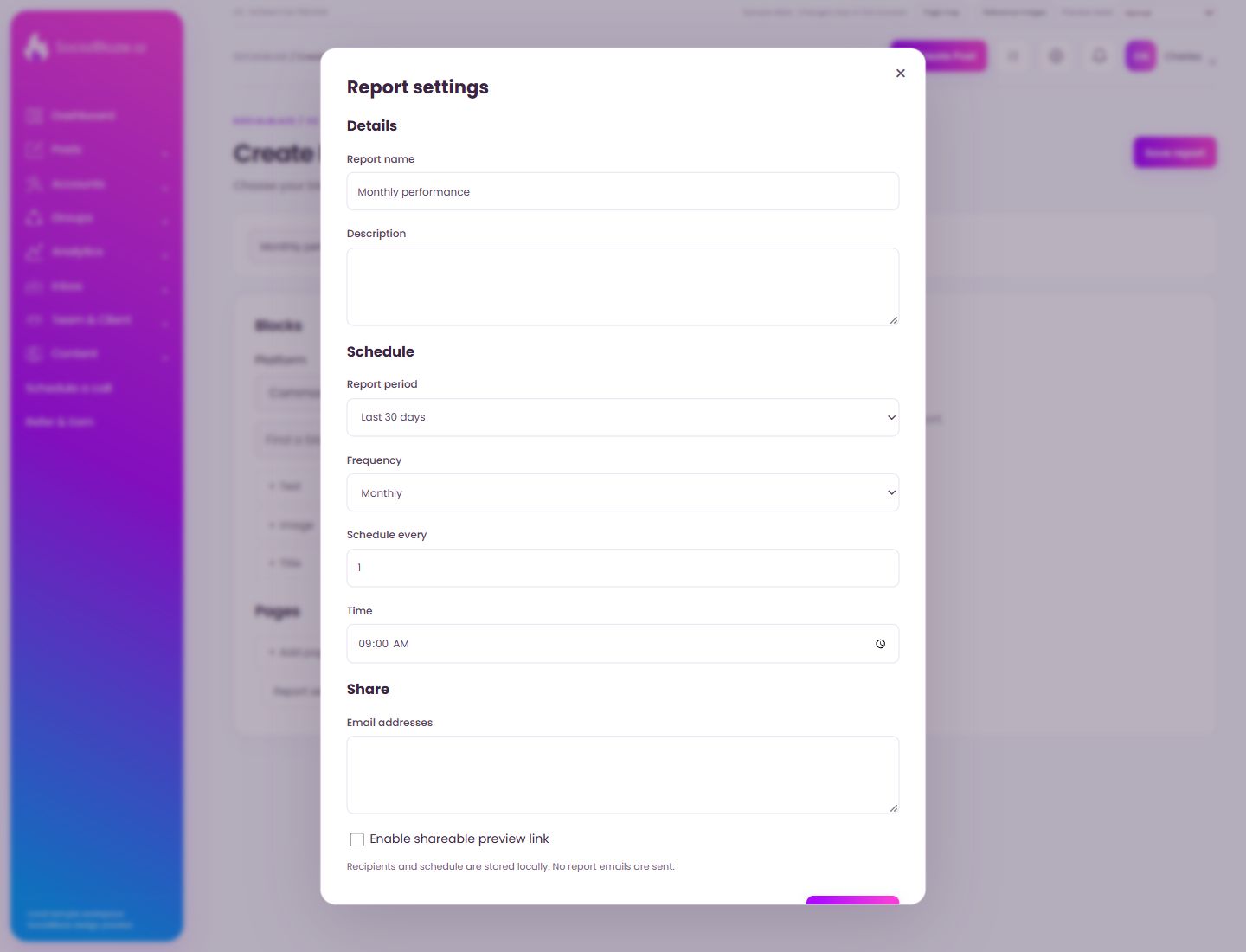
Close the settings dialog
Close the dialog when you have finished reviewing it. Use its Save action to apply intended edits; read any unsaved-change confirmation before leaving.
Name the report clearly
Use a name that identifies the client or workspace and the report’s purpose. The name makes it easier to find the saved report later and distinguish it from other configurations.
Explain the report’s purpose
Add context that helps a reader understand the report. Review the period, account selection, and metric blocks separately; a description does not change the underlying data.
Choose the report’s date scope
Select the period represented by the report. Check the dates in Preview and compare the same scope when reviewing changes over time.
Choose report delivery frequency
Review the recurring delivery frequency offered by the report settings. Check the recipients, scheduled day, and time before enabling a delivery schedule.
Choose the scheduled report interval
Set the interval or day used by recurring reporting. Pair it with Frequency and Time, then review the intended recipients before saving settings.
Set and check the time
Choose the intended hour and minute. Check AM/PM if the field uses a 12-hour display, and confirm the account’s timezone before saving.
Review report recipients
Enter only the recipients intended to receive this report. Check each address and the report’s account scope before enabling delivery.
Review link-based report access
Enable a preview link only when you intend the report to be accessible through that link. Review the report’s contents and intended audience before sharing it.
Apply the report settings
Check the report name, period, schedule, recipients, and preview-link option. Save settings, then reopen them to confirm the intended configuration.