
Manage Reports · visual field guide
An illustrated tour of Manage Reports with focused images of its controls and settings.
Orient yourself on the page
Design-preview images. These captures use sample data from the redesigned workspace. Illustrations use sample data. Available controls and results depend on your connected platform and account permissions.
Use this overview to locate the main controls before following the focused illustrations below.
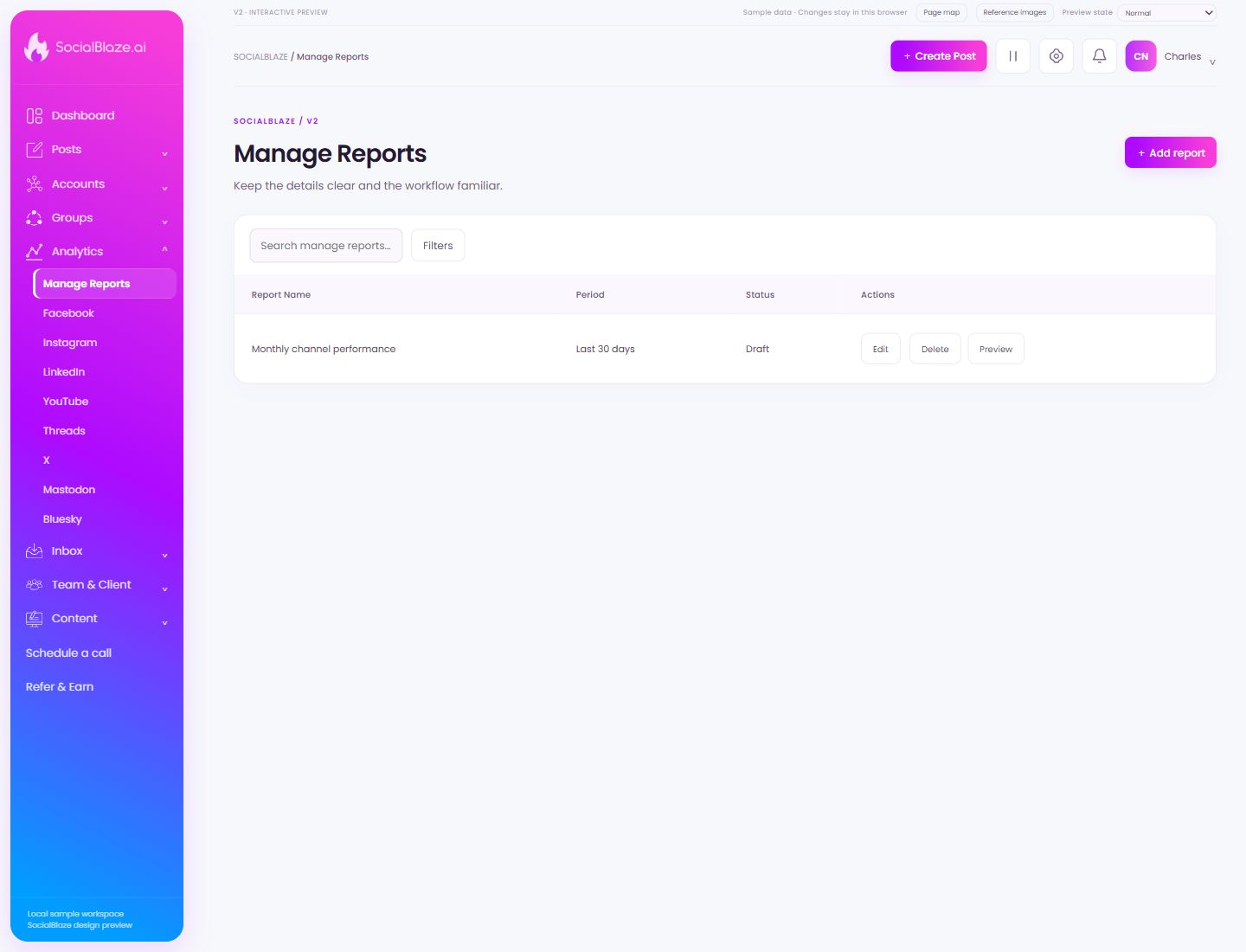
Create a new report
Open the report builder, choose a meaningful report name, and select the account and period represented by its blocks. Preview the report before saving or exporting.
Search this collection
Enter a recognizable part of the item’s name. The current filters still apply to this search. Clear the query to return to the full selected collection.
Narrow the current list
Open Filters to see the options for this page. Apply only the conditions you need. If a known item disappears, review the active filters before assuming it was removed.
Open this item’s settings
Choose Edit on the intended row. Review the dialog before saving. A row action applies to that item, so check the name and platform rather than relying on its position in the list.
Review removal before confirming
Identify the exact item first, then read the confirmation carefully. Cancel if you only intended to edit, reconnect, or lock it. Removing a connection is different from deleting a social profile on its own platform.
Review the complete report
Open Preview to inspect the assembled pages and blocks. Check layout, dates, account labels, and any explanatory text before exporting or sharing the report.